
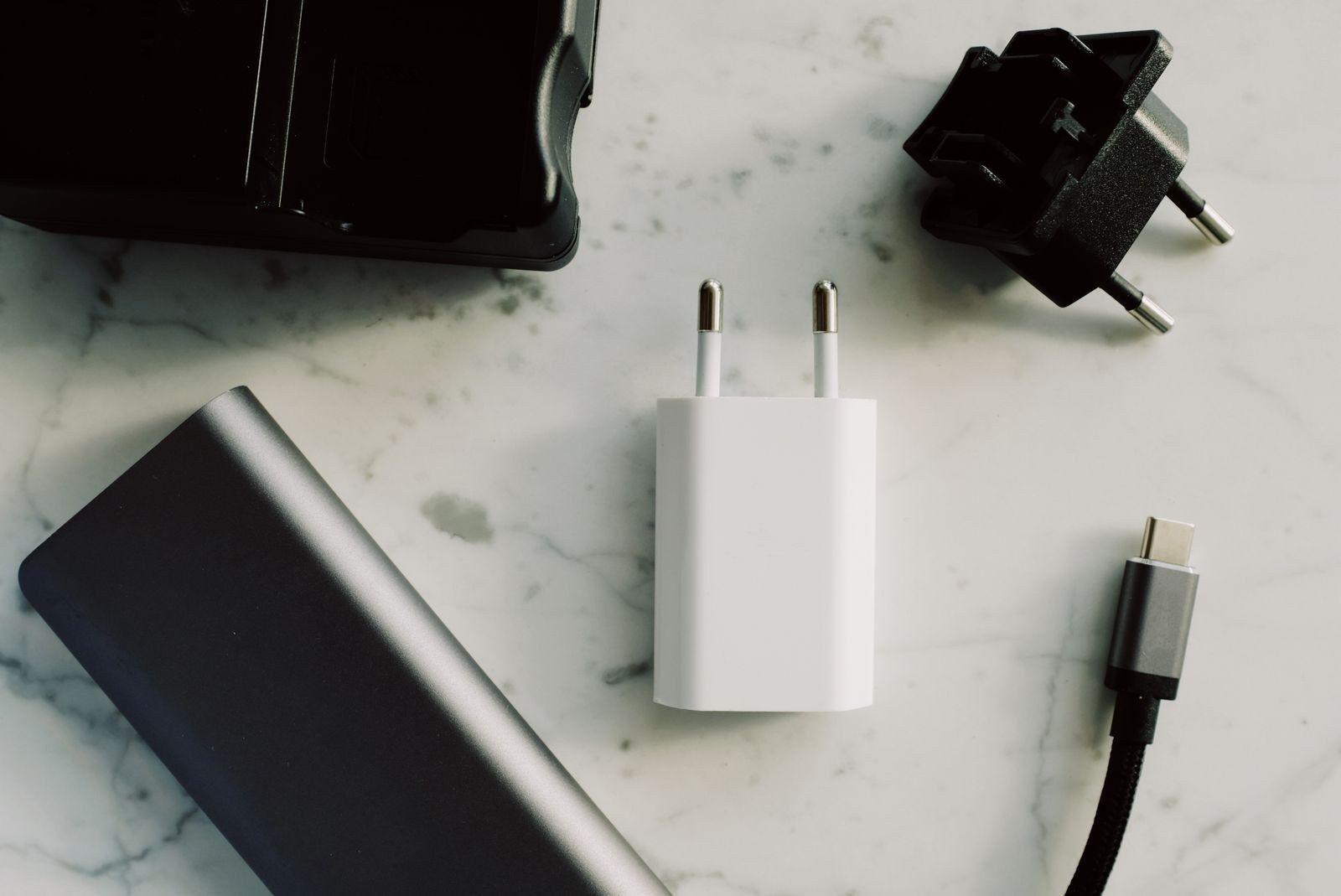
One plug, three separate capabilities
USB-C identifies a connector, not a single performance level. Two cables with identical-looking plugs can support different charging power, file-transfer speeds and display features. The useful questions are separate: how much power can this cable carry, how quickly can it move data, and can it carry the video signal you need?
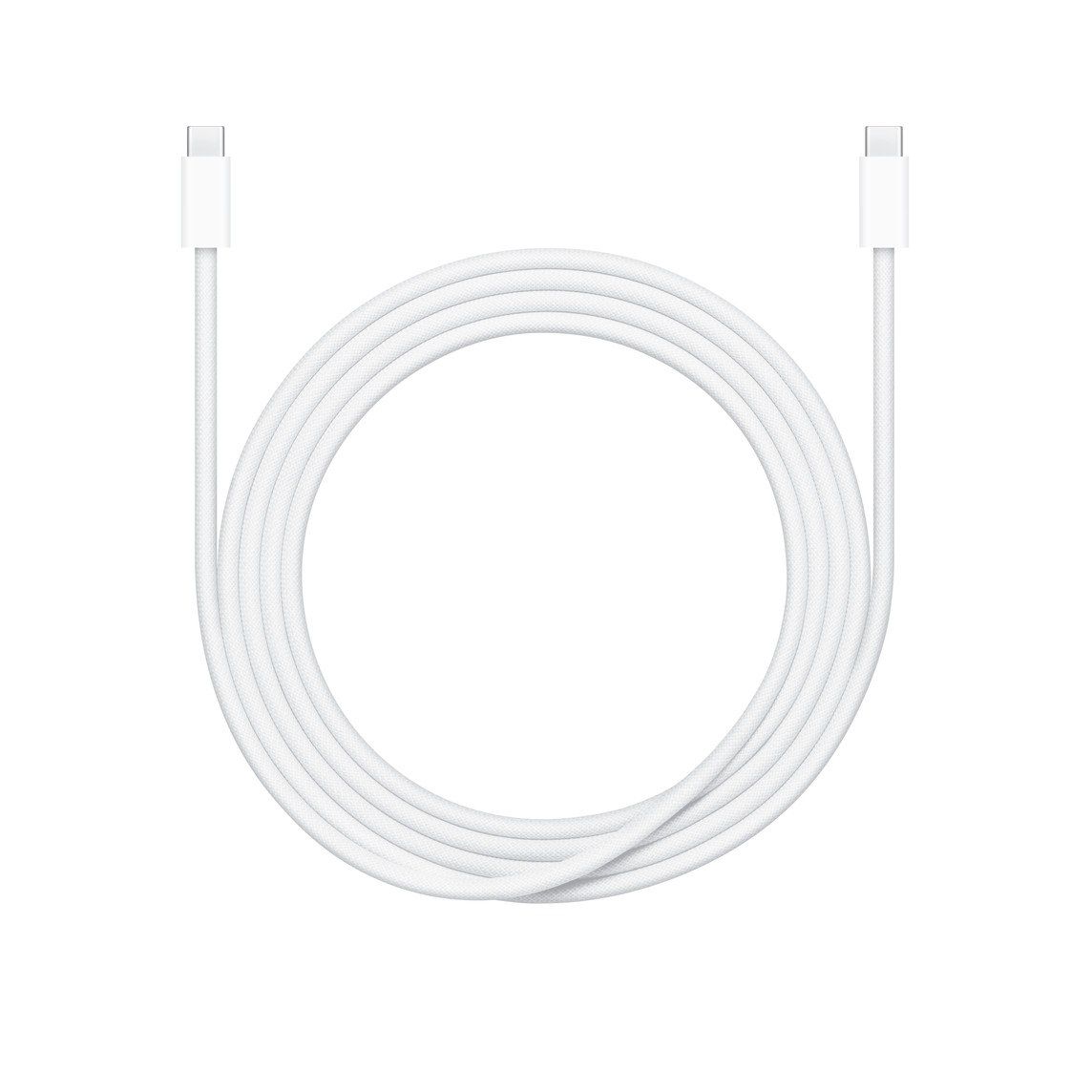
Apple's 240W USB-C charge cable makes the distinction clear. Its specification lists USB 2 data transfer. The high power rating is useful for compatible charging setups, but does not make the cable a fast connection for an external SSD.
Transfers are limited by the slowest part of the path, including the port, cable, adapter and drive. Replacing the cable cannot upgrade the computer's port. Our NVMe versus SATA guide explains what the storage device itself contributes.
Read power and data ratings independently
A wattage rating describes the power a cable can carry in a compatible setup. It does not force that much power into the connected device. A phone, laptop or charger with a lower limit will not reach 240W just because the cable supports it.
For transfers, look for an explicit Mbps or Gbps rating. USB-IF's certification program requires power markings and, except for USB 2 cables, data-rate markings on USB-C to USB-C cables. That is a certification requirement, not evidence that every cable on sale meets it. A listing that only says fast charging has not answered the file-transfer question.
For a display, both the source port and cable need to support the video connection you intend to use. Our USB-C monitor compatibility guide walks through the checks.
Buy for the task, then test it
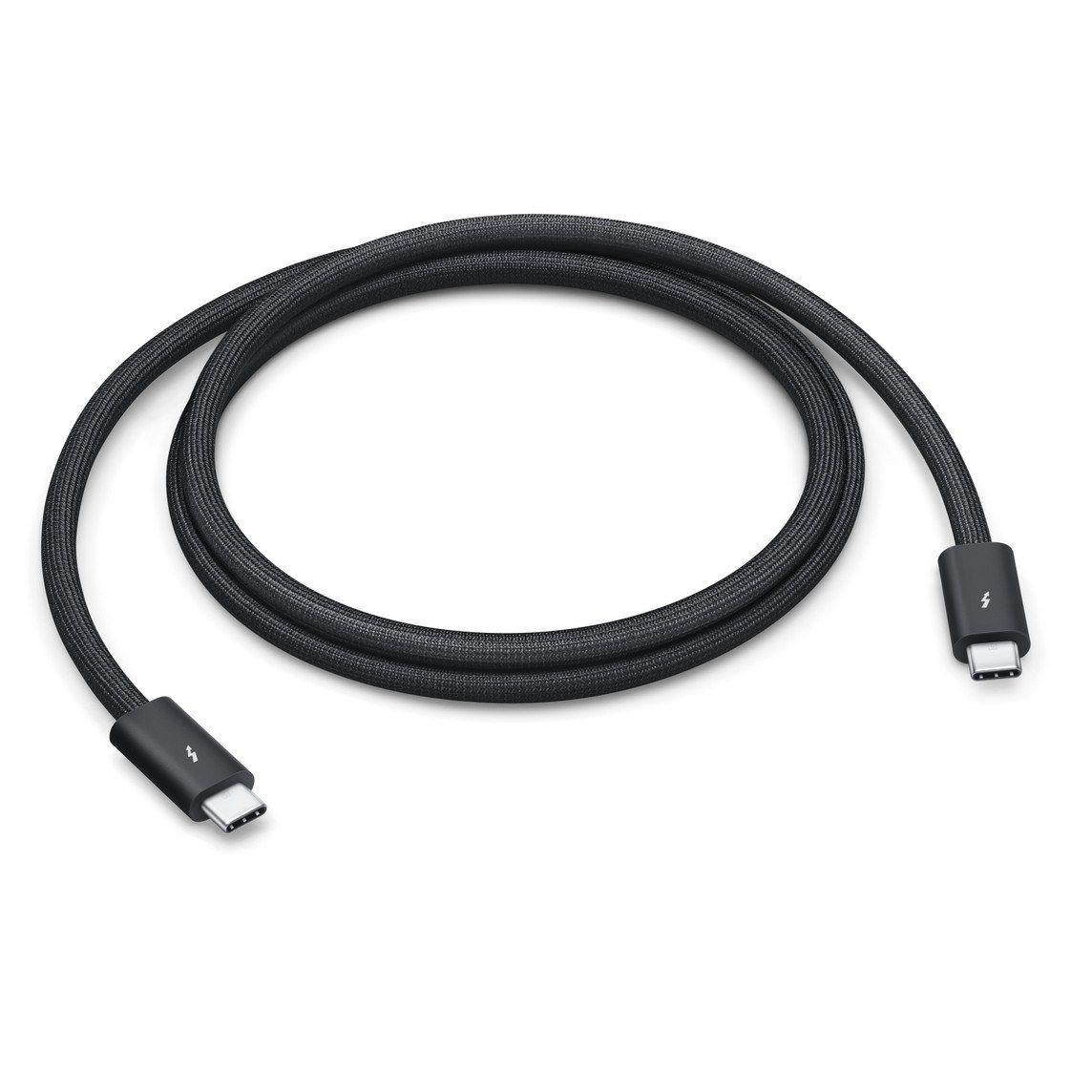
Charging needs the power rating and protocol your device requires. An external drive also needs an appropriate data rate. A display or dock needs explicit support for video at the resolution and refresh rate you want. Thunderbolt uses USB-C connectors too, but its generation and the cable's capabilities still need checking.
Test one function at a time after connecting it. Copy an existing large file between suitable drives, check that the operating system detects the display, and inspect its refresh-rate setting. If the picture appears but motion still disappoints, separate FPS from monitor refresh rate. A new cable cannot make the game render more frames.
The conversation starts here
Sign in with a supporter account to comment. Sign in

Nobody has commented yet. Want to go first?