
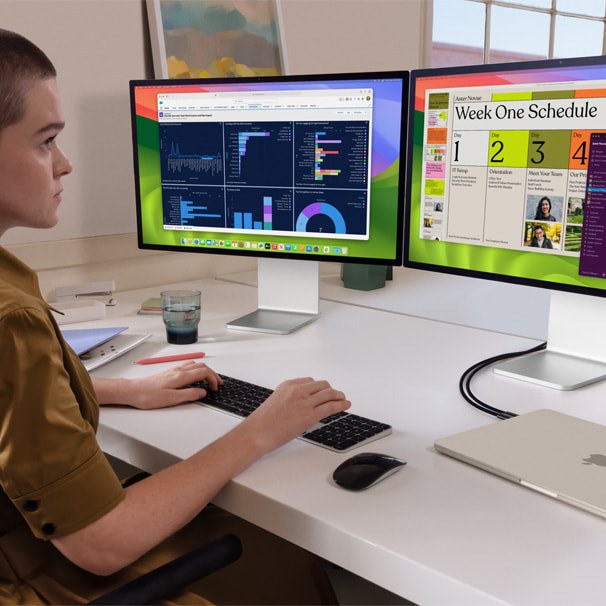
Identify the hardware before buying anything
Two HDMI sockets can light up two monitors without providing two independent desktops on a Mac. A duplicated image may come from display settings, the adapter’s technology or the computer’s native display limit. It does not automatically mean either monitor is faulty.
Open the Apple menu and select About This Mac. Record the exact model and chip, including Pro or Max where applicable. Find that computer’s external-display specifications on Apple’s site. Counting USB-C ports is not a reliable way to determine the supported number. Our USB-C video guide explains the separate question of whether a connection carries video at all.
Test each monitor without the dock
Connect one display directly through a supported cable or adapter, then test the other through the same connection. If each works alone but they fail together, investigate the combined connection and display limit before replacing a monitor. Individual success does not prove simultaneous support.
In System Settings, open Displays. If both monitors appear independently, check that each is configured as an extended display rather than a mirror. Arrange their positions to match the desk. If the adapter is merely repeating one video signal, this setting cannot create another independent signal.
Why an MST adapter can behave differently on Windows
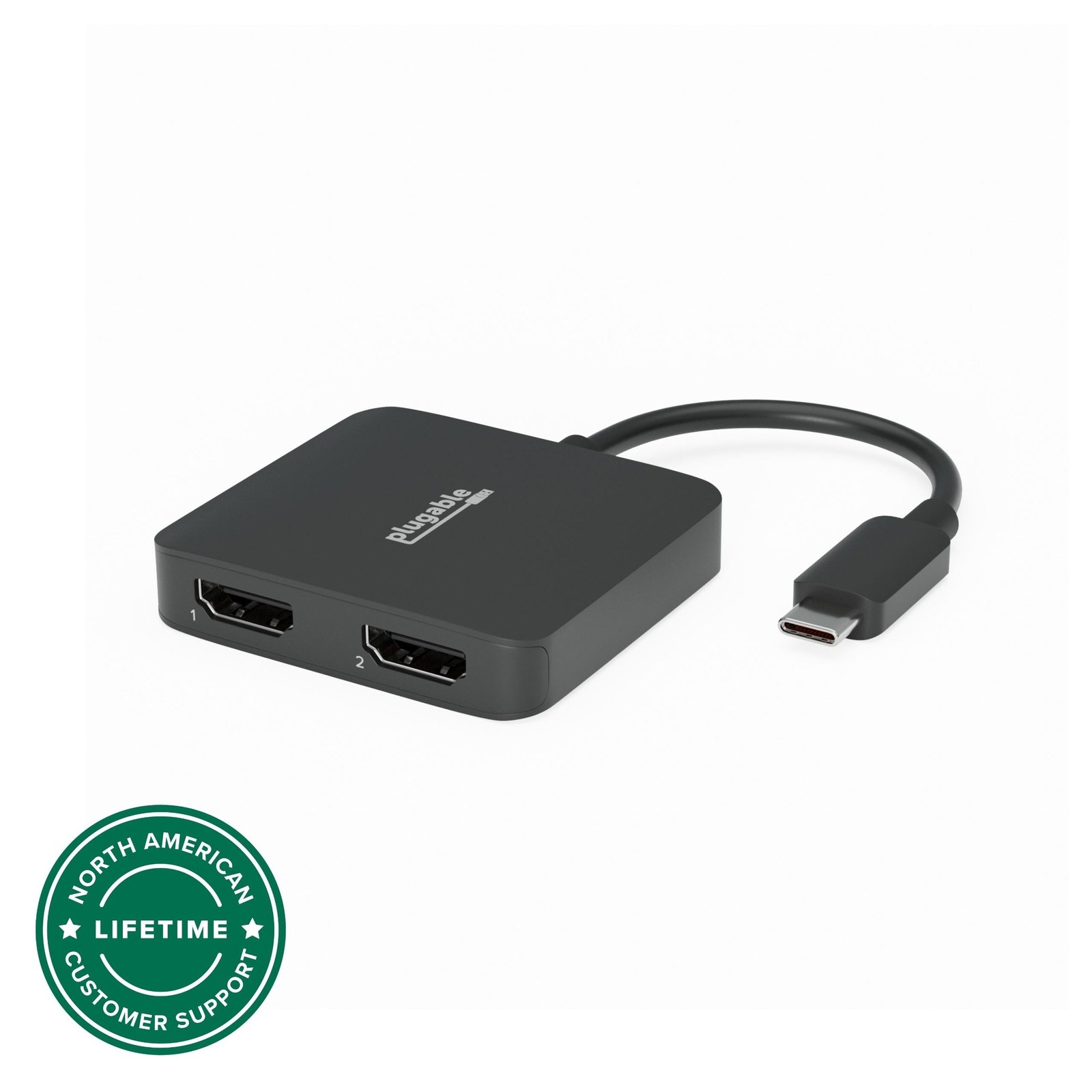
Multi-Stream Transport, or MST, carries multiple video streams through one DisplayPort connection. Some USB-C adapters use it for extended Windows desktops, but that arrangement does not provide the same functionality on macOS. Plugable documents this for its USBC-MSTH2, whose two outputs mirror on a Mac instead of providing separate extended desktops.
Look for explicit support for two extended displays on your exact Mac, at the resolution and refresh rate you need. “Dual HDMI” and “Mac compatible” are not sufficient descriptions. A compatible Thunderbolt dock can use a different connection arrangement, but it cannot erase the computer’s native display limit. Check the USB-C cables too, since matching connectors do not guarantee matching capabilities.
Lid requirements and software-driven displays
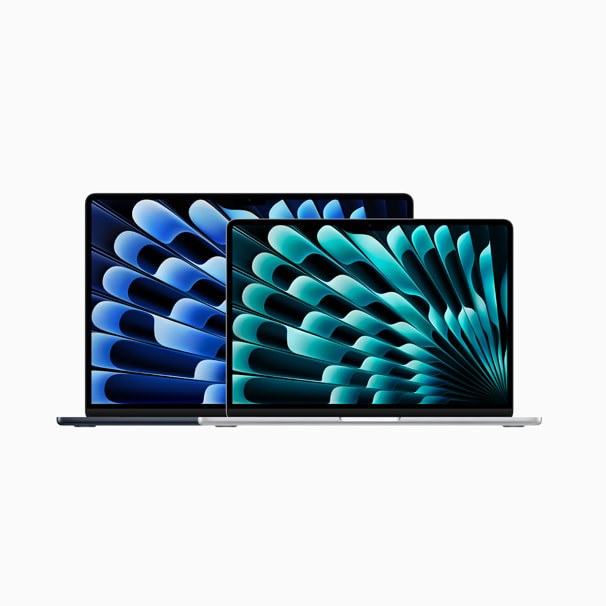
For a specific example, Apple supports two external displays on base-M3 MacBook Air and MacBook Pro with the lid closed, power connected and an external keyboard and mouse. The Air requires Sonoma 14.3 or later, the Pro 14.6 or later. Opening the lid disconnects one external display. Other MacBook models have different rules.
DisplayLink takes another route, sending software-driven display pixels over USB. It requires compatible hardware, so installing its app does not convert an arbitrary dock. The official setup instructions require Screen Recording permission so the driver can access the pixels it sends to the display. If you want to avoid extra software, first establish whether a supported native connection meets your needs.
The conversation starts here
Sign in with a supporter account to comment. Sign in

Nobody has commented yet. Want to go first?