
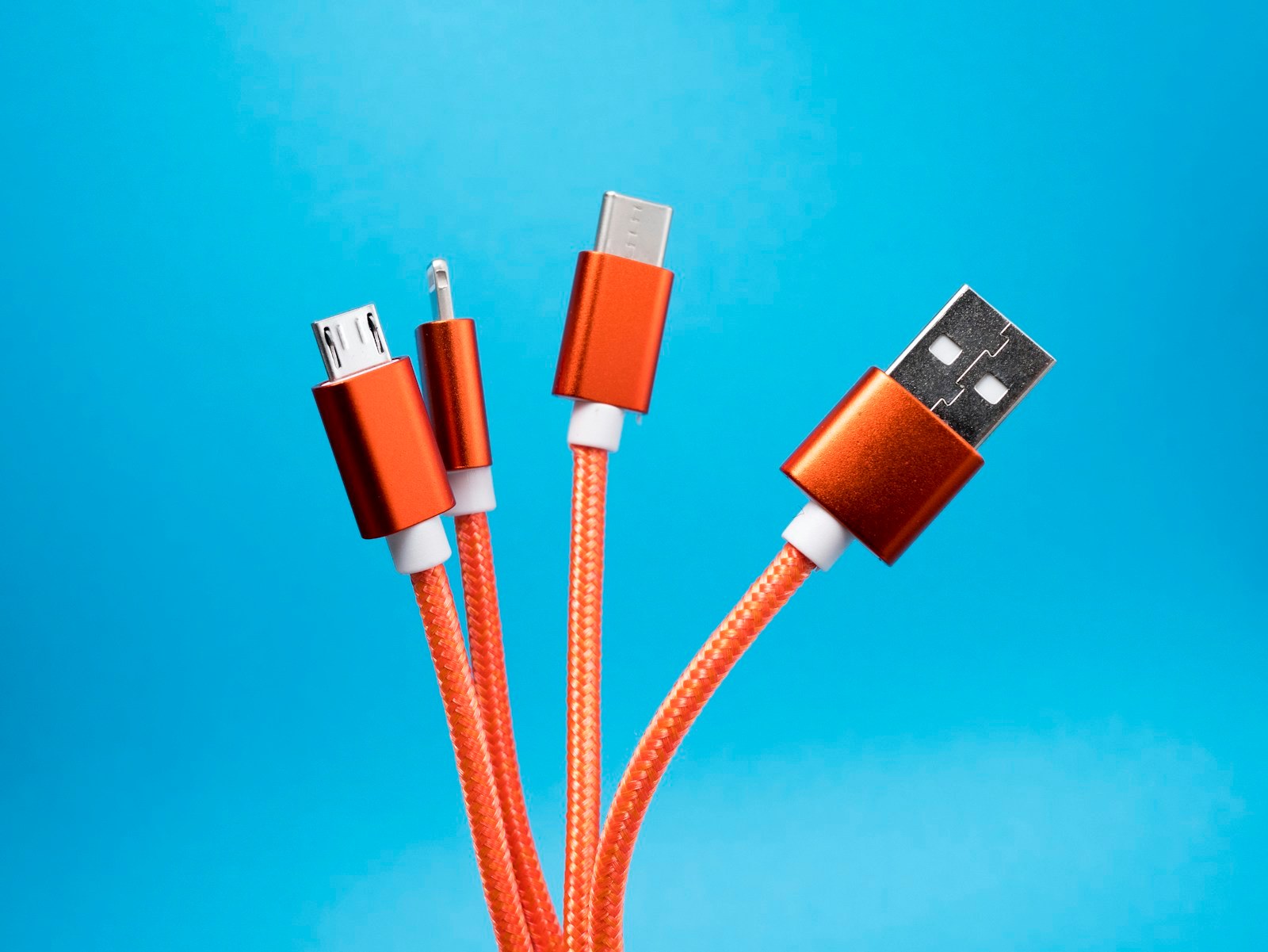
A USB-C port can charge a laptop and transfer files without supporting video output. A monitor connection needs a video-capable port, a cable that carries the signal and a compatible display input. The reversible connector only tells you how it plugs in.
Before buying another cable, look up your exact laptop model and its port specifications. DisplayPort Alt Mode is the term you will often need: it carries DisplayPort video through a USB-C connector. VESA's explanation covers the feature and why connector shape alone is not enough.
Check the individual port
The USB-C ports on one computer can have different capabilities. Identify the port you are using in the manual and check for display output through DisplayPort or Thunderbolt. A symbol can help, but an unmarked port needs a specification check. Dell gives the same advice when troubleshooting its portable monitors.
If the port only supports power and data, an ordinary USB-C-to-HDMI adapter cannot add native video output. Use another display output, such as HDMI or DisplayPort, if the laptop has one. USB graphics products that require their own software are a separate category, not an interchangeable cable.
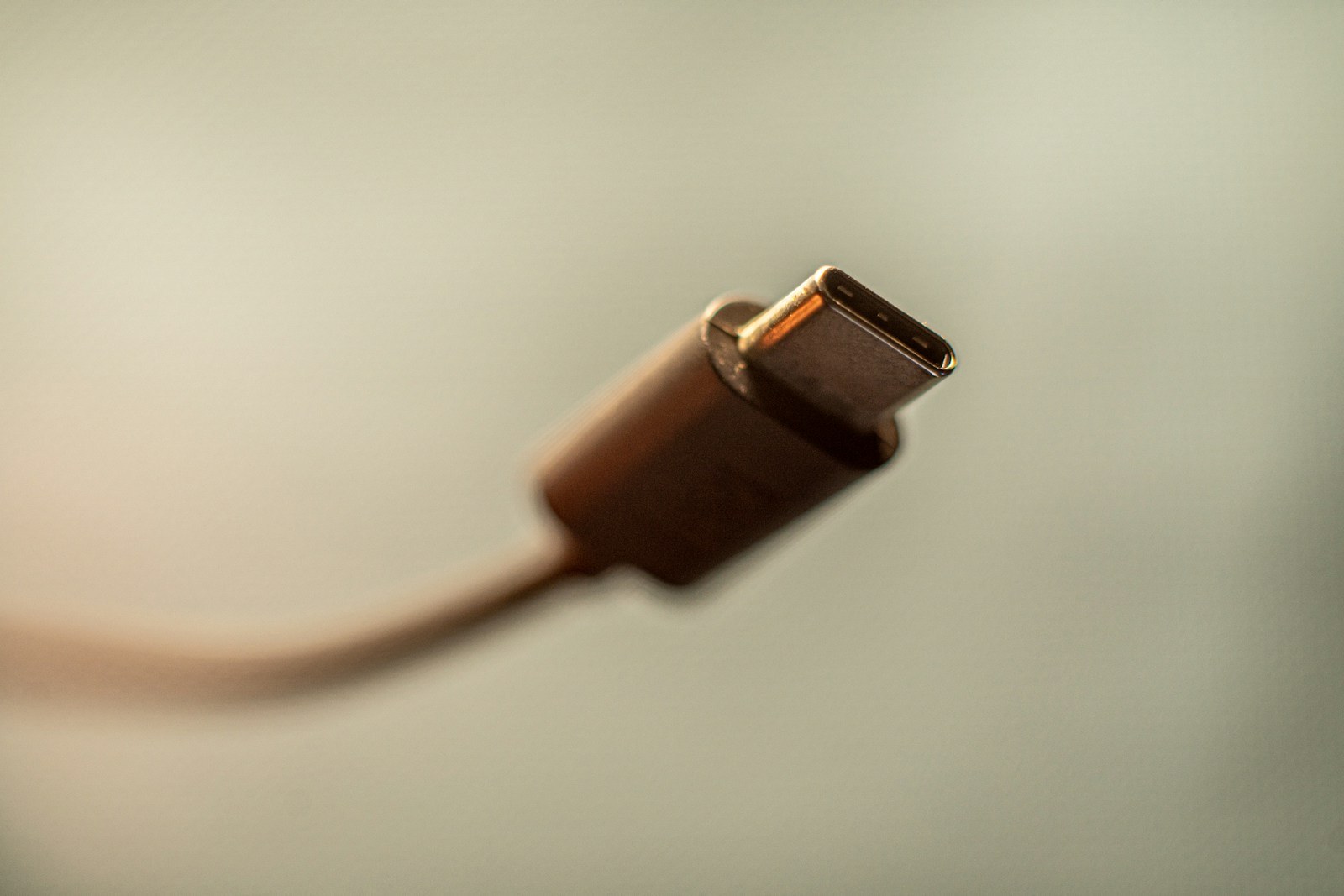
A charging cable may be the missing link
Check that the cable specifications explicitly support video and list the resolutions and refresh rates you need. A high wattage rating describes power delivery, not display support. If your monitor shipped with a cable intended for its USB-C video input, start with that one.
Check the monitor's socket too. Some displays have a USB-C input from the computer and other ports intended for accessories or charging. Select the correct input in the monitor menu. Adapters can also be directional: a USB-C output to HDMI input adapter will not necessarily work in reverse.
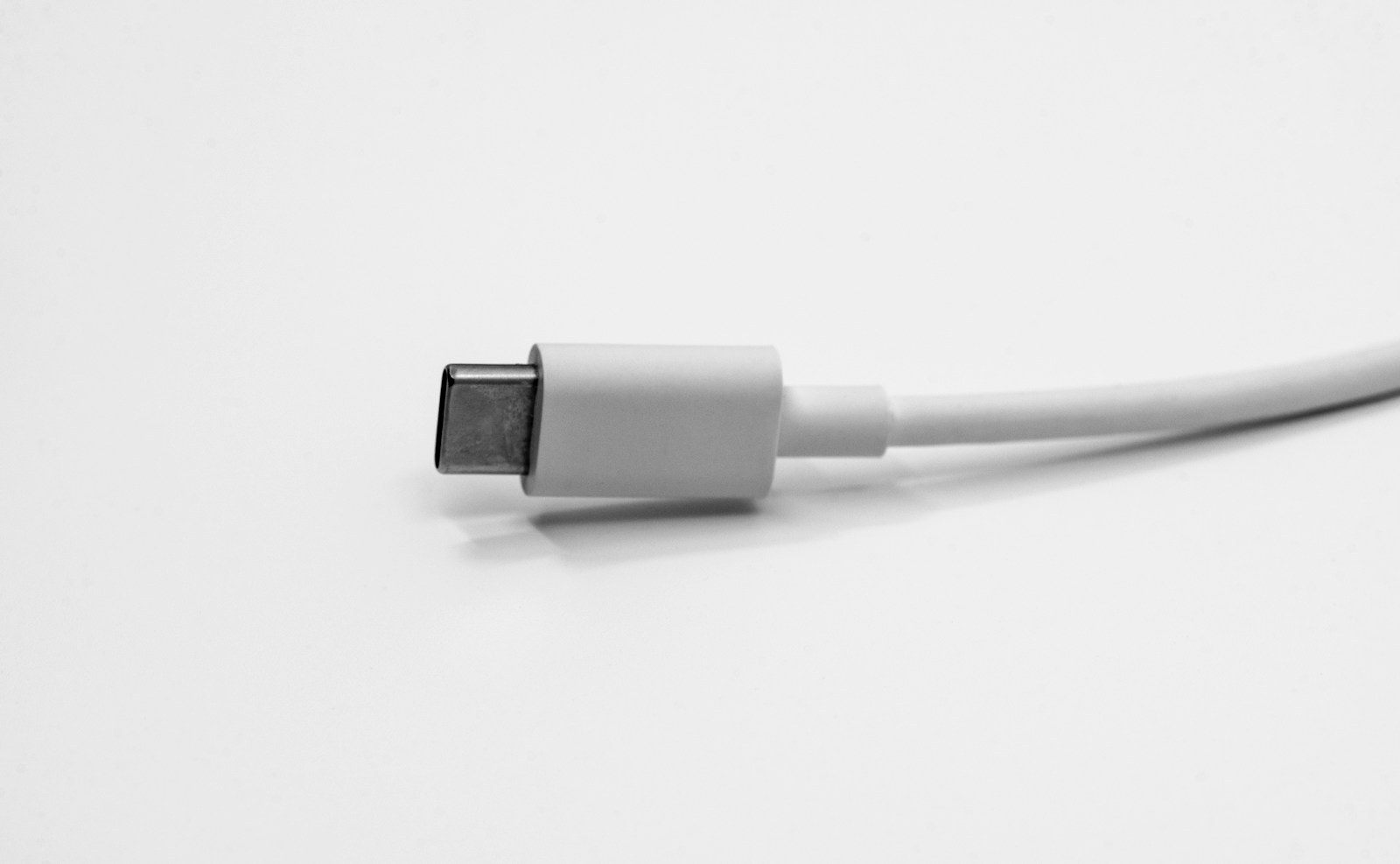
Test one part of the connection at a time
Once the specifications confirm support, simplify the connection. This sequence avoids changing several things at once and losing track of what fixed the problem:
- Connect one monitor directly to the laptop with a compatible cable, leaving out the dock or hub.
- Turn on the display and select the input you are using: USB-C, HDMI or DisplayPort, depending on the connection. In Windows, press Windows + P and select Extend or Duplicate.
- If there is still no picture, try a compatible cable known to work. Then test the display with another computer, or the laptop with another display, changing one component at a time.
- If the direct connection works, reconnect the dock. Check its limits for that port and the number of displays attached.
A picture does not confirm the full refresh rate
Once Windows detects the monitor, open Settings, System, Display and Advanced display. Select the external monitor and check the active resolution and refresh rate. Microsoft's connection troubleshooting page covers further checks if it still does not appear.
A cable advertised as 4K does not tell you the refresh rate your setup will support. Check the exact resolution-and-refresh combination supported by the computer, cable, any dock and the display. Our FPS versus Hz guide explains why a fast panel may still be running below its capabilities.
For variable refresh rate in games, verify support over the particular connection you are using. VRR, G-Sync and FreeSync are additional features. Getting a desktop picture through USB-C does not confirm they are enabled.
The conversation starts here
Sign in with a supporter account to comment. Sign in
Nobody has commented yet. Want to go first?