
Two different measurements
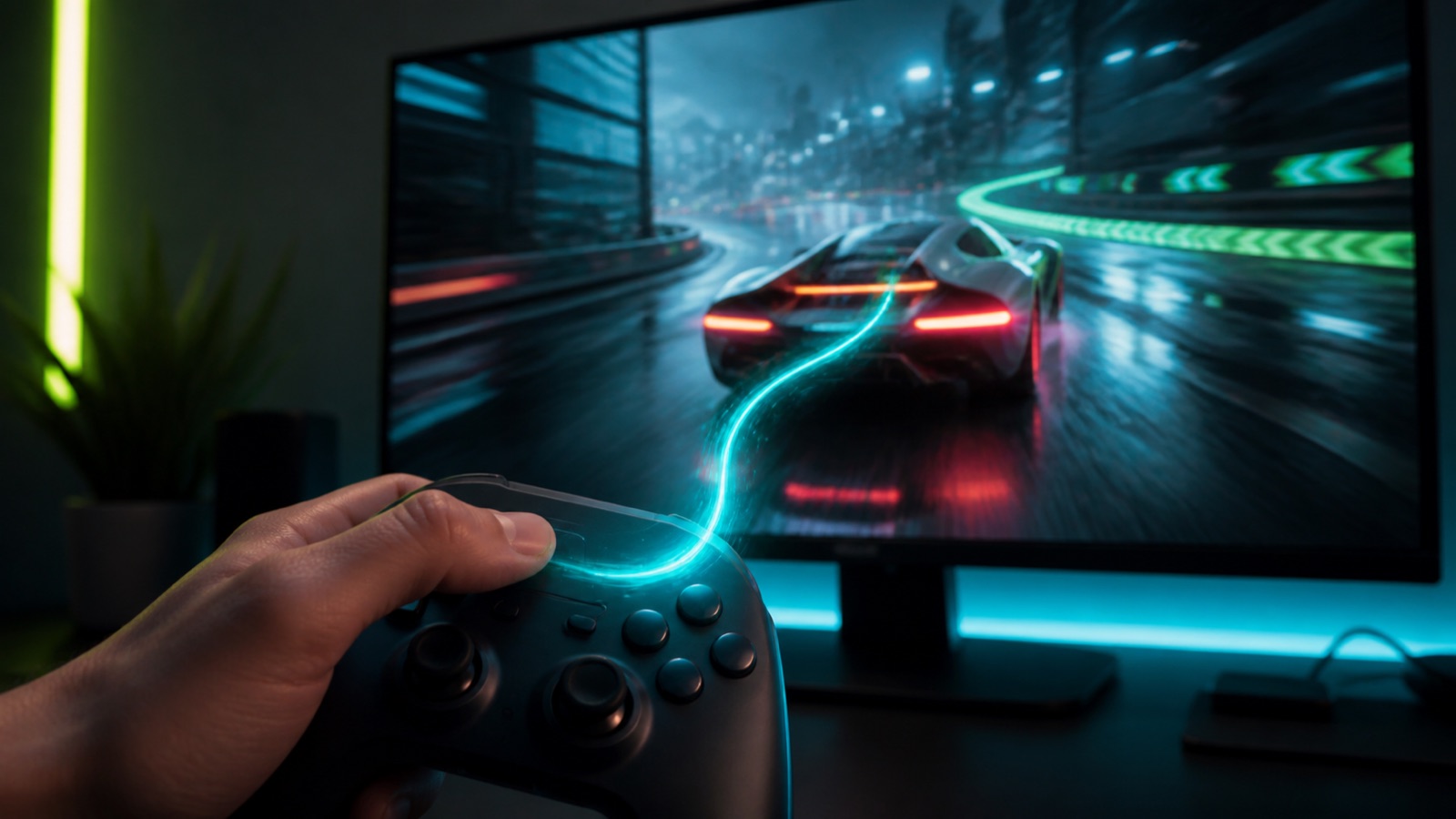
The counter says 120 FPS, yet the character turns a fraction after your thumb does. Motion looks smooth, but the controls seem to respond late. That feeling is input lag, and frame rate alone cannot explain it.
FPS tells you how many complete images the game produces every second. Input lag, or input latency, measures the time between pressing a button or moving the mouse and seeing the result on screen.
Higher frame rates usually shorten part of that wait because the game has more chances to sample an action and show it. They do not guarantee a responsive system. Frames can pile up before rendering, the television may process every image and the game itself may read controls late. A clean 60 FPS setup can therefore feel better than a badly configured 120 FPS one.
From button to action
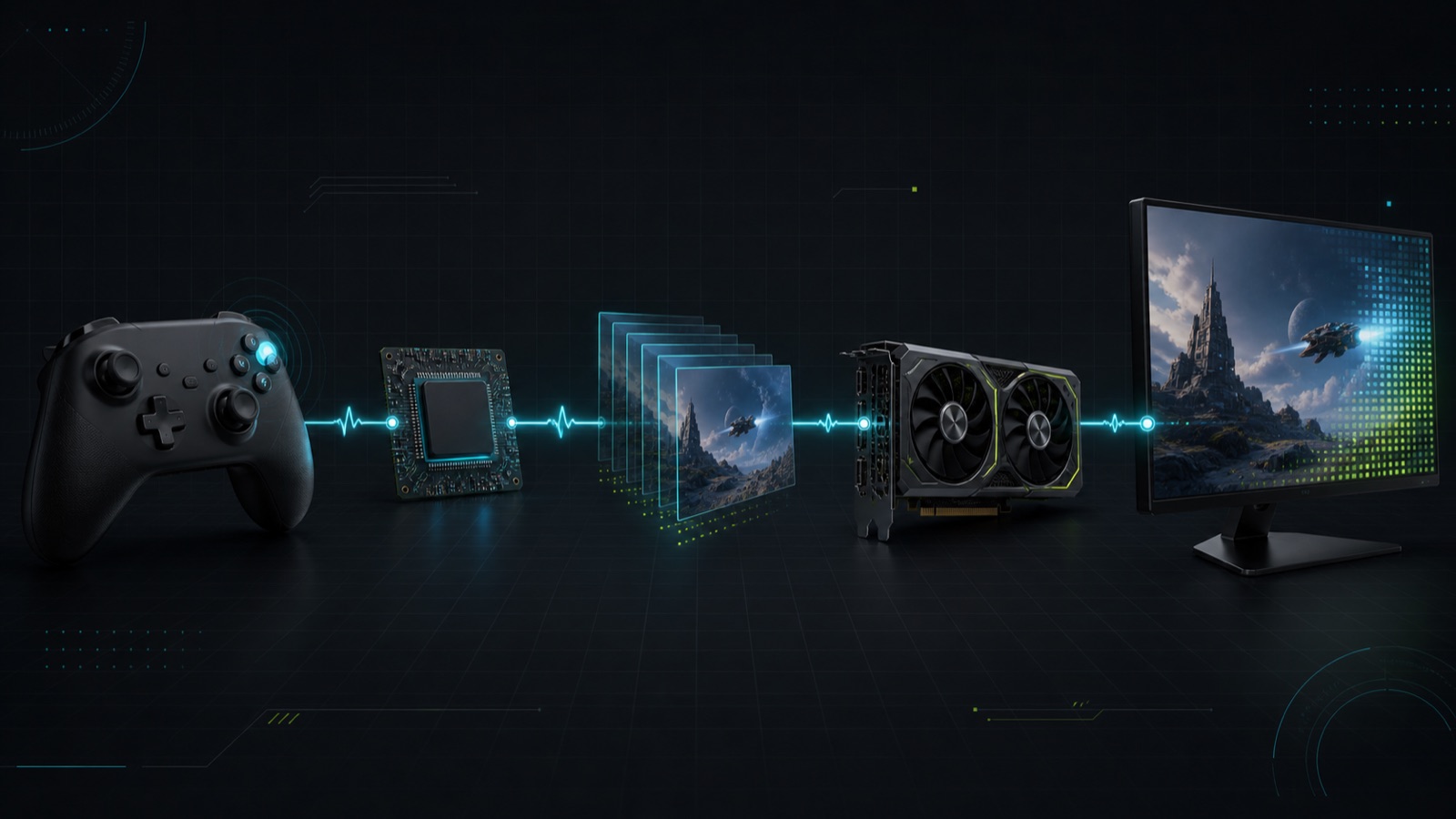
Microsoft's Dynamic Latency Input documentation describes input latency as the delay between a physical press and the game reading it. Players care about the longer journey. The controller reports an action, the CPU updates the game, the GPU renders a frame and the display processes that frame before its pixels change. Every stage takes time.
Picture a supermarket queue. Your input may arrive just before the next frame begins or miss the cut and wait for another. If the CPU prepares work faster than the GPU can draw it, rendered work can form a second queue. NVIDIA Reflex paces those two parts so frames are prepared just in time rather than sitting around with increasingly old input.
Televisions often add motion smoothing, noise reduction and other picture processing designed for films, while Game mode usually skips much of it. Pixel response time only describes how long a pixel takes to change colour. On its own, it does not measure total input lag.
More FPS helps, but it is not everything
One frame lasts about 33.3 milliseconds at 30 FPS, 16.7ms at 60, 8.3ms at 120 and 4.2ms at 240. Raising frame rate reduces the interval in which a new action may be waiting, improves motion continuity and commonly lowers latency too. That correlation is real.
It becomes more interesting when the two variables are separated. According to NVIDIA researcher Josef Spjut, eight experienced players completed aiming tasks at different refresh rates with controlled extra delay in a study presented at SIGGRAPH Asia. Spjut says that reducing latency delivered a clear benefit, while raising the refresh rate above 60Hz had a smaller effect once researchers removed the latency reduction that usually comes with those higher rates. It was a small study focused on aiming, but it is enough to show why smoothness and responsiveness should not be treated as the same thing.
Frame generation makes the distinction visible. Software-created intermediate frames can raise the displayed counter and make motion look smoother, but they do not contain a newer game input. Our DLSS, FSR and PSSR explainer covers that trade without mistaking generated pictures for native engine performance.
Ping takes a different route
Ping measures how long a file or a small bundle of data takes to travel from your machine to a server and back. Local input lag still exists with the router unplugged and a single-player game running offline. Online play combines both delays, which is why people often call every slow response lag even when the causes require different fixes.
Try an offline menu or camera. If that also feels heavy, inspect the device, rendering path and display. If the problem only appears as teleporting opponents, rejected hits or rubber-banding online, investigate the connection, packet loss and server. A faster monitor cannot move a server closer. A router restart cannot disable television processing.
How to reduce input lag
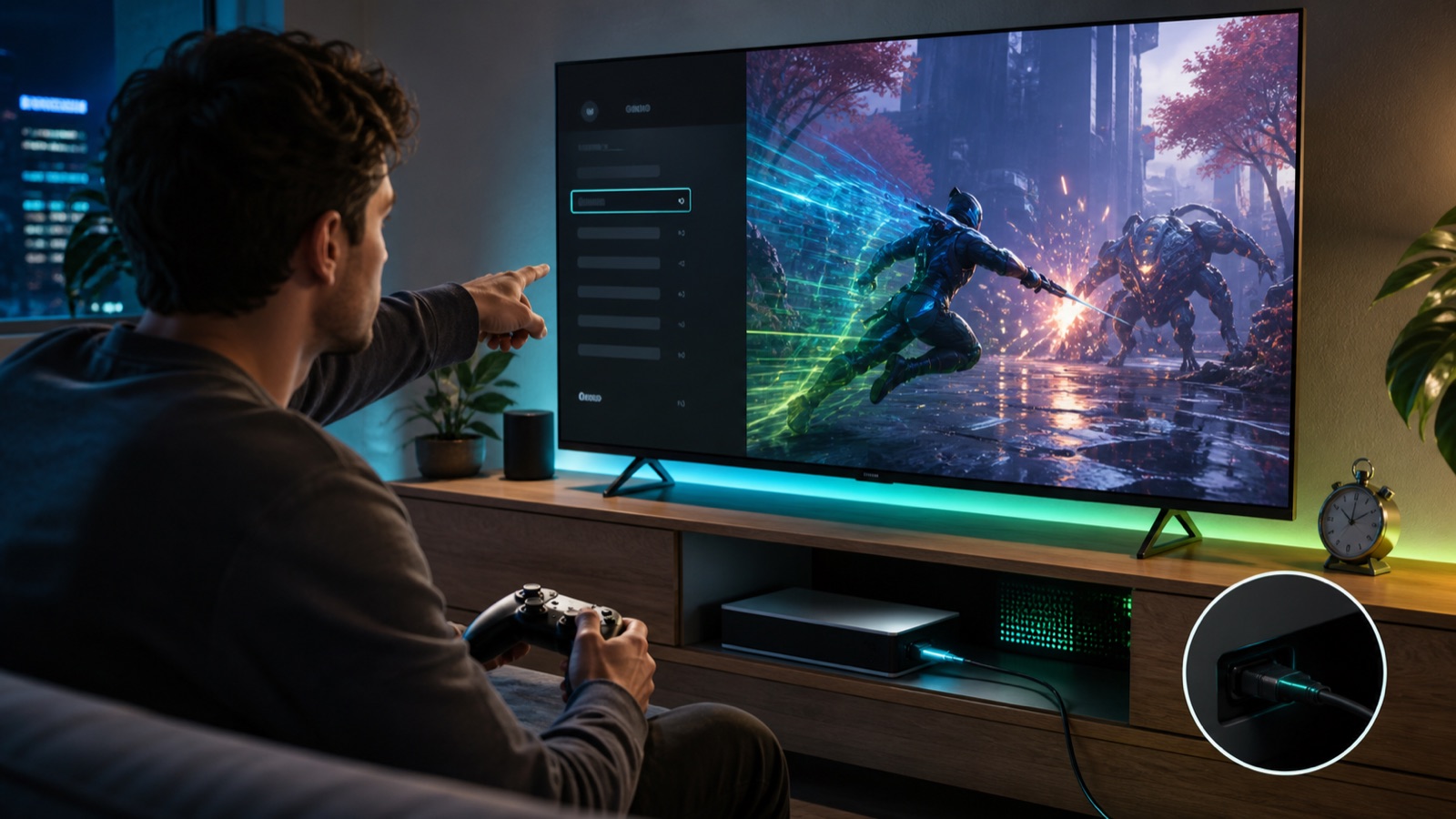
Start with the free changes. Enable Game mode on a TV and turn off motion smoothing, then make sure PC or console is actually using the display's highest supported refresh rate. Our VRR, G-Sync and FreeSync explainer covers how the screen follows delivered frames, while the guide to 120Hz and VRR on PS5 walks through output information, HDMI ports and cables. Neither feature manufactures missing frames.
Use Reflex or Radeon Anti-Lag when the game offers a built-in option. AMD says Anti-Lag dynamically adjusts frame timing and works best when the GPU is the bottleneck. Without one of those modes, reducing ray tracing, shadows or resolution can give the GPU enough headroom to stop work piling up. Do not copy 20 driver changes at once, because you will not know which one helped.
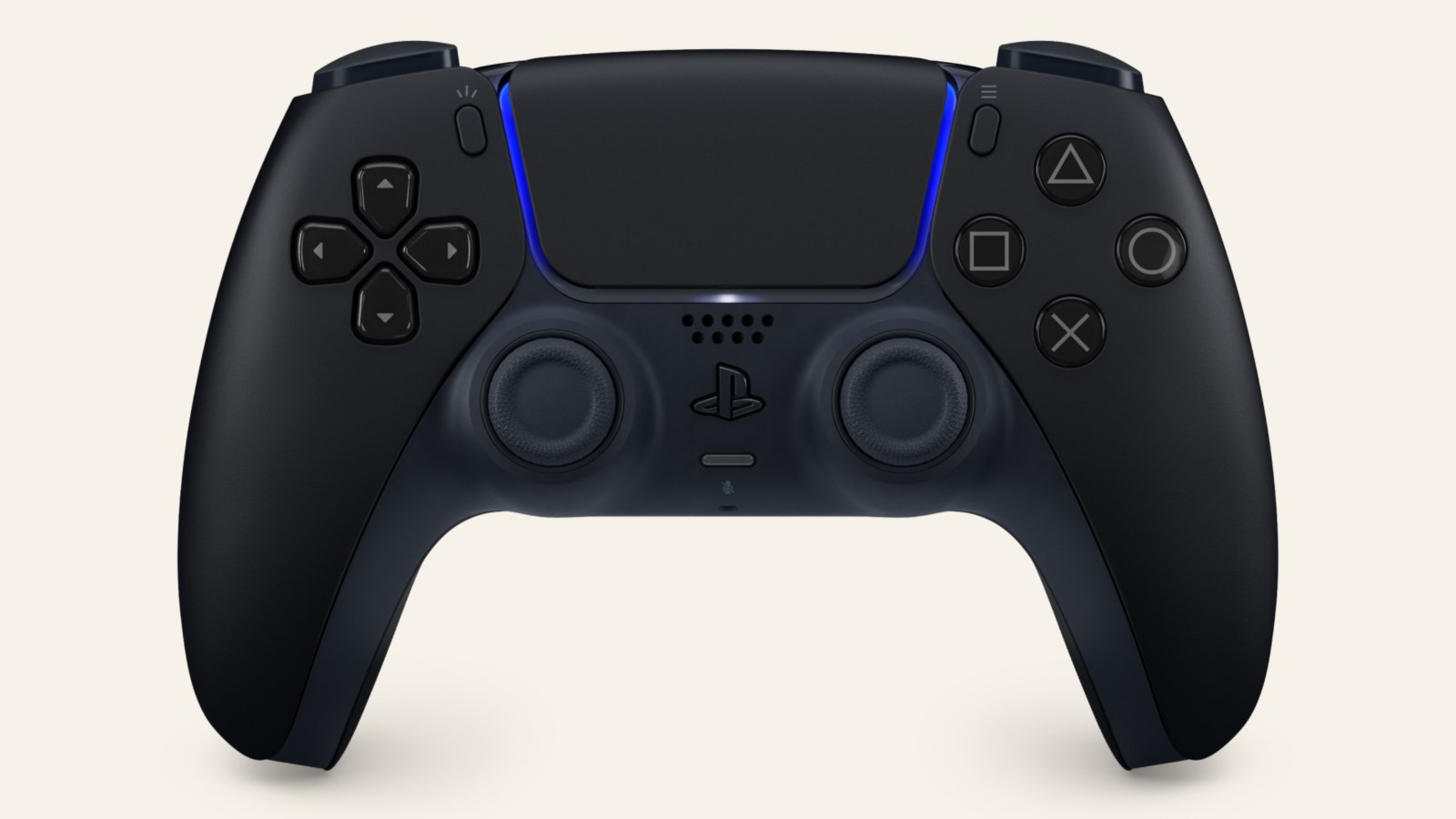
Do not assume every wired controller must beat every wireless one either. Reporting rate, USB behaviour and the specific device all matter. Update its firmware, test both connections and compare the same scene. A magnetic keyboard can shorten key reset distance, as our Hall Effect keyboard explainer shows, but it cannot remove delay introduced by the display.
In my view, turning on Game mode will reduce more latency in most living rooms than buying a new cable on a whim. Test in this order: Game mode, correct refresh rate, the title's own low-latency setting, GPU load and finally the peripheral. Change one thing at a time, and film the button and screen together in slow motion if you want to compare two configurations.
You will not get a laboratory measurement, but you will get a useful answer to the question that matters at home: which setting makes the game respond sooner. If the counter boasts 120 FPS and the controls still feel heavy, stop chasing the green number and follow the action from button to pixel.
The conversation starts here
Sign in with a supporter account to comment. Sign in

Nobody has commented yet. Want to go first?