
A game is on sale, so you scroll to the requirements and find two columns full of unfamiliar names: a GTX here, a Ryzen there, 16GB of RAM and the word SSD tucked into the final line. Your graphics card appears in neither column. The page does not say whether those parts target 30 or 60 frames per second. The sale ends tonight.
Here is the short answer: a game should run when your PC meets or exceeds every minimum requirement, uses the requested operating system and graphics API, and has enough storage. That only establishes the floor. To estimate whether it will run well, compare the recommended column, your target resolution and frame rate, then find evidence from equivalent hardware.
Treat the PC as a chain. GPU, CPU, system RAM, VRAM, operating system and storage are links. The weakest one sets the result. A fast RTX card cannot make 8GB of system memory behave like 16GB, and DLSS cannot add an instruction set missing from an old processor.
- Green: you meet the recommended specification and can find trustworthy evidence close to your intended resolution and settings.
- Amber: you meet minimum, but the listing never defines quality or frame rate. It may be pleasant or a compromised 30fps experience.
- Red: the GPU, CPU, VRAM, OS, graphics API or another mandatory requirement falls short. Do not buy without an exact benchmark or demo.
How to find your CPU, graphics card, RAM and VRAM
In Windows 11, press Ctrl + Shift + Esc, open Performance in Task Manager and visit CPU, Memory and GPU. Record each complete model name, not merely Intel or NVIDIA. The GPU panel also shows dedicated memory: that is the safest VRAM figure to compare with a game's listing.
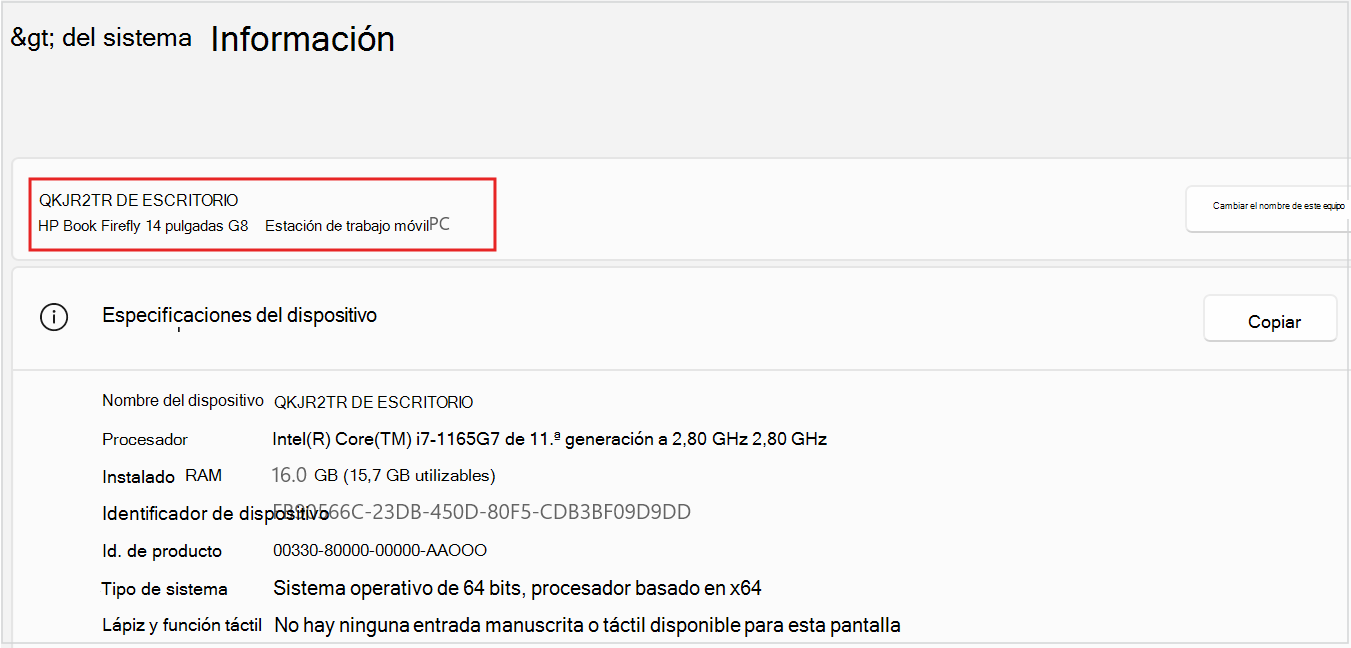
You can find the processor and RAM under Settings > System > About. Microsoft's device guide shows where Windows reports the CPU model, installed memory, OS version and available storage.
For DirectX, open Start, type `dxdiag` and select the Display tab. Microsoft's DirectX Diagnostic Tool guide explains the installed version. The display panel also exposes the feature levels supported by the GPU. Windows saying DirectX 12 does not mean an old card supports every DirectX 12 feature.
Laptop owners should also confirm which GPU launches the game. Windows may list an efficient integrated processor and a discrete one. Settings > System > Display > Graphics can assign the high-performance option to an executable. Microsoft documents that per-app graphics choice here.
What minimum and recommended requirements actually mean
Minimum requirements are supposed to describe the least powerful supported PC that can deliver an acceptable experience. Recommended requirements represent something better. Supposed to matters: there is no rule forcing every studio to attach those labels to the same resolution, quality preset or frame rate.
Valve lets the company responsible for a game enter and publish its requirements through Steamworks. Its developer documentation explains the process, but it does not decree that minimum always means 1080p Low at 30fps. A useful listing therefore names the performance target. A vague one merely names parts.
Do not compare each whole column with your PC in one jump. Pass five separate gates: graphics card, processor, RAM, VRAM and system compatibility. Any gate below minimum is the one that needs real-world evidence.
- 1. GPU: exact model, generation, and whether it is desktop, laptop or integrated.
- 2. CPU: full model, generation, core design and architecture. Clock speed alone is misleading.
- 3. RAM: installed capacity and what remains after Windows and background software.
- 4. VRAM: dedicated graphics memory, or available shared memory on an integrated GPU, without treating the two as equivalent.
- 5. System: 64-bit Windows, DirectX or Vulkan support, free space, SSD and any explicitly mandatory instruction set.
Check the five gates instead of trusting a green tick
Compare every item with the game's official requirements, then mark where your PC lands. This result does not invent a frame rate; it exposes the weakest link that still needs evidence.
Answer all five rows to get a reading.
How to compare graphics cards without being fooled by the name
Start with the exact GPU in your machine and the listed minimum, then find a comparison across several games. Product numbers do not settle it: a newer entry-level card can lose to an older high-end model, and a laptop RTX 4060 is not automatically equal to its desktop namesake.
The strongest comparison is a benchmark of the game itself. Search for the title, GPU, resolution and settings: `game + RTX 3060 + 1080p`. Check that the video exposes its graphics menu, performance overlay and game version. Twenty seconds spent staring at the floor proves very little.
Without an exact test, place both GPUs in a broad hierarchy and leave headroom. Barely matching minimum is amber. Clearly beating recommended with enough VRAM is green on paper. The Blood of Dawnwalker's revised PC requirements show why waiting for a final specification can matter: an early 4K/60 target named an RTX 5090 before the published tiers changed substantially.
Integrated graphics need extra caution. Microsoft distinguishes integrated and discrete GPUs: the former shares resources and favours efficiency. The latter carries its own memory and targets demanding work. A list of discrete cards does not quietly approve an integrated GPU simply because Windows can lend it several gigabytes of RAM.
Resolution and frame rate change the PC you need
1080p contains about 2.1 million pixels, 1440p 3.7 million and 4K 8.3 million. Moving from 1080p to 4K asks the GPU to deal with four times as many pixels per image. A machine that delivers 60fps at Full HD does not owe you the same result at Ultra HD.
The CPU matters more at high frame rates, in simulation-heavy scenes or whenever the GPU finishes its work quickly. Dropping from 4K to 1080p may expose a CPU ceiling. Lowering texture quality usually relieves VRAM without repairing a slow processor. Ray tracing consumes performance for a specific reason, and it is a sensible early cut before sacrificing readability or stability.
DLSS, FSR and XeSS render internally at a lower resolution and reconstruct the output. NVIDIA says DLSS 2 Performance mode can turn a 1080p input into a 4K image, while AMD describes the same underlying trade in its FSR documentation. These tools help a GPU limit. They do not create physical VRAM, add missing API support or cure a severe CPU bottleneck.
Frame generation can raise the displayed number, but it inserts frames between ones the engine has already rendered and adds latency. Establish a stable base first. Our DLSS, FSR and PSSR comparison separates reconstruction from native rendering power and explains which mode to try.
Gaming laptops need one more check
Two laptops bearing the same GPU name can perform differently because of power limits, cooling and energy modes. Find the computer's complete model and, when its manufacturer publishes it, the graphics power figure. Compare laptop with laptop, not laptop with tower.
Play while plugged in, choose the performance profile and make sure the game uses the discrete GPU. Heat can force CPU and GPU clocks down to protect the machine. A thirty-second benchmark from a cold start does not recreate a two-hour session.
Modern integrated graphics have improved, especially with fast dual-channel memory, but they still depend on shared RAM and a constrained thermal envelope. Give an exact processor demonstration or free trial more weight than an automatic compatibility badge.
Which checking tools help, and what they cannot promise
Automatic checkers can identify hardware and flag an obvious missing requirement. They cannot guarantee a frame rate because they inherit the publisher's listing, which may not define any target. Use them as a filter, not a verdict.
A trustworthy benchmark states exact model, driver, resolution, preset, upscaling mode, game version, average fps and preferably 1% lows. An attractive average can hide stutter. The lower figure helps show whether a demanding scene holds together.
Use this evidence order: your own test or a demo. A technical benchmark of the current build. The same game on the same CPU/GPU combination. A broad component comparison. An automated checker. Store comments can reveal a broken port, but they cannot calculate performance on a machine nobody describes.
For a new release, wait for patches and technical reviews when possible. Requirement tables do not update as quickly as code. Matching the list is no protection against shader-compilation stutter, immature drivers or a graphics option that shipped broken.
What to do when your PC lands on the line
If the GPU misses by a little, start at 1080p, Low or Medium, no ray tracing and Quality upscaling. Cap the frame rate at a stable value. A consistent 40fps usually feels better than a run that lurches between 38 and 72.
A CPU limit barely responds to lower resolution. Reduce crowd density, draw distance, traffic or physics where available, and close background tasks. Closing apps may rescue a RAM shortage. Lower textures address VRAM. Each bottleneck needs its own cut.
Steam's official policy accepts refund requests within 14 days and under two hours of play. Spend that time reaching a demanding area, not designing a character for ninety minutes. Keys bought outside Steam are not covered by Valve's policy, and other stores use their own terms.
A demo, subscription or cloud version can remove the blind purchase. You can also start with one of the best free PC games and observe how a similarly demanding title behaves before paying.

Five questions that settle the purchase
Can you play below the minimum GPU? A game may launch and even look acceptable, but you are outside the hardware the developer says it supports. Without evidence from that exact GPU, there is no honest guarantee.
Does recommended guarantee 60fps? No. Only a published resolution, preset and target frame rate tells you what that column represents. Otherwise, find a benchmark.
Will more RAM increase fps? Usually very little once the game already has enough. It matters when memory pressure was forcing Windows to use storage or close processes. VRAM remains a separate pool.
Can you trust a YouTube benchmark? Yes, when it identifies hardware, settings and version, and shows a meaningful sequence. Be wary of channels posting impossible hardware combinations or hundreds of tests without ever showing the machine.
Save one screenshot of Task Manager's Performance page with your five facts, then repeat the same route for every purchase: official listing, weakest link, comparable benchmark and refund policy. No button can turn an imprecise requirement table into a 60fps promise. A careful check can stop you paying to discover that yourself.
The conversation starts here
Sign in with a supporter account to comment. Sign in

Nobody has commented yet. Want to go first?