
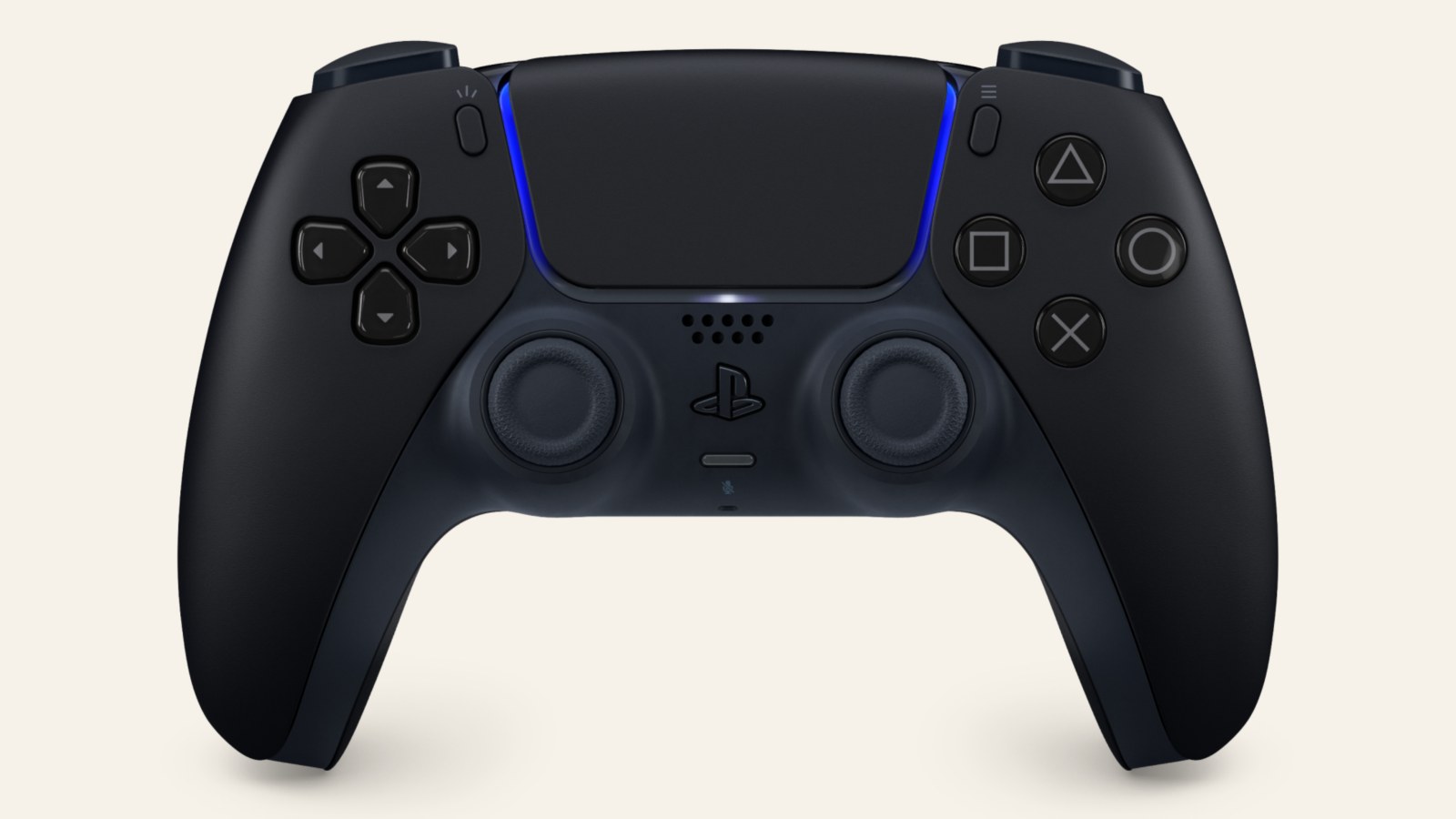
A DualSense can connect to a Windows PC using a USB cable or Bluetooth. Sony supports both on 64-bit Windows 10 and Windows 11. For a straightforward first check, connect it by USB and launch a DualSense-compatible game.
Successful pairing establishes the connection, but individual games determine which controller features work. Sony’s support page separates basic controls from adaptive triggers and haptic feedback, which produces more detailed sensations than ordinary vibration.
Start with a wired connection
1. Plug a USB-C cable into the controller and connect its other end to a compatible PC port. Use a cable that carries data. Charging alone does not show that button inputs are reaching the computer.
2. Launch a game with DualSense support and try its menus or character movement. On Steam, check the controller-support information on the right side of the listing for DualSense compatibility. Generic controller support alone is not enough for this test.
3. If nothing responds, try another USB port and data cable, then check the game’s control options. If you use a USB hub, plug the controller directly into the PC to remove that intermediate connection. If drives also disconnect from that hub, our USB power and disconnection guide helps check the hub itself.
Pair the controller over Bluetooth
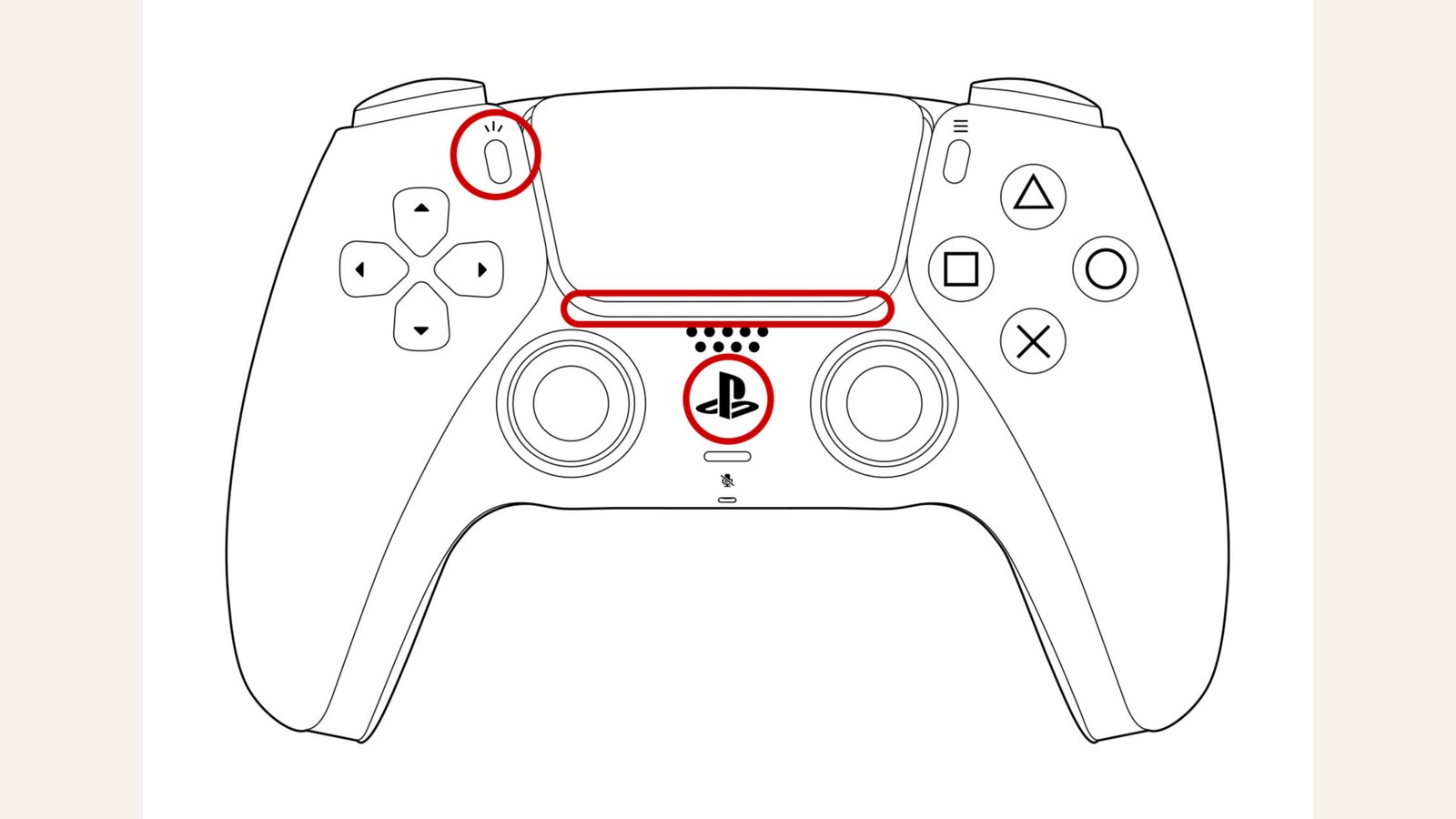
1. Unplug the USB cable. Hold PS until the controller’s lights turn off.
2. Hold the create button, just left of the touchpad, then hold PS as well for at least three seconds until the lights flash.
3. In Windows 11, open Quick Settings using the network, sound or battery icons beside the clock. Enable Bluetooth, open Manage Bluetooth devices and select the controller under New devices. In Windows 10, use Settings > Devices > Bluetooth & other devices > Add Bluetooth or other device > Bluetooth. Microsoft’s instructions cover both versions.
4. The player indicator lights up when pairing finishes. Launch a compatible game and check the buttons again. A PC without Bluetooth needs a USB connection or a compatible Bluetooth adapter. Sony does not guarantee support for every adapter.
Connection support does not guarantee PS5 features
Haptic feedback on PC requires both a USB connection and a game that supports it. Adaptive triggers, which vary the resistance you feel when pressing them, also require game support. The controller’s headphone jack needs a wired connection on PC.
Update firmware and narrow down a fault
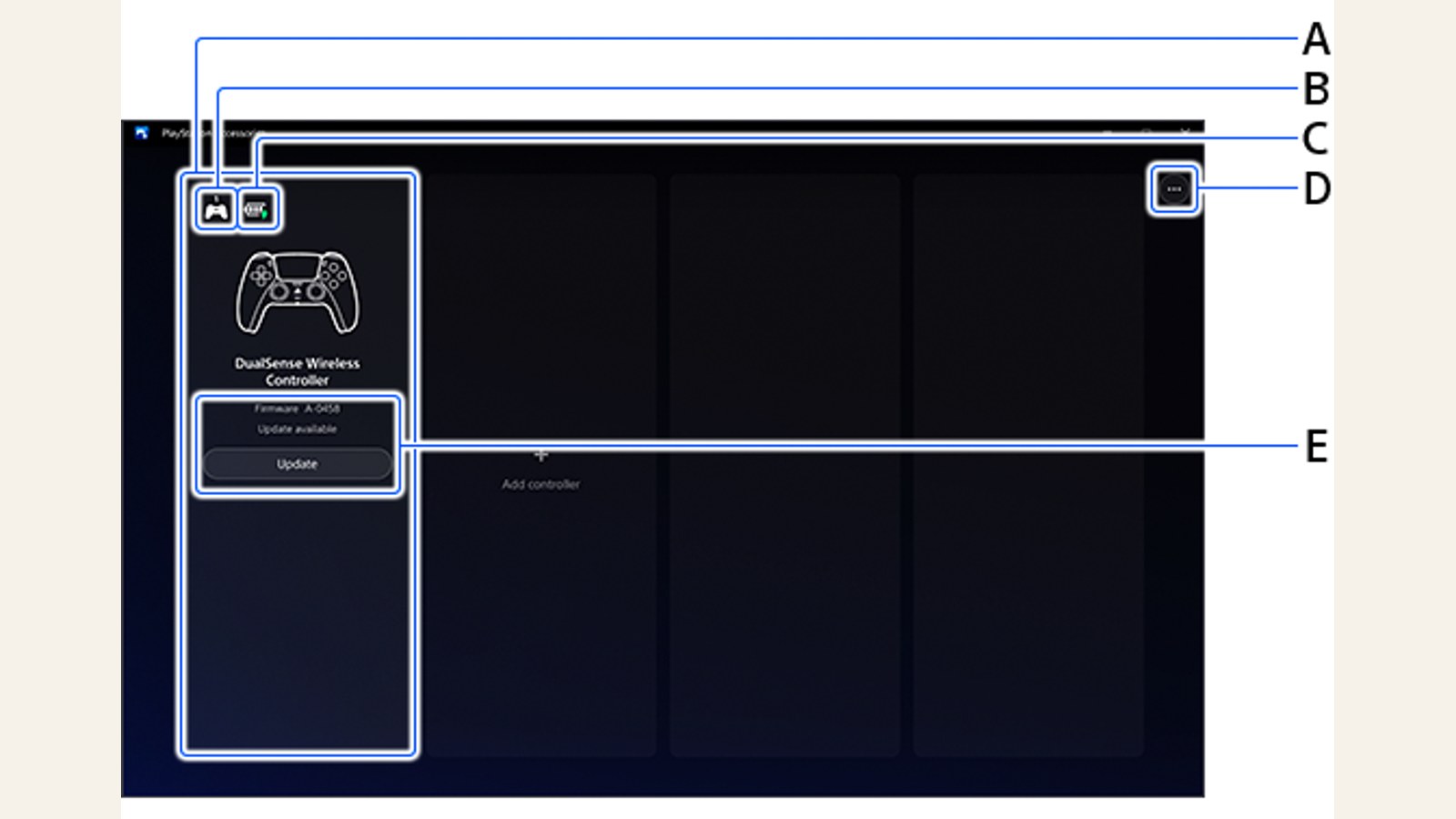
Sony’s PlayStation Accessories app shows a connected controller and its firmware version, meaning the software running inside the controller. An Update option appears when new firmware is available. Download the app from Sony’s official PC accessories page, and keep the controller connected and the PC powered on during an update.
The app can update both DualSense and DualSense Edge. Its custom-profile features are for the Edge, so their absence on a standard DualSense is expected.
For a controller that still fails to respond, turn it off and reconnect it, then close Accessories before testing the game again. If it fails in another supported game too, use Sony’s reset troubleshooting instructions. If the fault occurs in only one title, review that game’s support and control settings.
Switch back to PS5 or another paired device
To pair the controller with PS5 again, connect it to the console by USB and press PS. You can then unplug the cable for wireless play.
Current DualSense software can store four device pairings. Holding PS with triangle, circle, cross or square for about three seconds switches to an already paired device in slots 1, 2, 3 or 4 respectively. Registering a new device in a chosen slot uses the same button combination for more than five seconds, followed by pairing on that device. Switching and creating a new pairing are separate actions.
The conversation starts here
Sign in with a supporter account to comment. Sign in
Nobody has commented yet. Want to go first?