
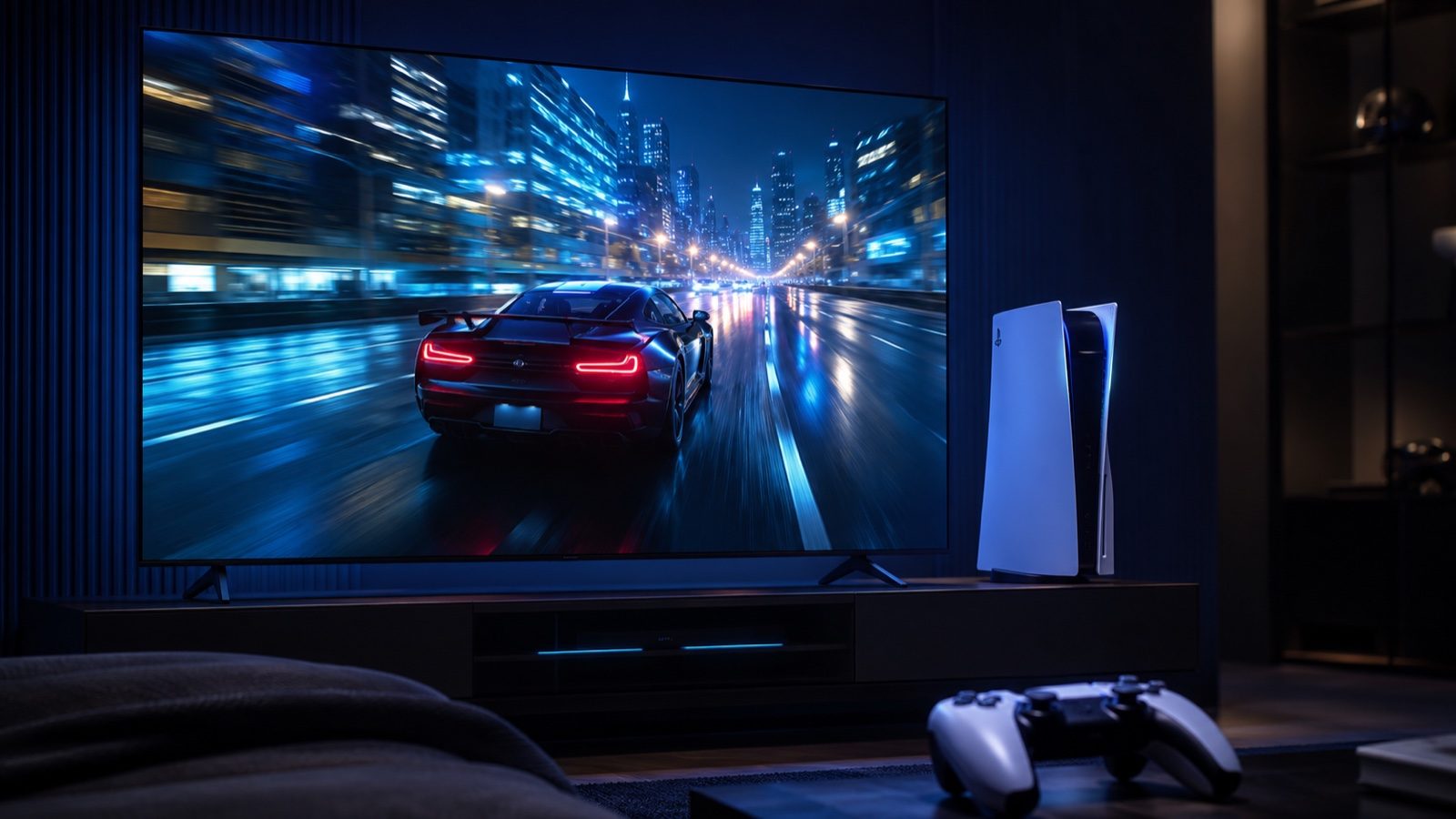
To enable 120Hz and VRR on PS5, open Settings > Screen and Video > Video Output and set both 120 Hz Output and VRR to Automatic. If they are already enabled but the console remains at 60Hz or calls your display incompatible, do not buy anything yet. Check the game, HDMI input, enhanced input format and cable, in that order.
This is a four-link chain, and one weak link is enough. Think of a row of extension leads: the result is limited by the weakest connection.
A TV may have a 120Hz panel but reserve that capability for two of its four inputs; a game may support 120fps yet hide it behind Performance mode; even a capable socket can remain limited to 60Hz until you unlock its enhanced format.
- On PS5: Settings > Screen and Video > Video Output > 120 Hz Output > Automatic.
- For VRR: use the same menu and select VRR > Automatic.
- On the TV: connect to an input that supports 4K120 and VRR, then enable its enhanced format.
- For the cable: use the one supplied with PS5 or a certified Ultra High Speed HDMI Cable.
- Inside the game: select its 120Hz or Performance mode when offered. The console cannot create frames the game never renders.
The PS5 settings
Sony's official route is Settings > Screen and Video > Video Output. Leave Resolution and Video Transfer Rate on Automatic, enable 120 Hz Output and set VRR to Automatic as well.
Now open Information for the Connected HDMI Device. PS5 lists the resolutions, refresh rates, HDR formats and VRR capabilities reported by the TV. If 120Hz or VRR is missing here, changing graphics mode inside a game cannot solve the problem. The console cannot see that capability at the other end of the cable.
Apply to Unsupported Games attempts to use VRR in titles without official support. It can smooth some drops, but it is optional; turn it off if you encounter flicker or unexpected behaviour. Sony says results vary by display.
Use the right HDMI input
There is no universal port number. The correct socket might be HDMI 2 on one TV and HDMI 3 or 4 on another. Look for 4K 120Hz, 120Hz, VRR or 48Gbps beside the input, then check the manual for your exact model. A TV advertising HDMI 2.1 does not necessarily give every port the same features.
That input may also need unlocking in the TV menu. Manufacturers call it Enhanced Format, Input Signal Plus, HDMI Deep Color and several other names, but the job is always the same: allowing that socket to accept the higher-bandwidth signal. One catch: some displays have a separate enhanced mode specifically for VRR.
eARC is not required for 4K120 or VRR; it is an audio return feature. The same socket may offer both, but 4K120 or VRR is the capability that matters here. If the PS5 normally passes through a soundbar, AV receiver or capture card, connect it straight to the TV for this test. PlayStation recommends removing intermediaries when diagnosing picture problems.
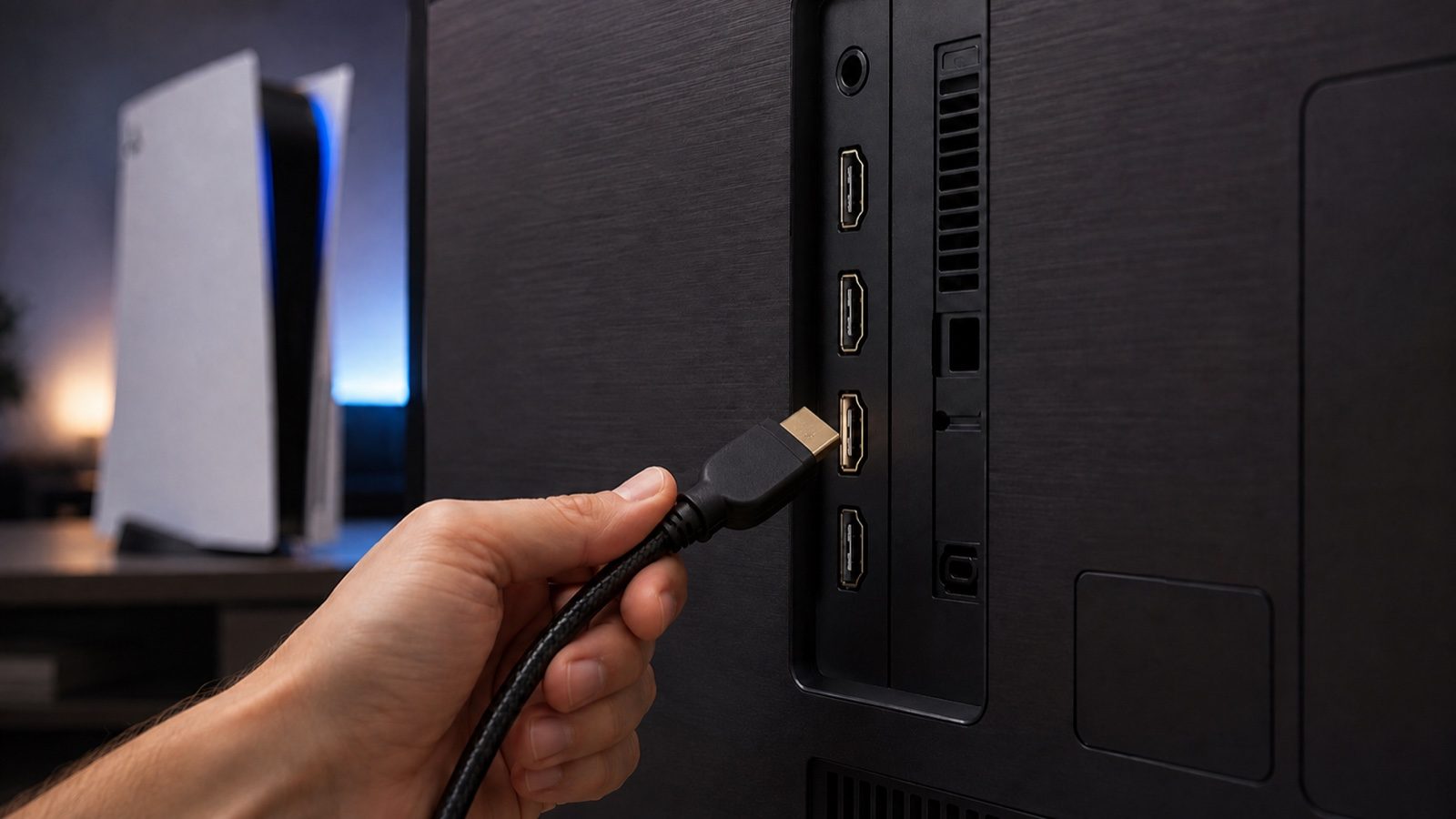
The cable you need
The HDMI cable supplied with PS5 supports 4K at 120Hz and VRR. If you are still using it and it is undamaged, our advice is straightforward: blame the cable last and do not buy a replacement merely to run this test.
For a replacement, look for the official name Ultra High Speed HDMI Cable and preferably its certification label. This category is built for the 48Gbps bandwidth associated with signals such as 4K120. People often say 'HDMI 2.1 cable', but HDMI versions technically describe devices; cables are identified by category.
An older High Speed cable is not automatically useless. It may carry 120Hz at a lower resolution or work with some colour formats, but it does not provide the same assurance for 4K, 120Hz and HDR together. If PS5 detects 1080p120 but not 4K120, the input, its enhanced format and the cable are the three leading suspects.
120Hz is not 120fps
120Hz describes the display: it can refresh the picture up to 120 times each second. 120fps describes the game, which must render 120 new images in that second. VRR connects the two by adjusting the screen's refresh rate to the console's actual output, reducing tearing and judder when frame rate moves around.
A 120Hz TV therefore cannot turn a 30fps game into a 120fps one. Games do not all expose the feature in the same way either. Some switch automatically, some require Performance mode and others stay at 30 or 60fps because their engine has no faster option.
A 120Hz panel can also display 40fps cleanly because every frame remains on screen for exactly three refreshes. It is the middle ground we discuss when asking whether PS5 Pro is worth buying for GTA 6: smoother than 30fps without demanding the full jump to 60.
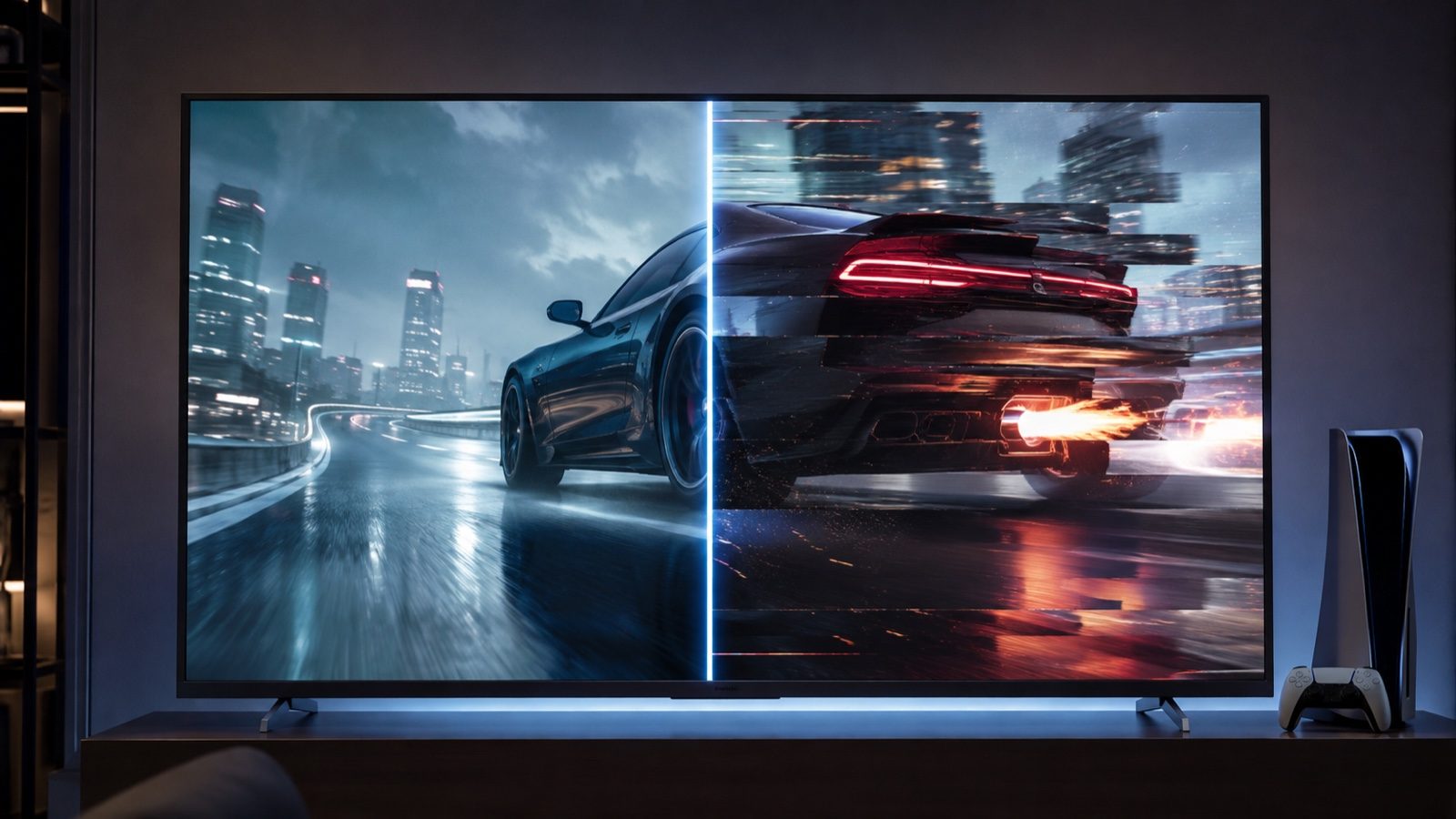
If it still does not work
Work through the chain one change at a time. Changing five things together only hides which one was wrong.
The final check lives in Information for the Connected HDMI Device. Once PS5 lists 120Hz and VRR and a compatible game enters its high-frame-rate mode, the chain is complete. If storage becomes the next bottleneck, our separate guide covers which PS5 SSD to buy and how to install it.
The rule is simple: if PS5 cannot see it, the game cannot use it.
- Launch a compatible game and select its Performance or 120Hz mode. The PS5 home screen does not prove a game is running at 120fps.
- Check the PS5 HDMI information. If 120Hz and VRR are absent, return to the input, enhanced format and cable.
- Update both PS5 and the TV. Manufacturers have added and fixed 4K120 and VRR support through firmware.
- Connect the console directly to the display. If it now works, the soundbar, receiver or capture card cannot pass the full signal.
- Try another compatible input, then another cable. Confirm in the manual that the socket supports 4K120 or VRR before moving it at random.
- Reset the HDMI handshake. Shut down the console and TV completely, unplug them, reconnect HDMI and power the display on first.
The conversation starts here
Sign in with a supporter account to comment. Sign in

Nobody has commented yet. Want to go first?