
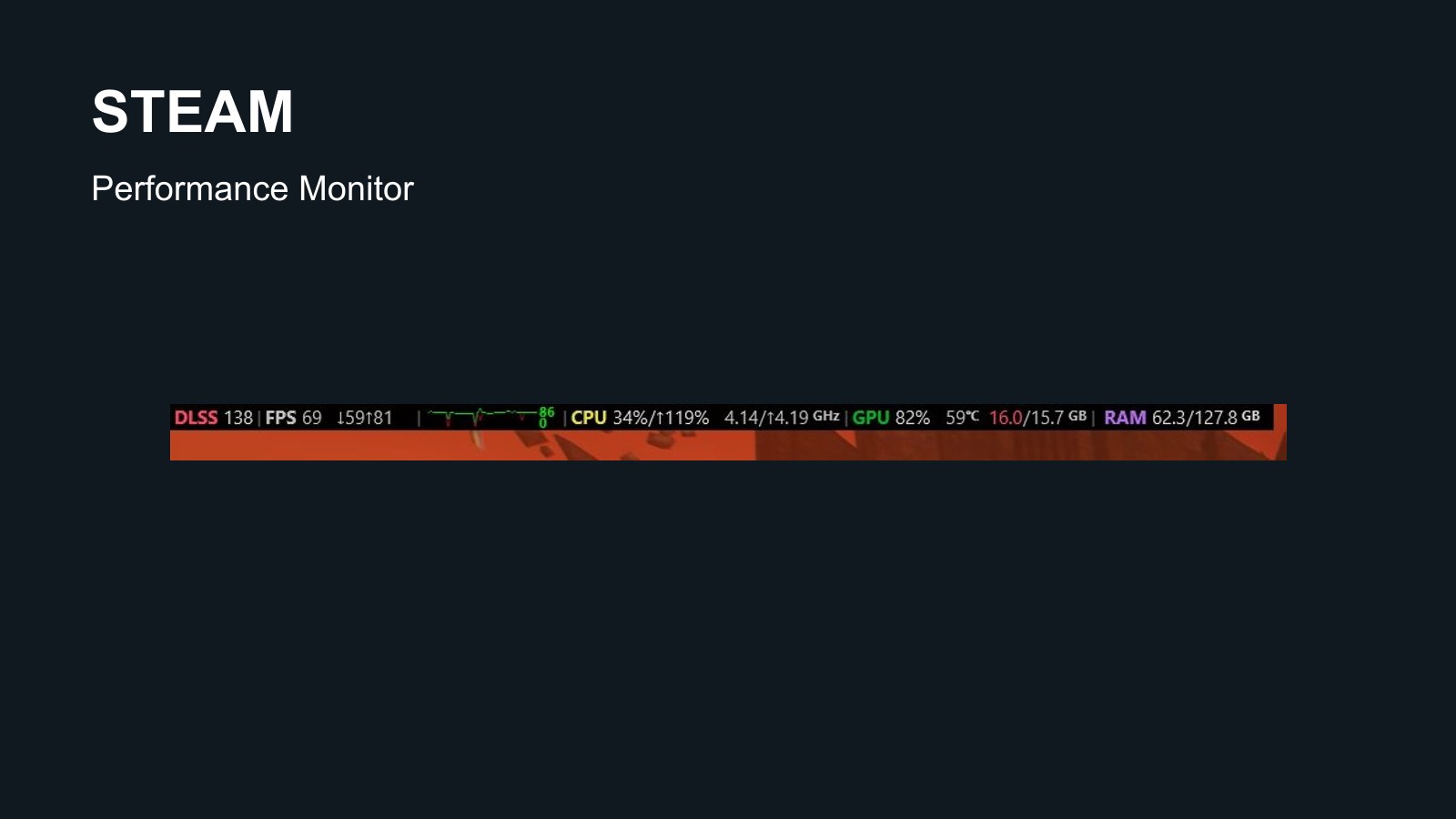
Open Steam > Settings > In Game and find the performance-monitor options. Choose a detail level and screen position, then launch a game to check that it appears. Start with the single FPS value if all you need is a frame-rate counter.
Valve’s performance monitor expands the older counter with CPU, GPU and memory information. Available metrics depend on hardware and operating system. Valve’s full set of described metrics focuses on Windows.
Set up the overlay
The monitor’s controls are in In Game. Make sure the Steam overlay is available for the title before adding statistics.
- Enable the Steam overlay. Check the game’s individual overlay option in its library properties if you previously disabled it.
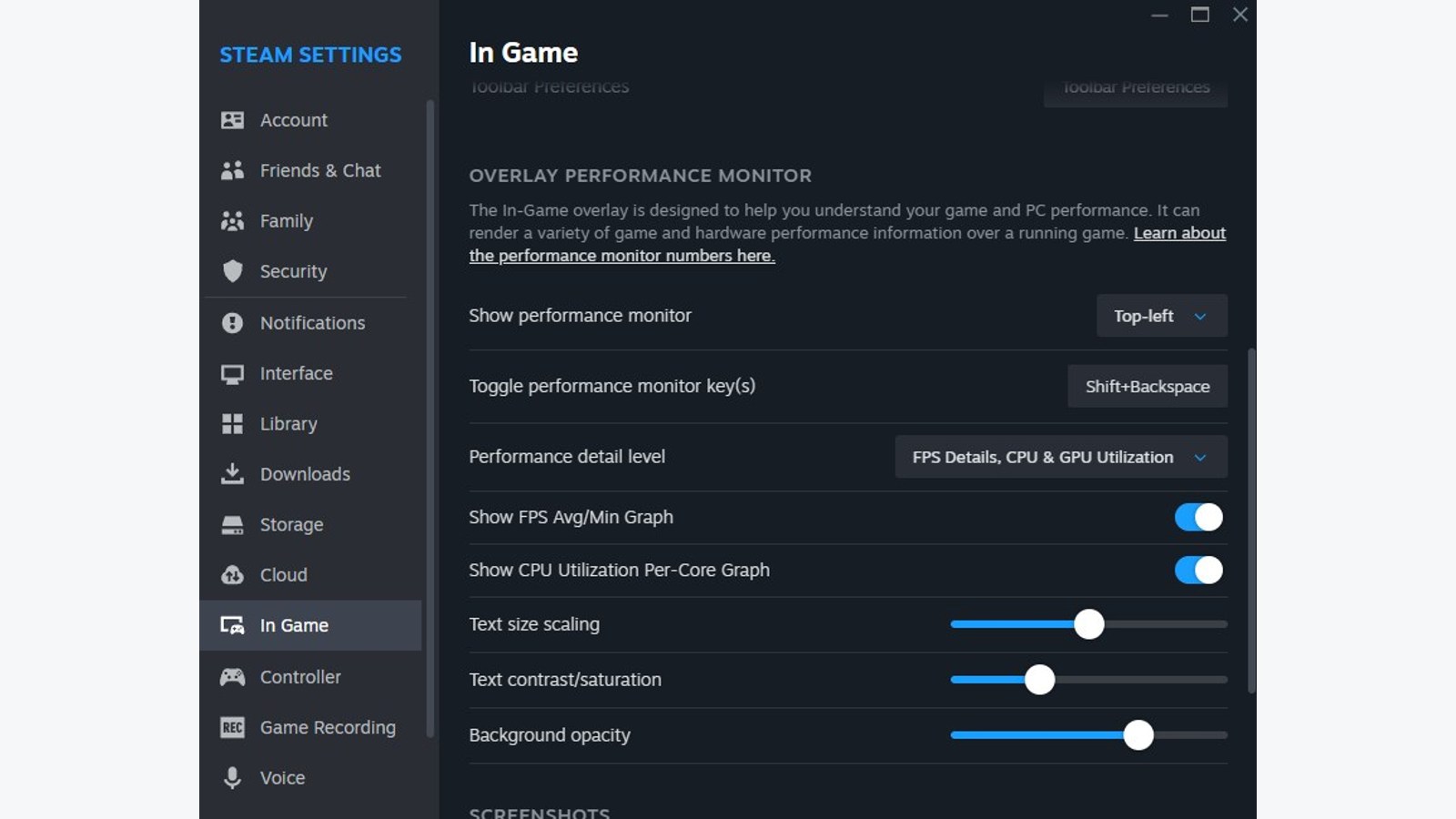
- Choose the monitor’s detail level. The simplest shows FPS, while higher levels add measurements and graphs.
- Pick a corner clear of maps, alerts and subtitles. Adjust text size, contrast and opacity where needed.
- Launch the game through Steam and check the counter during gameplay rather than only in a menu.
Why frame generation can produce two values
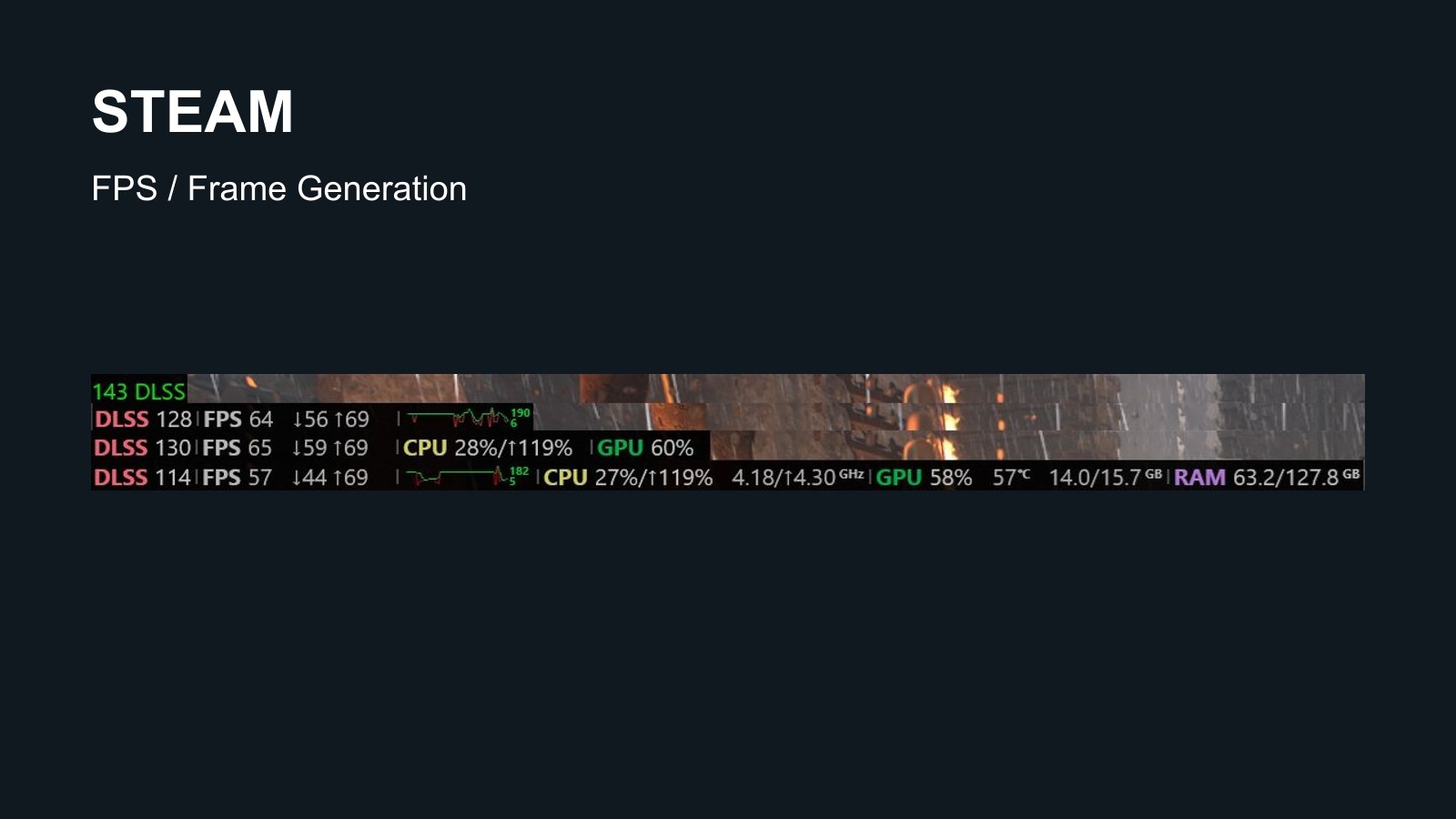
Valve’s metric guide separates game frames from DLSS or FSR-generated frames when the monitor can detect them. Generated frames improve displayed motion but do not represent additional simulation updates or controller-input processing.
Choose at least the FPS-details level to see the breakdown. When DLSS, FSR or FG appears before a separate FPS value, the first includes generated frames and the second is the game’s frame rate. Valve’s example DLSS 128 / FPS 64 means 128 displayed frames per second, of which 64 are game frames. It does not mean 128 extra frames on top of 64.
The larger displayed frame rate therefore does not establish how responsive a game is. Our FPS versus refresh-rate explainer separates game output from a screen’s ability to display it.
Missing counters and investigating stutter
Check that the monitor is enabled and that Shift + Tab opens the overlay. Restart an updated Steam client and review the game’s individual overlay setting. Steam’s overlay help covers interference from other software. Temporarily disabling a competing overlay helps test that possibility.
Increase detail to investigate when a stutter happens. The lowest frame-rate equivalent within an interval is a different calculation from 1% low, which summarizes a group of slow frames. Treating them as identical can mislead a comparison.
Change one setting at a time and repeat comparable gameplay. High CPU or GPU usage is a clue, but a single reading does not establish which component caused a problem.
The conversation starts here
Sign in with a supporter account to comment. Sign in

Nobody has commented yet. Want to go first?