
The split across the screen
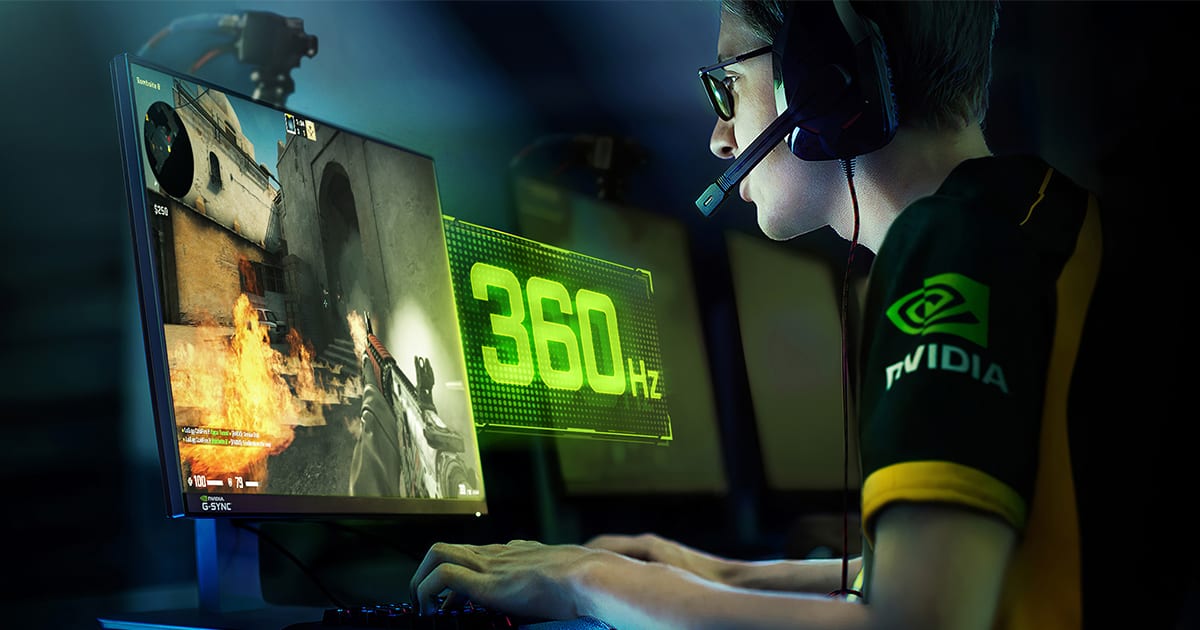
You turn the camera quickly and the world breaks across a horizontal line. The upper part has moved to the new position while the lower part still shows the previous one. Your display is not broken. The graphics card and monitor simply arrived at different times.
A GPU produces frames per second, or FPS, and that rate changes with the complexity of each scene. A monitor traditionally updates the picture at a fixed number of times per second, measured in hertz. If it begins refreshing before the GPU has completed the next image, parts of two frames appear together. That split is screen tearing.
V-Sync can make the GPU wait for the display, but waiting may add input latency or produce a visible hitch when a frame misses its slot. VRR changes which device does the waiting.
The monitor learns to wait
VRR stands for Variable Refresh Rate. Instead of refreshing at a rigid 144Hz like a metronome, the screen waits for a completed frame and updates then. If a game delivers 93 FPS, the monitor can follow at roughly 93Hz. When the game falls to 71, the display changes pace again.
VESA, the industry body behind display standards, added Adaptive-Sync to DisplayPort in 2014 to match each refresh to the GPU's rendering rate. Within a monitor's supported range, that removes tearing and reduces judder caused by the mismatch. It does not raise frame rate, create pictures or fix a game freezing to load data.
One monitor might support VRR from 48 to 144Hz, while another begins at 60. Below that floor, Low Framerate Compensation, or LFC, repeats frames to keep the display inside its working range. AMD's own example turns 40 FPS into an 80Hz signal by showing each frame twice. It does not create extra motion, but it preserves synchronisation.
Three names, one family
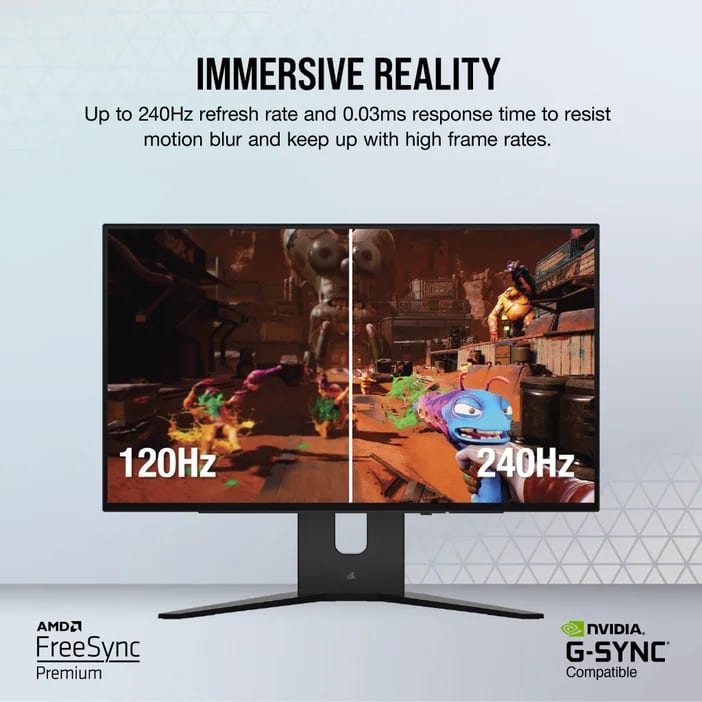
G-Sync and FreeSync are not alternatives to VRR. They are commercial families that implement and certify it. HDMI VRR also carries the idea into compatible TVs and consoles. The names differ, but the basic job remains matching the display to the frames it receives.
A G-Sync or G-Sync Ultimate monitor contains an NVIDIA processor. The company promises a full VRR range, variable pixel overdrive and more extensive validation, while Ultimate adds requirements aimed at premium HDR displays. G-Sync Compatible has no NVIDIA processor. It is a standards-based VRR display that NVIDIA has validated for GeForce cards without obvious tearing or artifacts. The company says certification involves more than 300 tests.
FreeSync is AMD's ecosystem and uses standards such as Adaptive-Sync without demanding a proprietary module. Its current tiers are FreeSync, Premium and Premium Pro. All certify tear-free output, low latency and low-frame-rate compensation. Premium raises refresh requirements, while Premium Pro adds AMD's HDR pipeline.
That is why the same box can carry both FreeSync Premium and G-Sync Compatible. Two mechanisms are not fighting inside it. One Adaptive-Sync panel has passed checks from both brands. Even so, exact support can still depend on the input, cable and graphics card.
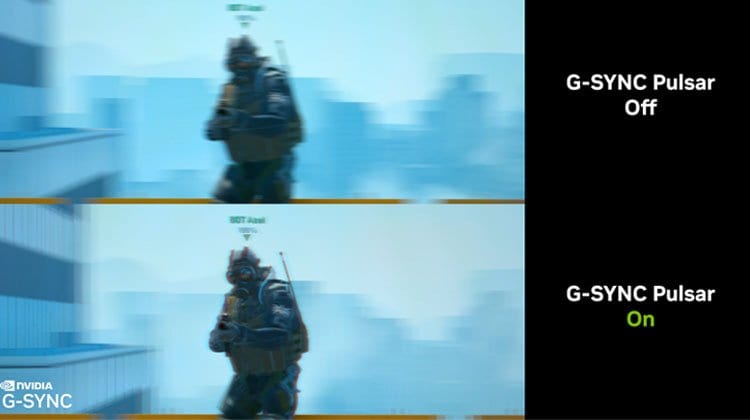
Some names add a separate feature. G-Sync Pulsar, shown in the comparison below, combines VRR with variable backlight strobing to make moving objects appear clearer. Basic VRR does not create that extra sharpness, and using it requires a Pulsar monitor.
When it is worth paying more
For most people, VRR is worth a small premium, especially when demanding games move between 50 and 100 FPS. Fixed refresh is most likely to expose tearing or abrupt cadence changes in that middle ground. Console owners can use our PS5 120Hz and VRR setup guide to check the input, cable and output settings too.
I would not pay for the G-Sync name. I would pay for a wide range, LFC, the connection my hardware needs and an independent test that rules out flicker, ghosting and other panel problems. A dedicated G-Sync processor can make sense for someone seeking especially consistent variable overdrive who intends to stay with GeForce. G-Sync Compatible or FreeSync will cover an ordinary gaming PC very well and preserve more freedom for the next GPU.
Competitive players running far beyond a monitor's maximum refresh and willing to accept tearing for every possible millisecond may choose to disable VRR in that specific case. For adventures, racing games and demanding releases with moving frame rates, enabling it is usually the easy decision.
Before buying, check three things: the lower and upper limits of the VRR range and the compatible input. The commercial name tells you who certified the technology, but those details reveal whether the display truly fits your hardware and your games.
The conversation starts here
Sign in with a supporter account to comment. Sign in
Nobody has commented yet. Want to go first?