
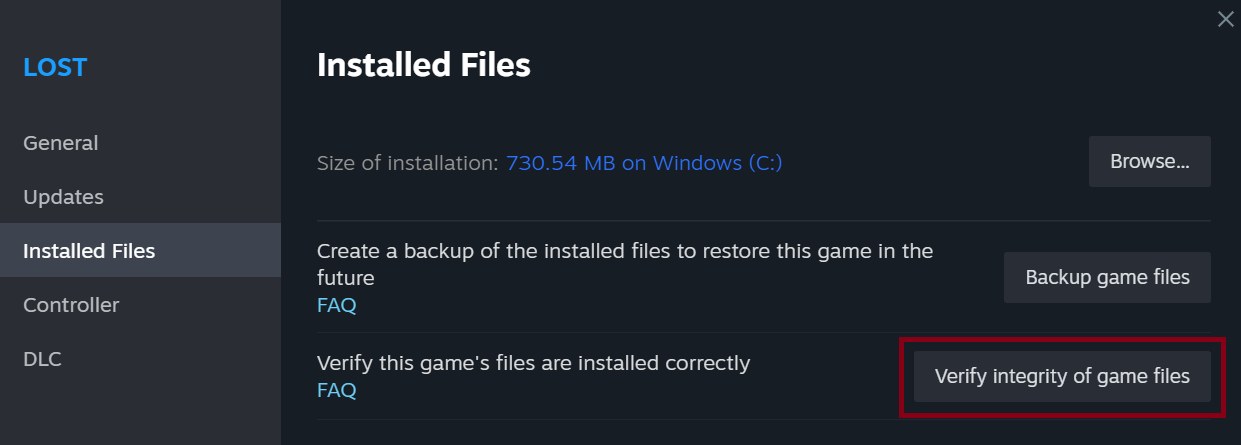
Steam’s file-verification tool checks an installed game and downloads missing or replacement files. Use it when a game reports missing data or fails to launch before committing to a full reinstall. A completed check does not guarantee a fix for every crash, since hardware, settings and the game itself can cause other failures.
Valve recommends restarting your computer and launching Steam first. Close the game you want to check. If you have modified installation files, keep a backup of those changes because verification may restore the originals.
Start the check from your library
Right-click the game in the Steam library, or open its settings button. Select Properties, then Installed Files, and choose Verify integrity of game files. This checks the installation for that individual game.
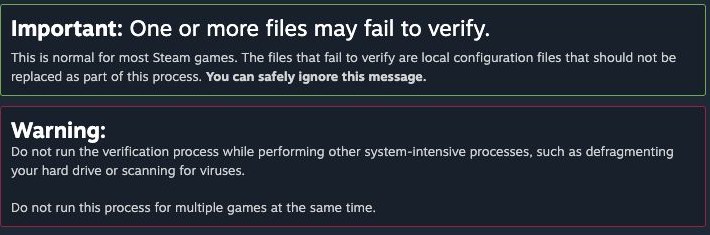
Allow several minutes for the process, depending on the installation and drive. Valve advises against verifying multiple games simultaneously or running other intensive work, such as drive defragmentation or an antivirus scan, during the check.
Wait for any replacement downloads to finish before launching the game again. Then repeat the action that caused the original failure. If the same crash returns, keep the error message and investigate that specific problem rather than assuming verification fixed it.
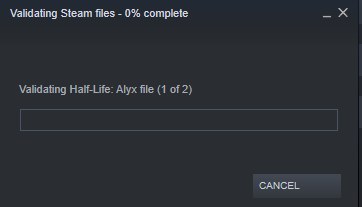
A failed-file message can be normal
Steam may report that one or more files failed to validate. Valve says some local configuration files are excluded from verification, so that result can be expected. Check whether the process has finished and whether the game actually works before treating the message as proof of a broken installation.
Let any replacement download finish. If the installation passes its check but the game stutters as a new scene appears, another process may be responsible. Our shader compilation and stutter guide explains how preparing graphics effects can interrupt smooth playback.
Verification does not recover saved games
Game files and saved progress are separate. Verification cannot recreate a deleted save or choose the correct version in a cloud conflict. Save locations vary, and Steam Cloud support depends on the developer’s per-game configuration.
If Steam asks you to choose between local and cloud progress, follow our Steam Cloud conflict and save-backup guide before overwriting either version. Repairing installation data and protecting progress are different tasks.
The conversation starts here
Sign in with a supporter account to comment. Sign in


Nobody has commented yet. Want to go first?