
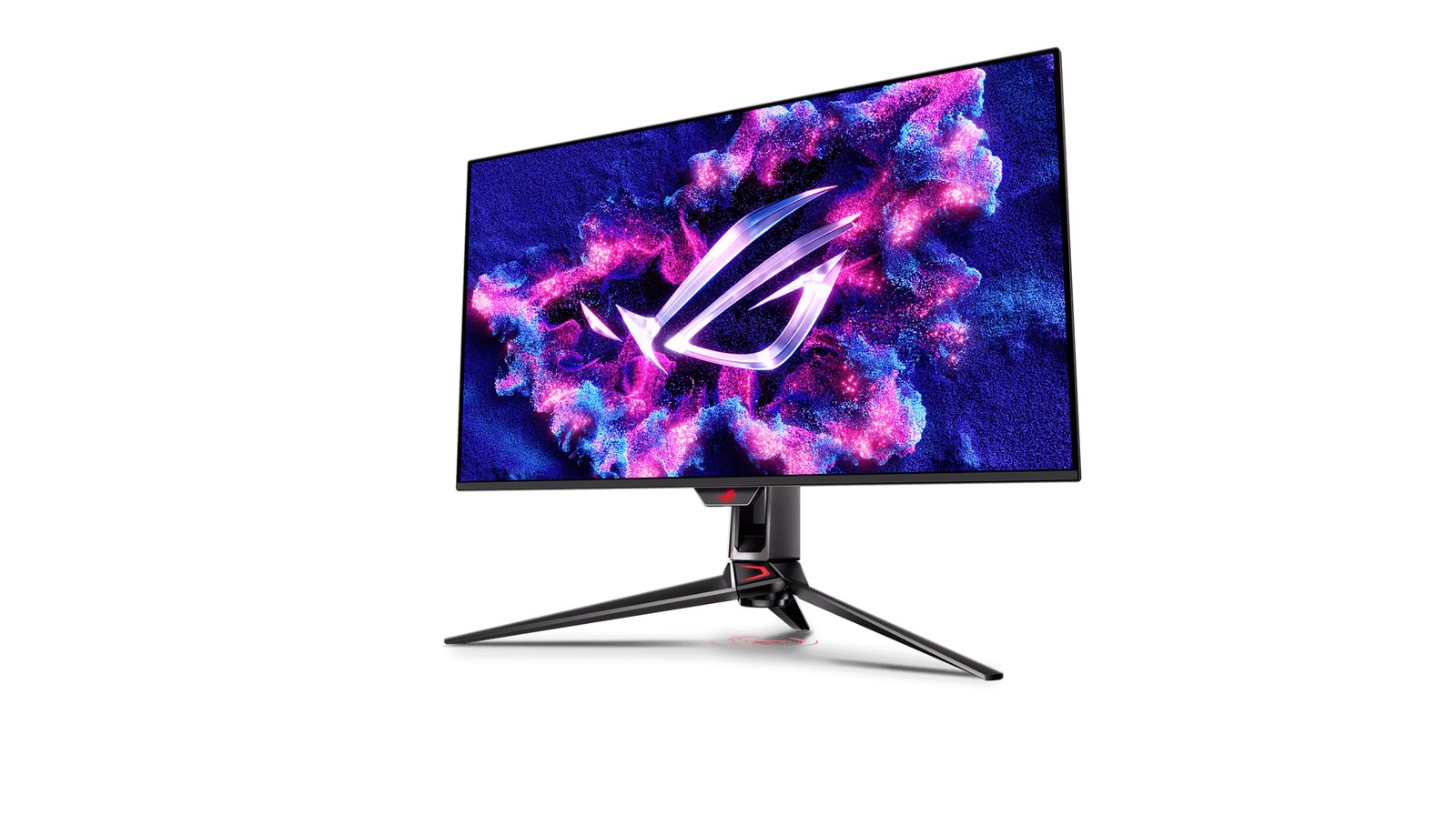
If enabling HDR makes the Windows 11 desktop look gray or overly bright, do not immediately increase the monitor's saturation. The desktop and many apps still display standard dynamic range content. Windows must present that SDR material alongside HDR content with a wider brightness range.
Establish whether the problem affects only the desktop or a genuine HDR scene too. Those are separate checks. The product photographs illustrate an HDR monitor, not a measured before-and-after comparison.
1. Select the display you mean to change
Open Settings, System, Display, select your monitor and open HDR. Confirm that Windows reports HDR support and Use HDR is on. Microsoft's HDR help notes that duplicating a laptop screen onto an external display can prevent HDR. Try Extend these displays if that applies to your setup.
If the HDR option is missing, check the monitor mode, port and cable against its manual. Installing another monitor's profile cannot turn unsupported hardware into an HDR display.

2. Check SDR content brightness
On an external HDR display, SDR content brightness controls ordinary apps while HDR is enabled. Adjust it gradually while viewing the same window. There is no universal value for every panel and room.
Microsoft suggests restarting apps that do not respond properly or look desaturated after an adjustment. This control is separate from physical monitor brightness and a game's HDR settings. Changing all three at once makes the cause harder to isolate.
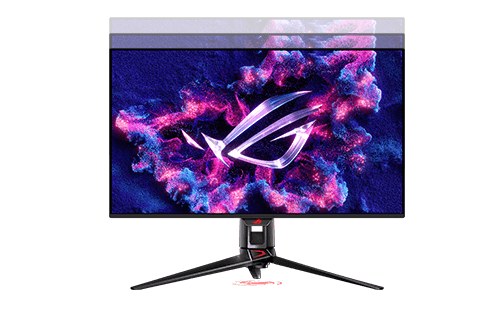
3. Use the HDR Calibration app
Windows HDR Calibration is a free app for Windows 11 with HDR enabled. Run it full-screen on the correct display. Its three patterns check dark detail, bright detail and maximum brightness. Follow each test by moving the slider until the pattern disappears.
Calibrate in your normal room lighting and save the profile. Avoid using heavy saturation to hide a dull image. Then check known HDR content and any calibration options inside your game. Do not assume every title handles the Windows profile in the same way.
Calibration cannot replace better hardware
VESA's requirements distinguish brightness, black levels, contrast and color performance. Accepting an HDR signal alone does not make two panels equivalent. Our DisplayHDR versus HDR10 guide explains why.
Once the settings are correct, the remaining limitation may be the panel or backlight. Our OLED versus Mini LED guide covers that difference. For ordinary SDR work, leaving HDR off and enabling it for suitable content is also an option.
The conversation starts here
Sign in with a supporter account to comment. Sign in
Nobody has commented yet. Want to go first?