
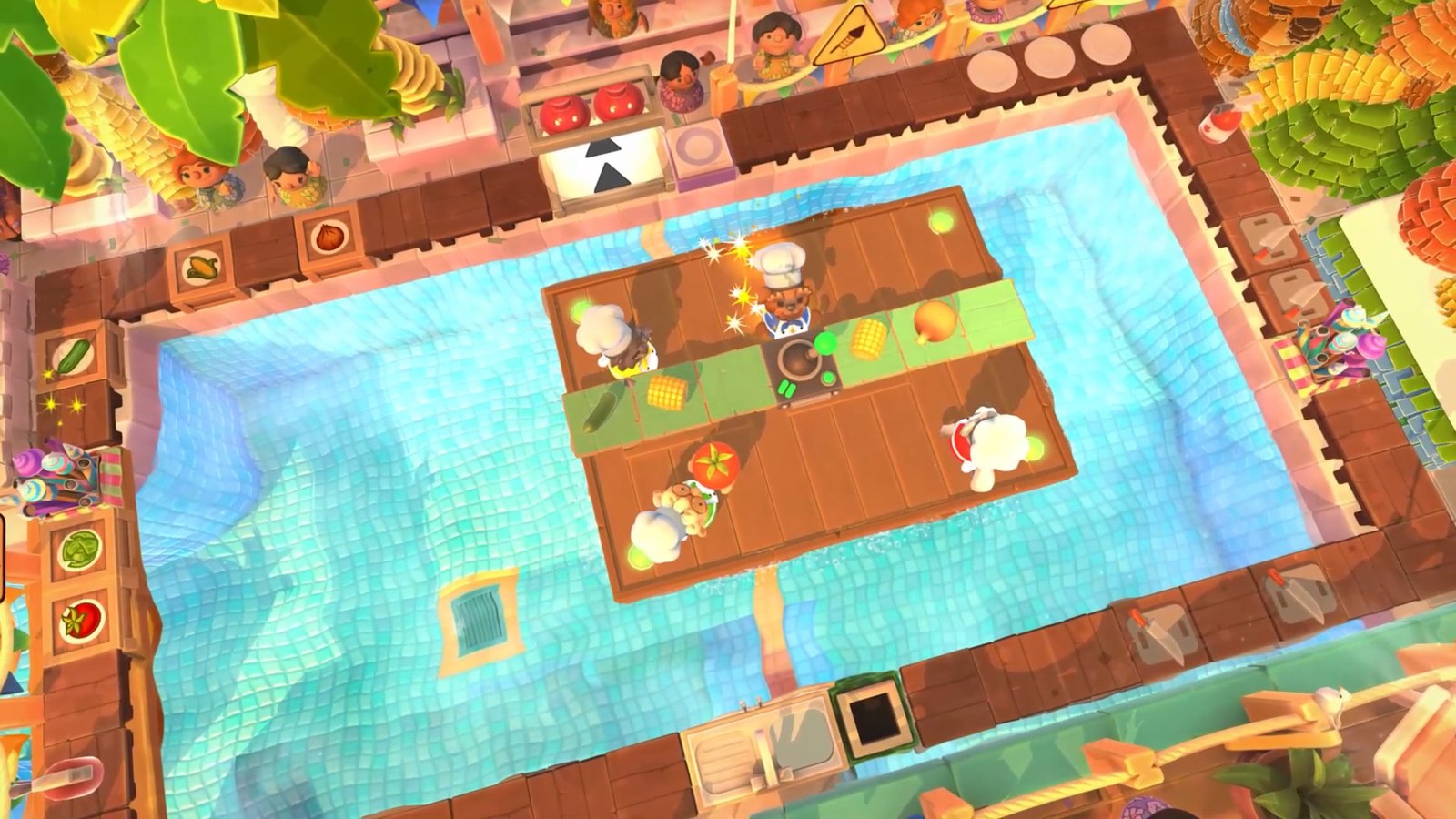
Remote Play Together lets friends join a supported Steam game without owning or installing it. The host PC runs the game and streams its picture and sound. Guests send controller inputs back to that computer, sharing the same local session rather than running their own copies.
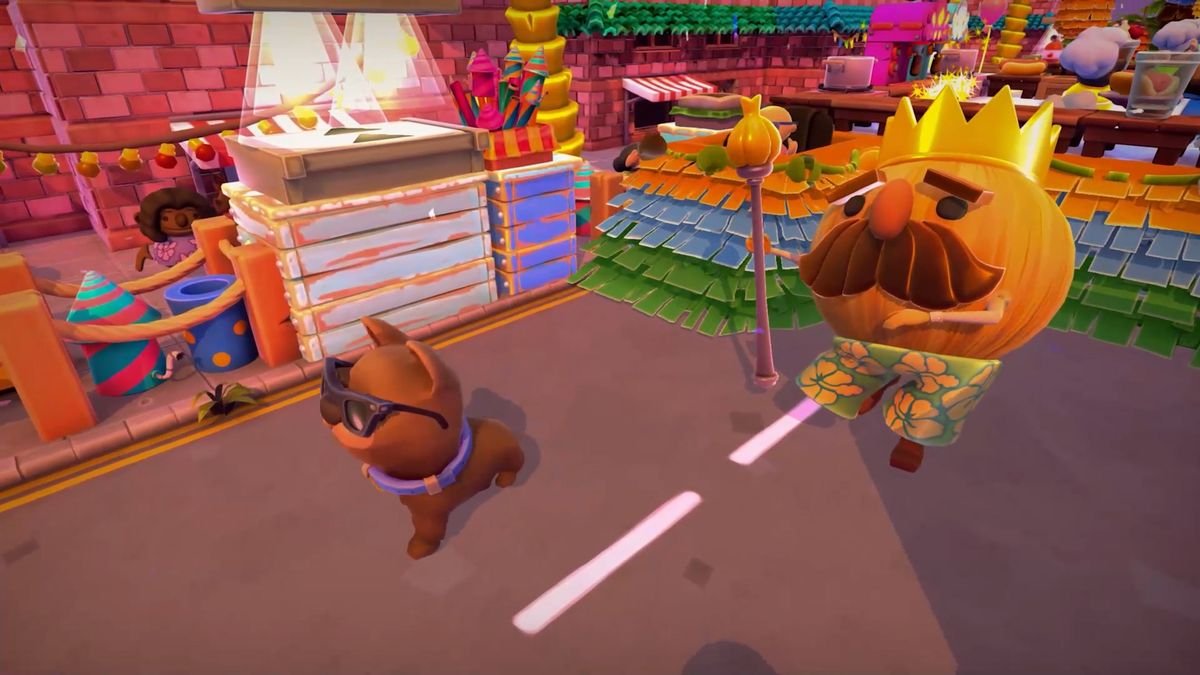
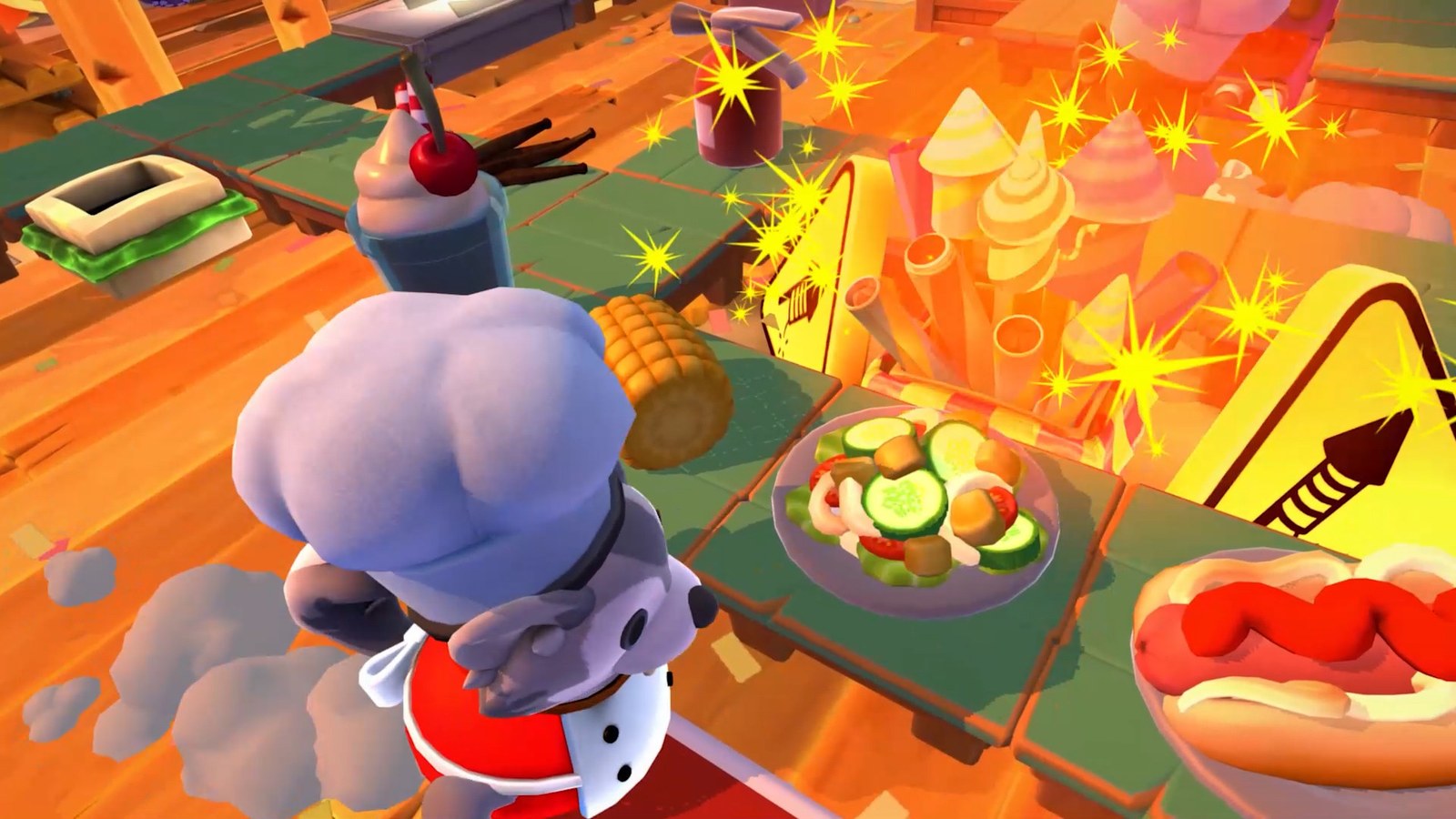
Valve's Remote Play page confirms that only the host needs to own the game. Check the store listing for Remote Play Together and the local modes it supports. Overcooked 2, shown in these screenshots, includes the feature.
Start the game, then invite your friend
These steps cover a session between Steam users on computers. Your guest should have Steam open and be on your friends list. They do not need to buy or install the game.
Launch the supported title on the host PC. Open the Steam overlay, normally with Shift and Tab, then use your friends list to send a Remote Play Together invitation. Your friend accepts and connects to the stream.
Enter the game's local multiplayer mode and assign players as you would on a couch. The host can manage keyboard and mouse access. If two inputs move the same character, check controller assignment in the game before diagnosing a network fault.
Your guests are sharing a local session
Steamworks documentation explains that additional players join as though they were at the same computer. The local game still determines player limits, screen layout and supported inputs. The feature cannot invent a four-player mode for a single-player campaign.
It also does not give each guest an independently installed copy or a personal save to continue alone. Our Steam Cloud save-conflict guide covers syncing your own saves between machines, which is a different process.
Work out where the delay starts
First check performance on the host. A game struggling there will not become smooth by streaming it. If the host sees clean gameplay while the guest sees stutter, try a wired connection and lower stream quality before changing in-game graphics settings.
Bandwidth is only one part of responsiveness. Network delay and video encoding also affect the input round trip. Our crossplay and cross-save guide distinguishes shared streaming from multiplayer between independent game copies.
Test every controller before a long session and confirm that the host can keep the game open. When the host ends the session, guests cannot carry on running that copy themselves.
The conversation starts here
Sign in with a supporter account to comment. Sign in

Nobody has commented yet. Want to go first?