
To get the best picture and response from a PS5 or Xbox Series X|S, do four things in this order: plug the console straight into an HDMI input that supports 4K at 120Hz and has its full signal format unlocked, let the TV switch itself into game mode, turn on 120Hz and VRR on the console, and run the console's built-in HDR calibration. Those steps help every game you play.
That includes GTA VI, out November 19, although Rockstar hasn't announced its console graphics modes and the 60fps mode people talk about is still a rumor.
1. Pick the right HDMI input and unlock it
Many TVs reserve 4K at 120Hz for one or two of their HDMI inputs, labeled next to the socket or in the manual. Use that input with the cable from the console box or a certified Ultra High Speed cable, with no soundbar or AV receiver in between. PlayStation's support page names those in-between devices, the wrong cable and a TV that hasn't been updated as the usual reasons the console can't reach 4K at 120Hz.
Next, unlock the full signal on that input, since many TVs ship with it restricted. Samsung calls the setting Input Signal Plus and keeps it in the external device manager under Connection. Sony calls it Enhanced format, under HDMI signal format. If 120Hz still won't show up, our guide to enabling 120Hz and VRR on PS5 goes through every suspect.
2. Game mode and ALLM
TVs process the picture before displaying it, and that processing adds input lag, the delay between pressing a button and seeing the result. Game mode cuts most of it. ALLM, or Auto Low Latency Mode, lets the console tell the TV to enter game mode when you start playing and leave it when you switch to a movie.
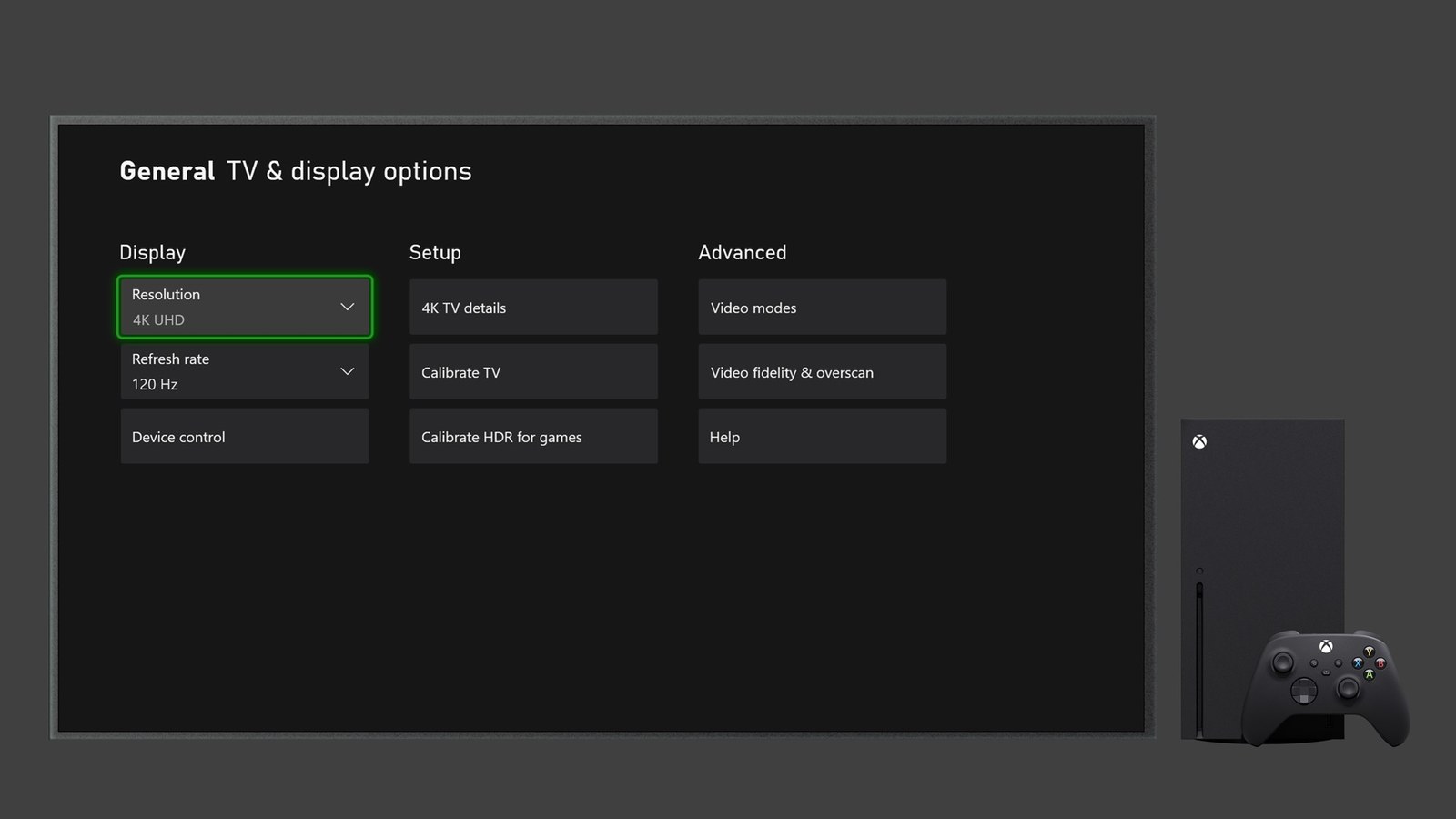
On PS5, ALLM is under Settings > Screen and Video > Video Output > ALLM. On Xbox, look for Allow auto low-latency mode under Settings > General > TV & display options > Video modes. If your TV doesn't switch on its own, pick its Game picture mode yourself.
3. 120Hz and VRR on each console
A 120Hz TV redraws the picture 120 times a second, but you only see the benefit in games with a 120fps option, usually called Performance mode. VRR, or variable refresh rate, has the TV wait for each finished frame instead of refreshing on a fixed beat, which stops the picture from tearing in two when a game drops frames. Our explainer on what VRR is goes deeper.
Some TV motion smoothing settings switch VRR off. On Samsung TVs, for example, turning on Game Motion Plus disables it.
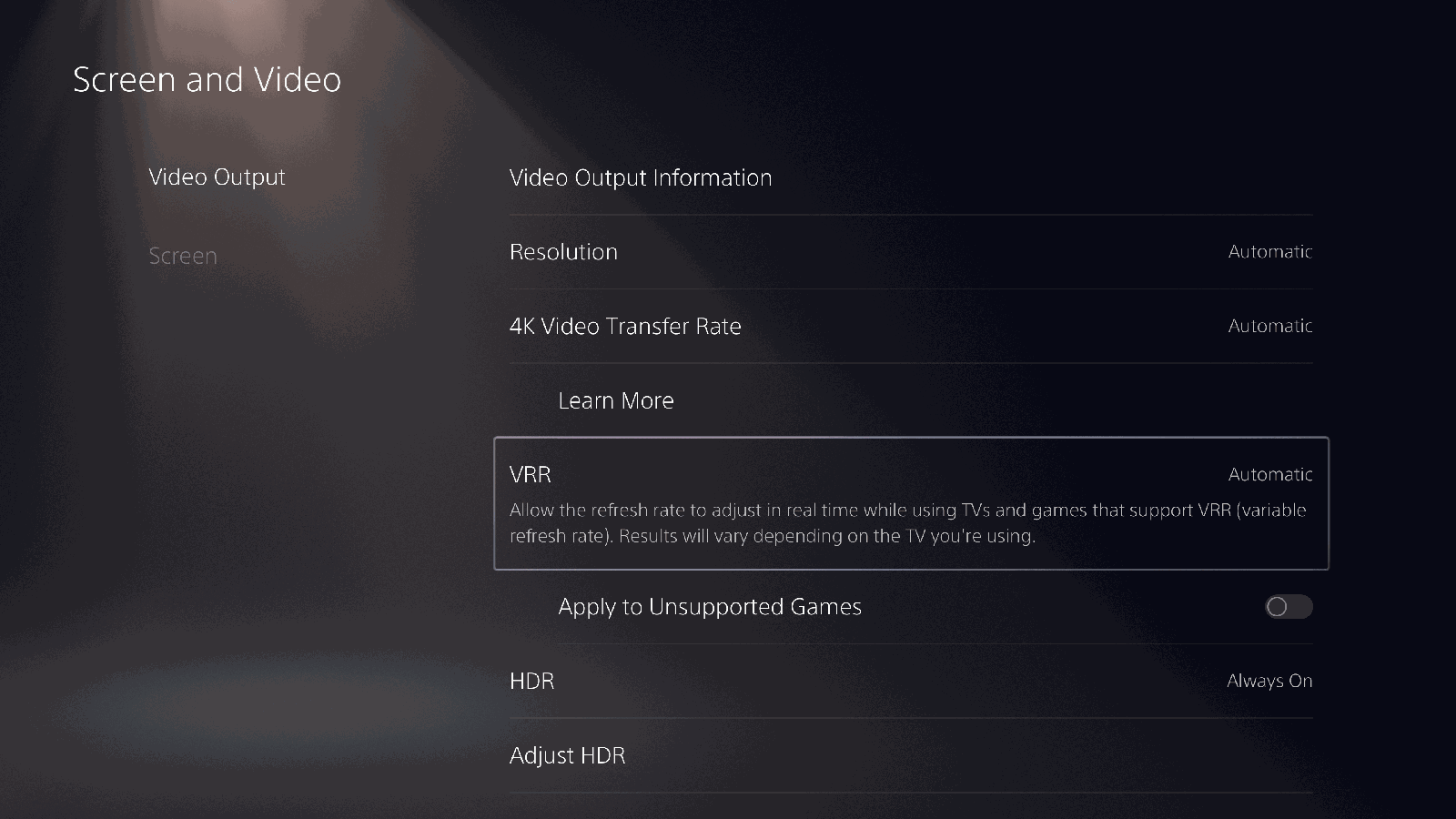
- PS5: under Settings > Screen and Video > Video Output, leave Resolution and Video Transfer Rate on Automatic, turn on 120 Hz Output and set VRR to Automatic. Apply to Unsupported Games is optional. Turn it off if you see flicker.
- Xbox Series X|S: under Settings > General > TV & display options, pick 120Hz in Refresh rate and check Allow variable refresh rate in Video modes.
4. Calibrate HDR on the console
HDR puts very bright highlights and detailed shadows in the same scene, but every TV tops out at a different brightness. That's why both consoles include a few test screens that tune HDR to your set: Video Output > Adjust HDR on PS5 and TV & display options > Calibrate HDR for games on Xbox. Run them with the TV already in the picture mode you'll play in, because the adjustment depends on what the screen shows at that moment.
On a recent LG, switch on HGIG in Game Optimizer first. According to LG, HGIG sets color and contrast the way the game's developer intended, though the picture may look darker than when the TV adjusts brightness on its own.
For games without HDR, PS5 offers On When Supported, which leaves them as they were made, and Always On, which converts them. Xbox's Auto HDR rebuilds an HDR image for older games, and Microsoft suggests turning it off if colors look wrong.
How to check that it worked
On PS5, open Information for the Connected HDMI Device in Video Output and look for 120Hz, VRR and HDR. On Xbox, 4K TV details under TV & display options should show a green check next to each feature. If one is missing, the problem usually lies with the input, its signal format or the cable, and changing the graphics mode inside a game won't fix it.
If the picture flickers on PS5, drop Video Transfer Rate to -1 or -2, though that may cost you 4K at 120Hz.
Frequently asked questions
Do I need a new HDMI 2.1 cable for PS5 or Xbox Series X|S?
Usually not. The cable in the box with either console already handles 4K at 120Hz, VRR and ALLM. If you need a replacement, look for one certified as Ultra High Speed. An older High Speed cable may leave you at 1080p at 120Hz or fail when 4K, 120Hz and HDR are combined.
What is ALLM and should I turn it on?
ALLM is Auto Low Latency Mode. The console tells the TV a game is running, and the TV switches to its game mode, which cuts the delay between controller and screen. Leave it on. On PS5, if VRR is enabled, the TV enters low latency even when ALLM is off.
Why is my PS5 only showing 1080p at 120Hz instead of 4K?
The usual culprits are the input, the cable or a device in between. Sony suggests confirming the TV supports 4K at 120Hz and runs its latest firmware, using the included or an Ultra High Speed cable, plugging the PS5 straight into an HDMI 2.1 input and leaving Resolution and Video Transfer Rate on Automatic.
Should PS5 HDR be set to Always On or On When Supported?
On When Supported shows games without HDR in standard range, the way they were designed. Always On converts them to HDR. The first option is the more faithful one. Whichever you pick, run Adjust HDR afterward so the console knows how bright your TV can really get.
Does the Xbox Series S support 120Hz and VRR?
Yes. Microsoft lists 120Hz, VRR and ALLM for both Series X and Series S, as long as the TV supports them too. The two consoles differ in resolution and power, not in these connection features. You can confirm the result in 4K TV details under TV & display options.
Will GTA VI run at 120Hz or use VRR?
Nobody knows yet. Rockstar has not announced GTA VI's graphics modes on PS5 or Xbox Series X|S, and talk of a 60fps mode remains a rumor. Setting up your TV properly before November 19 still means less lag and HDR tuned to your screen, whether or not the game uses those features.
The conversation starts here
Sign in with a supporter account to comment. Sign in

Nobody has commented yet. Want to go first?