
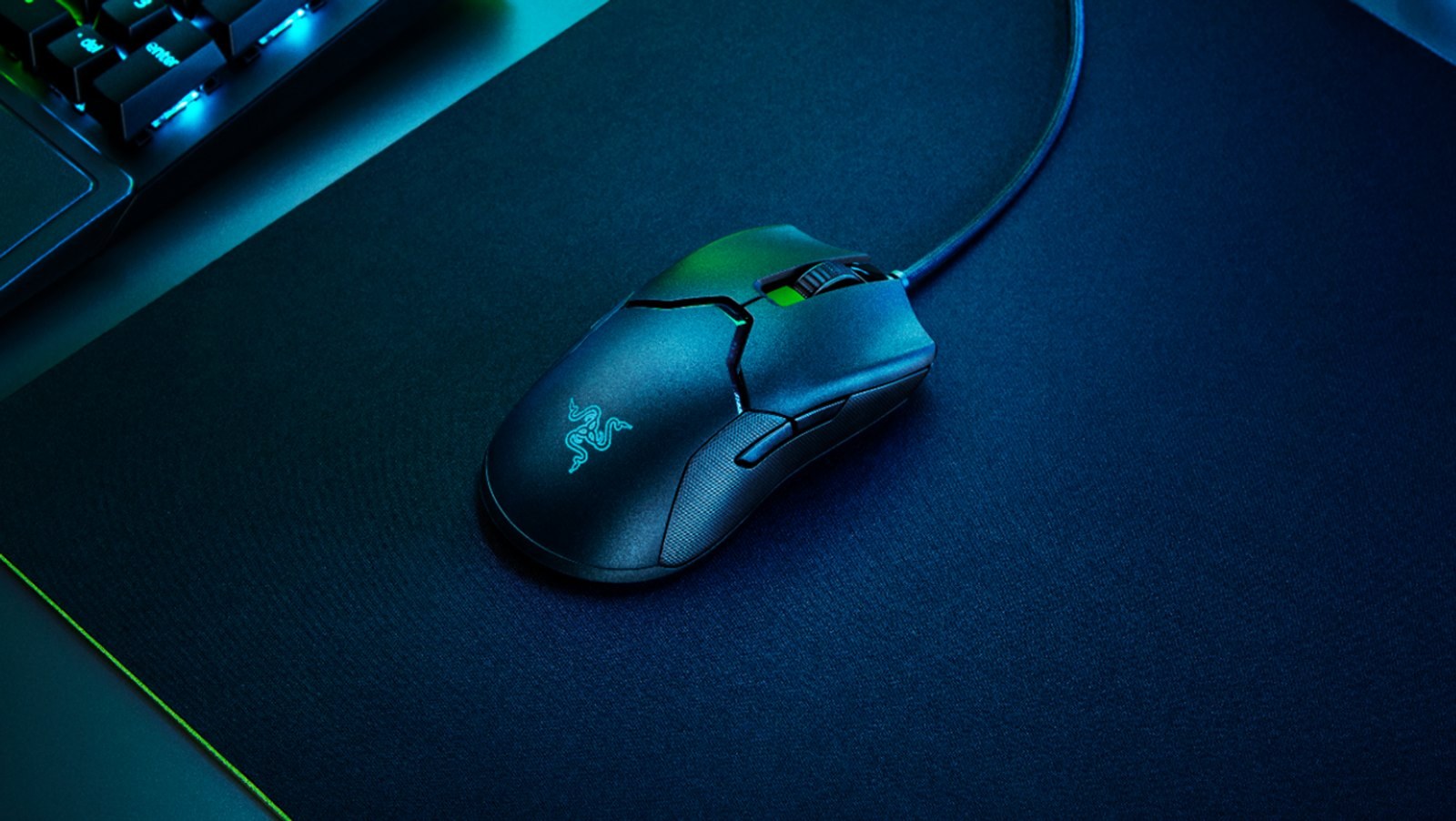
Polling rate is not a measure of aim
Start at 1,000Hz and check that your games respond consistently. Higher settings can shorten the interval between mouse reports, but 4,000Hz or 8,000Hz does not guarantee a noticeable improvement on every PC. Testing them makes most sense with high frame rates, a high-refresh display and spare CPU capacity.
Polling rate is how many times per second the mouse sends data to the computer. At 1,000Hz, the interval between reports is 1 millisecond. At 8,000Hz it is 0.125 milliseconds. Subtracting those intervals gives 0.875 milliseconds, not a guaranteed reduction in total input lag.
The game still has to process the movement, the GPU has to render it and the display has to show it. That is why frame rate and refresh rate remain relevant. DPI is a separate setting that describes how much movement the sensor reports for a given physical distance.
The trade-offs are real
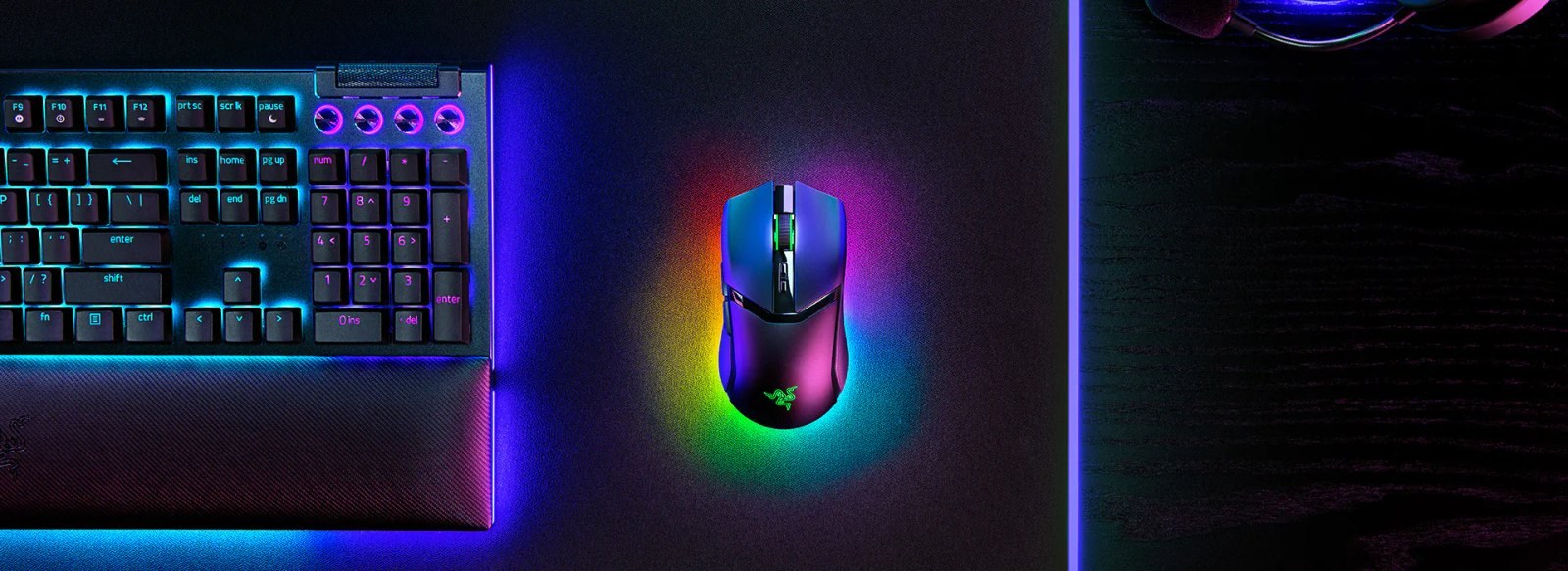
Razer’s HyperPolling documentation warns that CPU-limited systems may lack the resources to process 8,000 reports each second. If rapid mouse movement starts causing stutter, the higher setting is not helping that game.
Wireless battery life can also fall as polling rate rises. Look for battery estimates at each rate for your exact model. Check its receiver requirements too, since wired, dedicated wireless and Bluetooth connections may support different settings.
Test the setting, not the marketing
Use a practice area or a repeatable scene. Keep DPI, in-game sensitivity, resolution and graphics settings unchanged. Otherwise, any improvement becomes hard to attribute to the polling rate.
A repeatable comparison
Look for consistent response at a performance and battery cost you can accept. A browser polling-rate test may help check reports, but it cannot measure the complete delay from moving your hand to seeing the result.
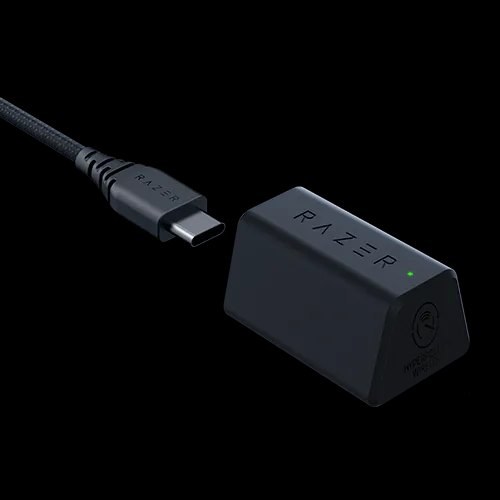
- Update the mouse software and firmware through the manufacturer. Confirm whether a special receiver is required.
- Establish a 1,000Hz baseline, then try the higher rates your mouse supports. Repeat the same fast movements in the same scene.
- Watch for stutter or performance drops while moving. If they appear, switch back and repeat the test.
- Keep the stable lower setting if higher rates provide no consistent benefit. Buying an 8,000Hz mouse does not oblige you to run it at 8,000Hz.
The conversation starts here
Sign in with a supporter account to comment. Sign in
Nobody has commented yet. Want to go first?