
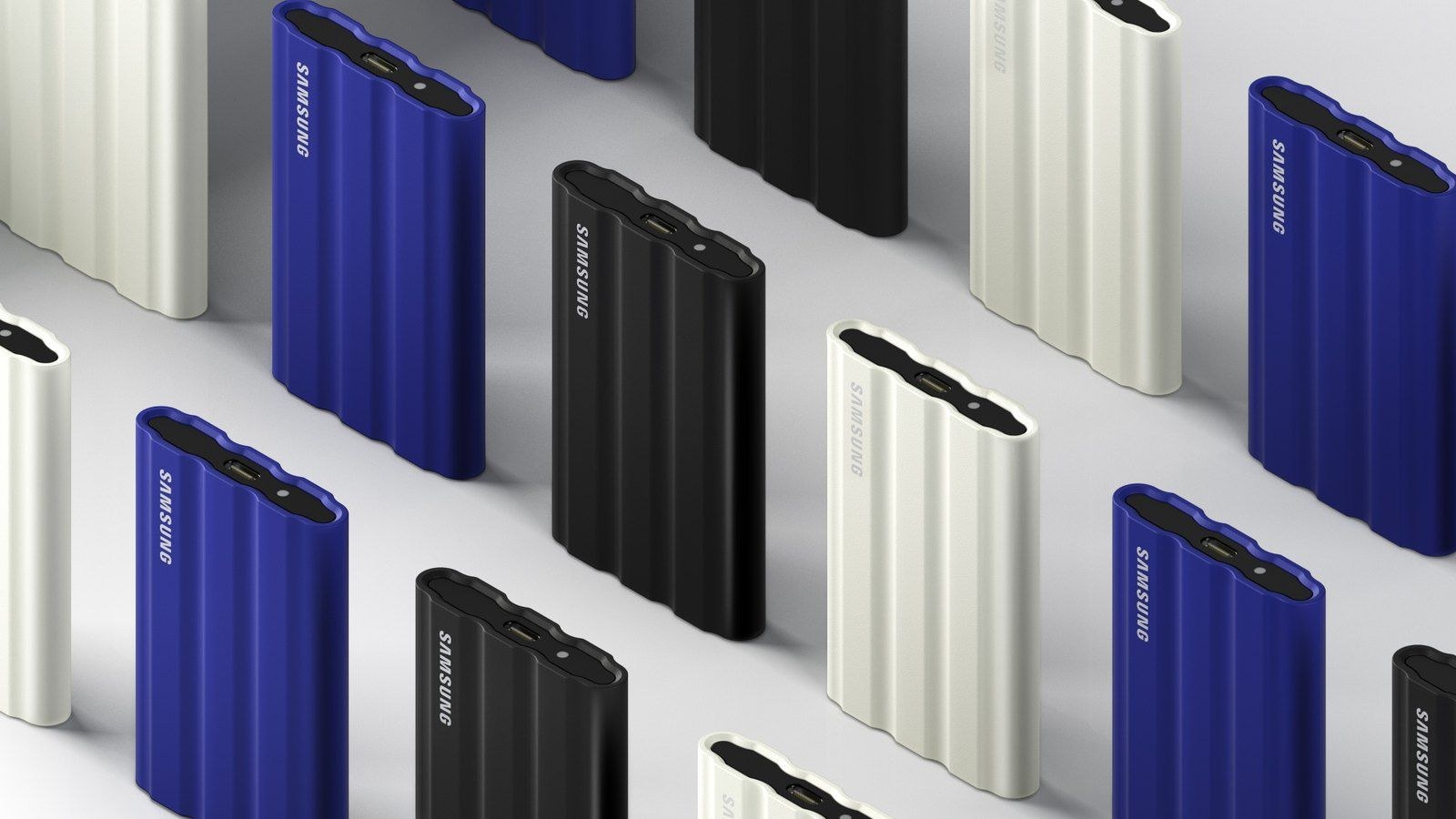
Start with the computers that need access
For moving files between a Mac and a Windows PC, exFAT is usually the practical choice because both systems can read and write it without an extra driver. APFS suits a drive that stays with a modern Mac, while NTFS is the usual choice for Windows-only use.
A file system organizes stored data. It is separate from the connector and the drive technology, so a USB-C SSD can use different formats. Our USB-C cable guide explains why the same connector does not guarantee the same transfer speed.
Apple’s Disk Utility guide lists APFS and exFAT among its supported formats. APFS offers features including encrypted volumes and snapshots, but is not the straightforward choice for exchanging files with Windows without additional software. exFAT’s advantage here is compatibility, not a universal speed benefit.
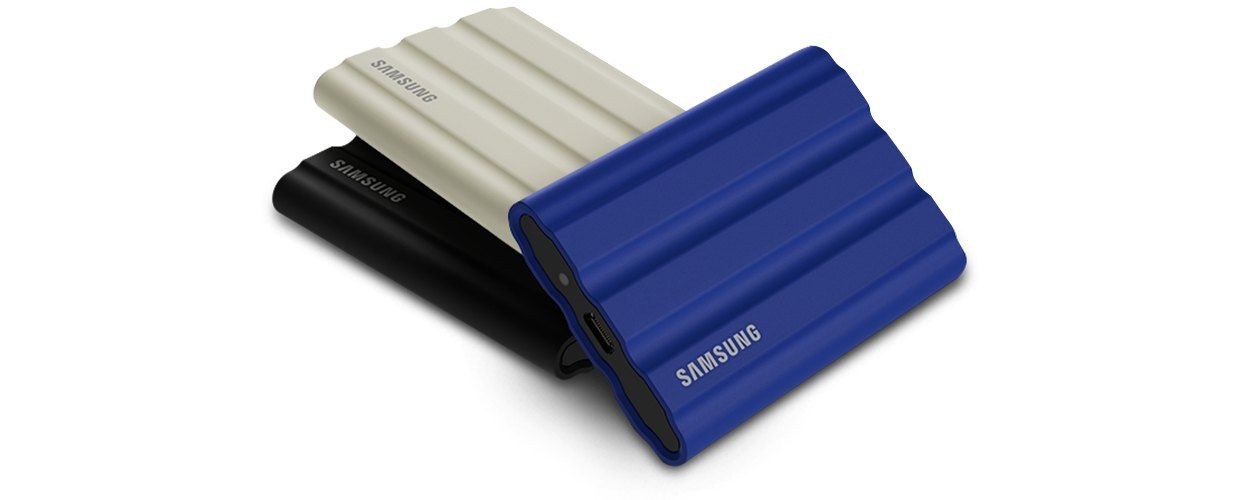
Readable does not always mean writable
A Mac may display files on an NTFS drive while refusing to save new ones to it. Apple documents that limitation. Select the drive in Finder, press Command-I and check Format before assuming the hardware has failed. Available space and permissions also deserve a check.
FAT32 works with many devices but limits individual files to roughly 4 GB. A large video can therefore fail to copy even when the drive has plenty of room. Microsoft’s file-system comparison also lists functional differences: exFAT lacks the metadata journal that NTFS uses to help recover from some interruptions. None of these formats replaces a backup.
If copying still fails
Do not immediately erase the drive again. Try another port or cable, confirm the format and determine whether reading, writing or just one particular file fails. Apple’s troubleshooting guide also covers free space, permissions and disk errors. If irreplaceable data is on a failing drive, prioritize recovery before writing more to it.
Formatting cannot turn a slow drive into faster hardware. The differences between NVMe and SATA SSDs, the connection and the computer still affect transfer rates.
The conversation starts here
Sign in with a supporter account to comment. Sign in

Nobody has commented yet. Want to go first?