
Start with the problem, not the budget
This guide sets priorities and uses examples rather than attempting an exhaustive comparison of every gaming peripheral or choosing a winner for each category. Razer models appear because they are the products and official prices documented for this edition. They illustrate features and costs, not an independent sample of every brand.
Razer describes the DeathAdder V4 Pro as its biggest technological leap in a decade. That claim does not make a $169.99 mouse a sensible purchase for everyone. The best upgrade is usually the device that already gets in your way, not a complete matching desk setup.
Name the problem before assigning money, whether it is a mouse that loses tracking, a painful headset, missed keystrokes, controller drift or a charging cable that cannot reach. Replacing equipment that works just to match colours spends the budget without fixing anything.
Comfort comes first. The mouse has to suit your hand, the headset must remain comfortable and the controller needs to support the systems you use. Latency, accuracy, microphone quality and battery life come next. Lighting belongs at the end unless the look of the desk is part of what you deliberately want to buy.
Below $100: replace one weak link
Prices in this guide were checked at official US stores on August 31, 2026. Treat them as reference points because discounts will change them. Our gaming dictionary explains polling rate, DPI, Hall Effect and dead zone if any specification is unfamiliar.
With less than $100, keep the devices that still work and replace one bad component. A straightforward wired mouse often improves competitive PC play more than a low-cost gaming keyboard. Razer's official DeathAdder range lists the Essential at $29.99 and the wired DeathAdder V3 at $69.99. Choose between them by shape and weight rather than assuming the dearer one will suit you.
Console players can use the same budget for comfortable wired audio or a replacement for a drifting controller. Check the microphone, ear pads and connection before paying for virtual 7.1 sound. Our guide to the best gaming headsets of 2026 starts around $100 and identifies the version needed for each console.
A large enough mouse mat, a reliable cable or a stand that puts the display at the right height can also remove a daily irritation. Buy one of those first when it solves the actual problem.
From $100 to $250: build a balanced setup
This range lets you divide the money, although it still does not require three replacements. You can combine two categories using $30-70 for a mouse, $60-100 for a keyboard and $80-100 for audio as reference points. Keep the device that still performs well. Making everything wireless adds cost, weight and more batteries to charge.
Choose the keyboard size before the switch type. Full-size keeps the number pad, TKL creates more mouse room and a 60 or 65 per cent board moves missing keys behind shortcuts. Mechanical does not automatically mean fast or quiet. Our magnetic versus mechanical keyboard guide shows when Hall Effect is worth paying for.
Mouse shape and grip matter more than the largest sensor number. A modern sensor from a recognised brand already covers most players, and moving from 26,000 to 35,000 DPI does not improve aim by itself. For headsets, compare weight, microphone clarity and Xbox or PlayStation support.
From $250 to $500: pay for one speciality
At this budget, one specialist component can sit beside two sensible choices. A premium magnetic keyboard may suit a competitive shooter player who will use adjustable actuation and Rapid Trigger. Razer's Huntsman V3 Pro was listed at $189.99, down from $249.99, when we checked. That price is much harder to defend for typing and adventure games.
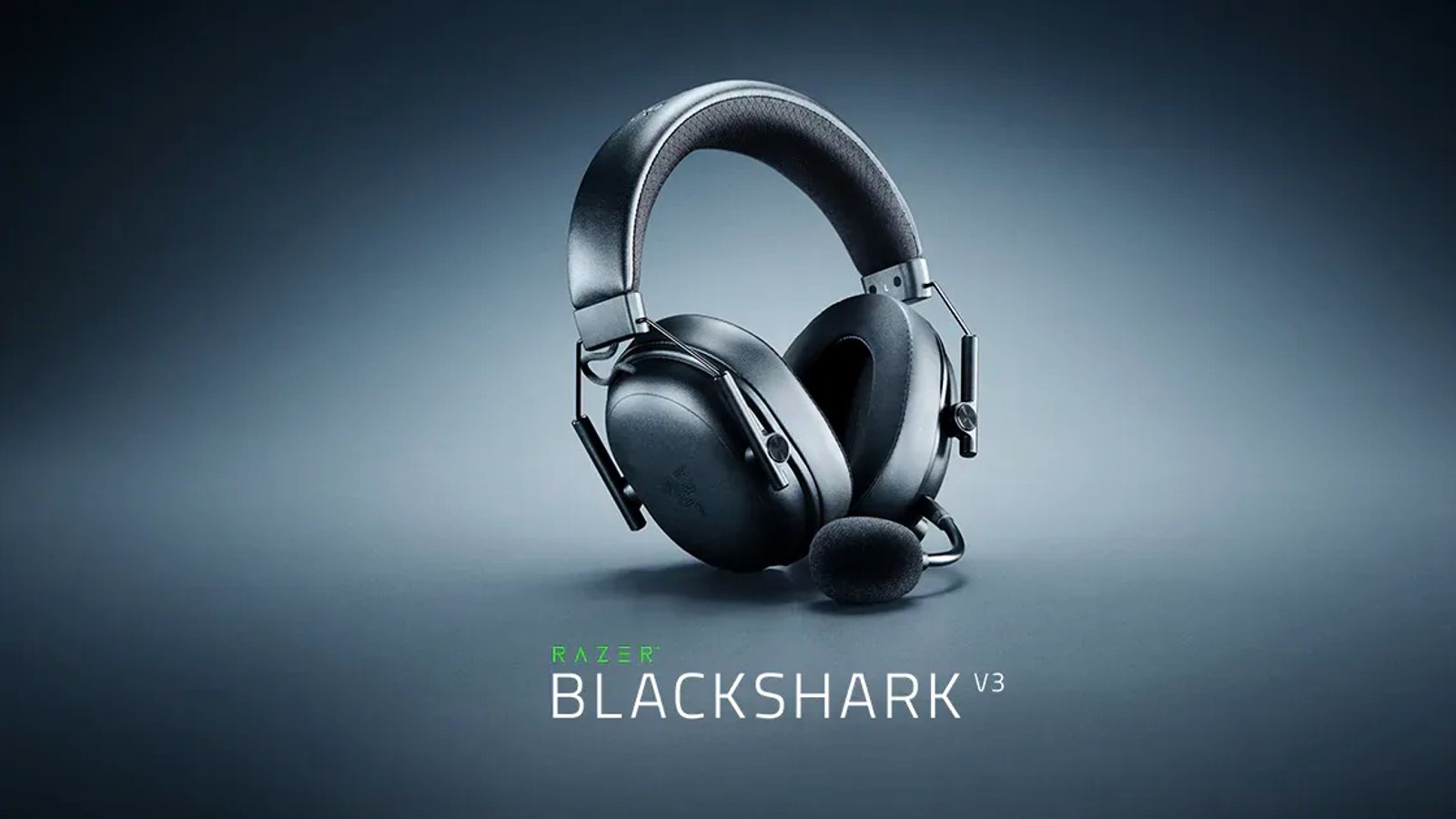
The Razer BlackShark V3 costs $149.99, weighs 270 grams and supports 2.4 GHz, Bluetooth and USB. It is our general recommendation among the best gaming headsets, but it does not need to sit beside a $250 keyboard. Spend most in the category whose improvement will affect every session.
Check the rest of the system before buying an 8K peripheral. An extreme polling rate can use more CPU while adding little when the display or the game itself is the bottleneck. Our guide to input lag follows that entire chain.
Above $500: pay for named functions
Beyond $500, price and improvement no longer rise together. The extra money buys planar headphones, mixers for several consoles, ultralight mice, aluminium keyboards or wireless ecosystems. It is only worthwhile when you can name the feature you will use.
Someone moving between PC, PS5 and Xbox may save time with multi-source audio. A competitive player may care most about shape, weight and latency. An RPG player could gain more from a better display, an adjustable chair or extra storage. For the monitor, VRR, G-Sync and FreeSync affect play more than an esports logo.
There is no need to build the whole setup around one manufacturer because, although shared software is convenient, it can make a later replacement harder. A mouse, keyboard and headset from different brands can work together without difficulty.
The checklist before paying
Confirm the platform, keyboard layout, connections, weight, dimensions and return policy. Some Xbox devices require specific licensing. On PlayStation, a USB connector fitting does not guarantee that every feature works. Check whether the configuration software supports your computer too.
Read the battery and cable warranty, look for replacement pads or switches and include a receiver or base in the final price when it is sold separately. If a product promises better performance, find out which measurement changes and whether your display and games can show the difference.
We will update this page after testing new units and checking compatibility. If a price band has no clear recommendation, keeping the money is better than filling the setup for the sake of it.
The conversation starts here
Sign in with a supporter account to comment. Sign in
Nobody has commented yet. Want to go first?