

On PS5, parental controls are attached to each child's account. Before you can set anything, you need a family on PlayStation Network with you as the family manager, and a child account for each kid. Once that exists, go to Settings > Family and Parental Controls > Family Management, pick your child and set four rules: which games they can open based on their age, how long they can play, how much they can spend on PlayStation Store and who they can talk to.
The same settings live in PlayStation Family, a free iOS and Android app Sony launched in September 2025. Because everything is tied to the account, the rules follow your child to any PS5 or PS4 they sign in to. Nintendo Switch 2 works the other way round, with age and time limits applied to the whole console, so a home with both systems needs to set them up separately.
First, set up your family and a child account
Every family has exactly one family manager. That adult can give another adult the Parent/Guardian role, which lets them set parental controls and see playtime, but not add family members or reset a child's password. You can create the child account in three places:
- On PS5: select your profile icon at the top right of the home screen, then Switch User > Add User > Get Started > Create an Account. - On the web: sign in to Account Management, open Family Management and choose Set Up Now > Add a Child. For a second child, it's Add Family Member > Add a Child. - In PlayStation Family: sign in and tap Set Up Your Family.
Sony's parental controls help page says the controls only kick in once your child has verified their email address and signed in on the console. Anything you change while they're playing takes effect after they sign out and back in. The rules also protect only that account, so a kid playing on your profile has none.
Child members can't be removed from a family. Once they're old enough, they'll be offered an upgrade to a full adult account at sign-in. They don't have to accept, but an upgraded account can't go back to being a child account.
Step 1: Age ratings, web browsing and VR
In Family Management, select your child and open Restriction Level. Sony offers three presets:
| Preset | PS5 games | Web browsing | PS VR and PS VR2 | Communication with other players | Monthly spending | | --- | --- | --- | --- | --- | --- | | Child | Up to their age | Restricted | Restricted | Restricted | 0 | | Early Teens | Up to their age | Restricted | Allowed | Restricted | 0 | | Late Teens or Older | Up to their age | Allowed | Allowed | Restricted | 0 |
"Up to their age" means the PS5 checks each game's age rating against the birth date on the account. In the US that rating comes from the ESRB, so a 10-year-old can open an E10+ game but not one rated T for Teen. The presets also set separate limits for PS4 and PS3 games and for Blu-ray and DVD movies.
Changing any single option switches the preset to Customize. The individual settings are Age Level for Games and Apps, Blu-ray Discs and DVDs, Use of PlayStation VR and PlayStation VR2, which Sony says isn't suitable for children under 12, and Web Browsing, which blocks web pages opened on the console. If your child already had a child account set up on PS4, those settings carry over to PS5.
Step 2: Daily playtime and what happens when it runs out
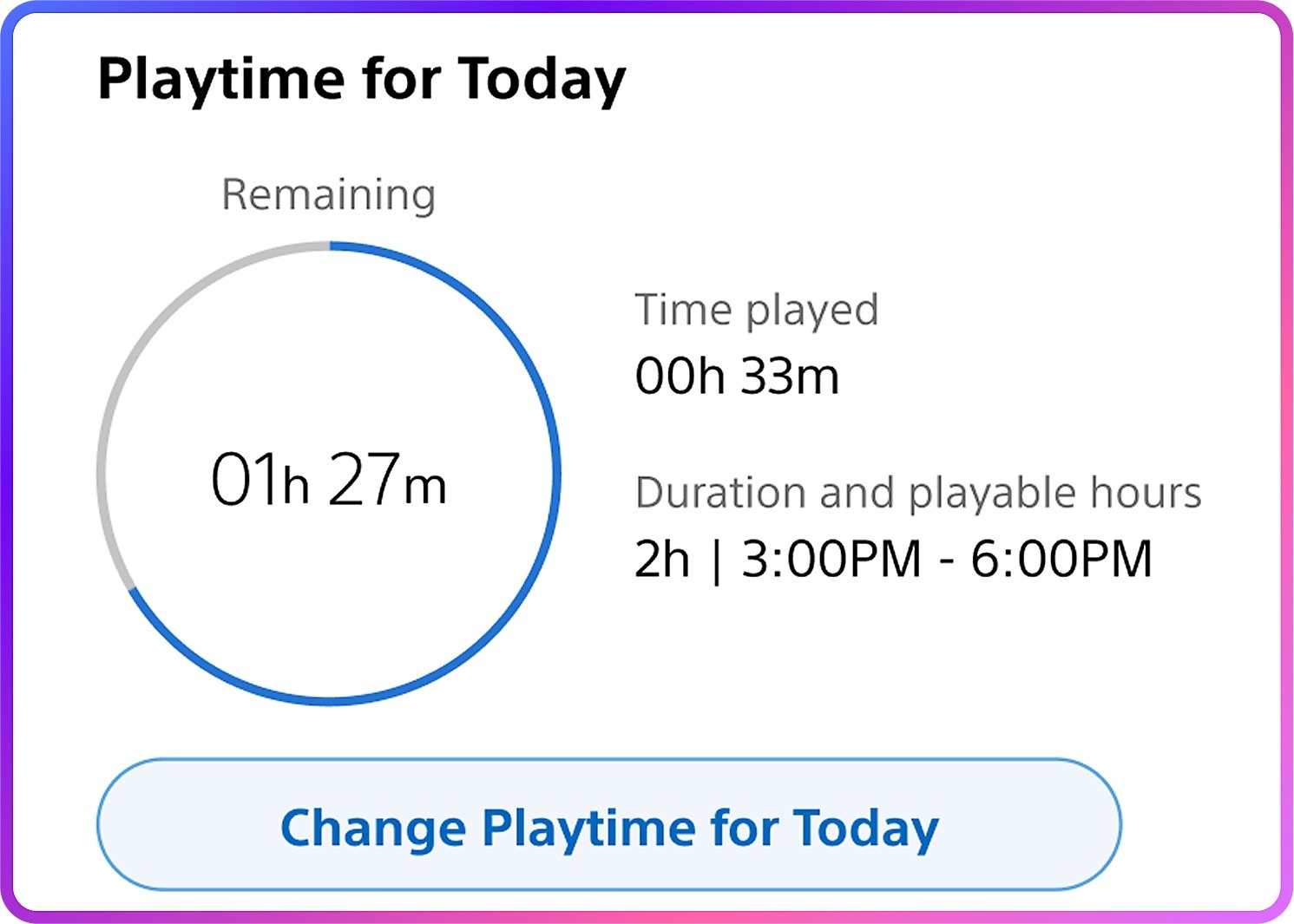
1. In Family Management, select your child and set their Time Zone first. Sony asks for it before you can adjust playtime, and playable hours depend on that clock. 2. Select Playtime Settings and set Restrict Playtime to Restrict. 3. Under Playtime Duration, choose how long they can play. You can use one limit for every day or different limits for specific days, such as a longer Saturday. 4. Under Playable Hours, set the window when they can play, for example 5 p.m. to 8:30 p.m. 5. Under When Playtime Ends, choose Notify Only or Log Out, then select Save.
That last choice decides whether the limit is a reminder or a rule. With Notify Only, the console shows a message and your child can keep playing. With Log Out, the PS5 signs them out when time is up. Warnings appear at the top of the screen as the deadline gets close, and it's worth agreeing that they save at the first one, because Sony's playtime help page doesn't say games are saved automatically.
Playtime is counted per account, not per console. A child with a PS5 in the living room and a PS4 in the bedroom gets the same limit on both.
Step 3: Cap PlayStation Store spending
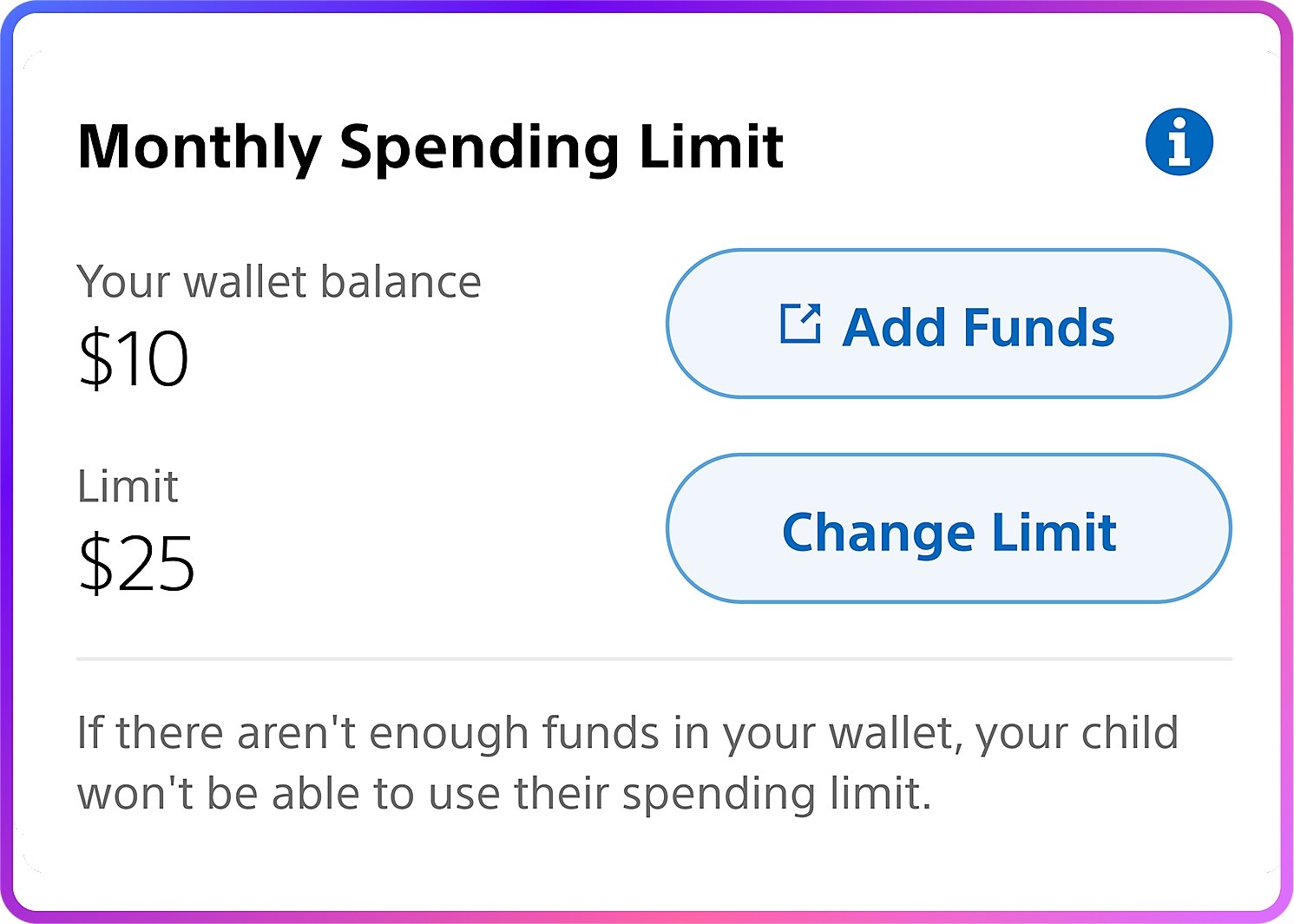
Go to Parental Controls > Monthly Spending Limit. Purchases on a child account come out of the family manager's wallet, the balance loaded on their PlayStation account, up to the cap you set each month, so your child doesn't need a card of their own.
The cap defaults to zero in all three presets, so out of the box your child can't buy anything. If you want to give them a monthly store allowance, raise the limit to that amount and make sure your wallet has funds. The app shows your balance and lets you top it up with Add Funds without going near the console.
Step 4: Chat, messages and content from other players
Communication and User-Generated Content is set to Restrict in every preset. That stops your child from sending text messages or using voice chat with other players, and from sharing or viewing content made by others, including screenshots, video clips, broadcasts and profile descriptions. The pre-written messages some games use before a match still work.
The restriction also blocks linking some third-party communication services, though Sony doesn't list which ones. If your household uses Discord on PS5, check from your child's account whether it can still be linked after you restrict communication.
If you decide to allow chat, look at Privacy Settings as well. That's where you choose who can send friend requests, see when your child is online or invite them to play.
How to approve requests
When your child tries to start a blocked game, the PS5 shows a screen that lets them ask for permission. They can also ask to use communication features in a specific game during a match. You and any parent or guardian on the account get a notification and an email.
- On PS5: sign in to your own account, press the PS button, open Notifications, pick the request and select Go to [Allowed Games]. The list keeps Gameplay and Communication permissions separate. - In PlayStation Family: the request arrives as a phone notification you can approve or decline. - Extra time: when the reminder appears, your child can choose Ask for More Playtime, and you get Change Playtime or Decline. To hand out bonus time without a request, use Change Playtime for Today, which leaves the limit for other days untouched.
Managing it all from your phone
PlayStation Family is a separate download from the regular PlayStation App, and it needs iOS 14 or Android 8 or later.
1. Get it from the App Store or Google Play and sign in with your adult account. 2. Tap Set Up Your Family if you haven't created one yet. If you have, the app opens on the home screen. 3. Select your child at the top and tap the settings icon next to their name to reach Parental Controls, Playtime Settings and Privacy Settings.
On the home screen, the Playtime widget sets limits and schedules, Monthly Spending Limit handles the store and Activity summarizes the past seven days with their most played games. It's the same report we cover in our guide to checking hours played on PS5 and other consoles. On a computer, Account Management offers the same settings under Family Management: select your child, then Edit.
Fortnite, Roblox and games with their own controls
Some free-to-play games run their own accounts with their own rules, which PS5 settings don't reach. Epic Games' parental controls page warns that switching off voice chat inside Fortnite may leave the console's own chat available, so it needs closing in both places. Roblox also has its own account and controls, and our Roblox guide for parents covers its chat and Robux spending limits.
Check that it works
1. Sign in as your child and try to open a game rated above their age. The block screen should appear with the option to send a request. 2. Set a short limit for one day and confirm the warnings show up and, if you picked Log Out, that the session ends. 3. With spending at zero, try to buy something on PlayStation Store. The purchase shouldn't go through. 4. If you restricted communication, try messaging another player from their account. The console should block it.
If something doesn't behave as expected, sign your child out and back in. Changes made while they were playing don't apply until then.
The conversation starts here
Sign in with a supporter account to comment. Sign in



Nobody has commented yet. Want to go first?