
Parental controls on Nintendo Switch 2 live in three places. The console itself can block games by ESRB rating and limit in-game messaging without any extra software. Nintendo's free Nintendo Switch Parental Controls app for iOS and Android adds the features most families actually want: a daily play-time limit, a log of what was played and permission to use GameChat. Nintendo eShop spending is locked separately, from the parent's Nintendo Account.
Console restrictions apply to every user on the system rather than to individual profiles, which is why Nintendo recommends setting them for the youngest player in the house. The eShop and GameChat are the exceptions, because they are managed account by account.
What you need
- A Switch 2 with an internet connection. Changes made in the app only reach the console once it goes online. - An iPhone, iPad or Android device with the app, available from p.nintendo.com. - A Nintendo Account belonging to an adult aged 18 or over. - To block purchases, your child's account added to your family group as a supervised account. - For GameChat, a Nintendo Switch Online membership and a phone number registered to the Nintendo Account and verified by text message.
One phone can manage up to eight consoles, and two adults in the same family group can share control of a single Switch 2.
Step 1: Link the app to the console
1. Open the app, sign in with your Nintendo Account and follow the prompts until it shows a six-digit registration code. 2. On Switch 2, go to System Settings > Parental Controls > Parental Controls Settings from the HOME Menu and choose the option for people who have already downloaded the app. 3. Enter the code, confirm the link on the console and accept it on your phone.
If the console already has a PIN, you will be asked for it before you can reach the linking option. Families moving from the original Switch can bring their existing parental controls across as part of a system transfer to Switch 2, but it is worth checking every setting afterwards.
Step 2: Set a daily limit and choose what happens when time runs out
In the app, tap Parental Controls in the lower-right corner and open Play Time Limit. You can set anything from no limit to six hours a day, use different limits for different days of the week and add a bedtime. When both are set, whichever comes first wins. A two-hour allowance that starts at 8:30 p.m. still ends at 9 p.m. if bedtime is 9 p.m.
The setting that matters most is Suspend Software. With it off, the console only shows a notification when time is up and the game keeps running. With it on, the game is suspended and the system goes straight into sleep mode. Nintendo says players can usually pick up where they left off once the restriction lifts. When the limit is reached, a parent can extend it from the app by 5, 15 or 30 minutes or an hour, or switch it off for the rest of the day.
The limit tracks total console time, not each sibling separately. The app's activity log does break play time down by user, along with a monthly summary.
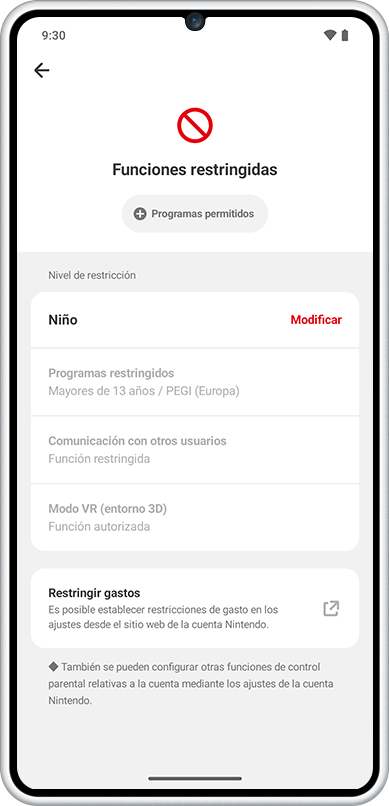
Step 3: Age ratings and messaging, with or without the app
These settings work from the console alone, which suits parents who would rather not install anything. The trade-off is that there are no play-time limits or GameChat controls without the app.
1. Go to System Settings > Parental Controls > Parental Controls Settings. If you are not using the app, skip the linking screen. 2. Select Restriction Level. Nintendo offers Teen, Pre-Teen and Child presets, plus Custom. In the US, Teen blocks M-rated games, Pre-Teen blocks T and M, and Child blocks everything from E10+ up. 3. Under Custom, Restricted Software decides which ratings require the PIN and Content Rating System sets the scale, ESRB in the US. Free Communication With Others limits messages and images exchanged inside games, either everywhere or for specific titles. VR Mode should be restricted if a child aged six or under uses the system. 4. Create a PIN of four to eight digits and confirm it.
The PIN unlocks a restricted game on the spot. It is also required to change the date and time, delete a user or restore factory settings, so a child cannot dodge the limit by moving the clock forward. To exempt a particular game from the rating rules, add it to the app's Safelist. It has to have been played on that console before, and it still counts toward the daily limit.
Step 4: Block Nintendo eShop purchases
Neither the console nor the app stores this setting. It belongs to the parent's Nintendo Account at accounts.nintendo.com.
1. Sign in with your parent or guardian account and click Family group. 2. Select your child's supervised account. 3. Check Spending Restrictions to block purchases and auto-renewals on Switch 2, the original Switch and the My Nintendo Store, including physical orders. 4. Optionally, turn on Age-Based Content Restrictions so the console eShop hides content that does not fit the player's age. 5. Click Save changes.
If your child's account is not supervised yet, Nintendo's support page explains how to add them to your family group or convert an existing member. Because these restrictions sit outside the app, they survive even if you unlink it.
Step 5: GameChat and video chat
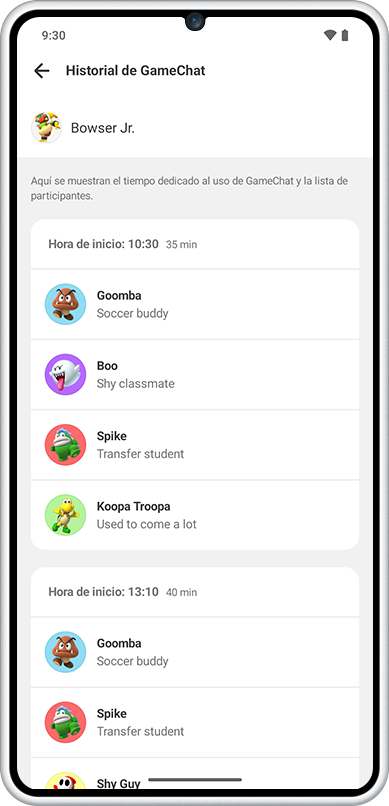
GameChat is the Switch 2 voice chat feature, with optional video through a USB-C camera sold separately. Users under 16 cannot start a session until a parent sets it up in the app under Parental Controls > GameChat. That is where you approve each friend your child may talk to and decide whether video chat is allowed, with an approval request for every session. Activity reports show who your child chatted with and for how long.
Unlike the time limit, GameChat permissions are set per user. Each friend must also approve your child before they can talk, and nobody outside the friend list can join. Online GameShare on Switch 2 depends on GameChat too, so a child without GameChat approval cannot share games remotely.
Common mistakes
- Setting controls for the oldest child. Ratings and play time apply to the whole console, so younger siblings inherit the older child's rules. - Assuming the messaging restriction covers GameChat. Free Communication With Others only affects in-game messages. GameChat is managed separately in the app. - Leaving Suspend Software off. Without it, the limit is just a reminder. - Unlinking the app to test something. Unlinking removes every restriction on the console and you will have to start over. eShop restrictions stay in place. - Changing settings while the console is offline. Nothing applies until Switch 2 reconnects. - Forgetting the PIN. If the console is linked, the app shows the PIN in its parental controls settings. If not, the console generates an inquiry number after repeated wrong attempts, and Nintendo support provides a reset code.
How to check that it works
1. Open System Settings > Parental Controls. If the menu offers to update settings or unlink the app, the console is linked. If it only offers to set up or change settings, you have a console-only configuration. 2. Look for the red parental controls icon at the top of the HOME Menu. 3. Try launching a game rated above your chosen level. It should ask for the PIN. 4. Set a short limit for one day and confirm that the warning appears and, if you enabled suspension, that the game stops. 5. Sign in as your child and try to buy something in the eShop. With Spending Restrictions on, the purchase should not go through.
These settings only cover the console. If your child also plays on a phone or computer, each platform has its own controls, as our Roblox guide for parents explains.
The conversation starts here
Sign in with a supporter account to comment. Sign in


Nobody has commented yet. Want to go first?