

Reduce exposure rather than chasing a zero-risk setting
To reduce OLED monitor burn-in risk, avoid leaving unnecessary static images on screen for hours, use brightness suited to the room, and let the display's panel-care routines work. No setting guarantees zero risk. You also do not need to force a manual cleaning cycle every time you finish a game.
Burn-in is uneven wear that leaves a persistent mark. Temporary image retention can look similar, so a shadow after a session is not by itself proof of permanent damage. ASUS warns about prolonged static, high-contrast images at high brightness. Repeated exposure matters more than a taskbar simply being visible for a few minutes.
If you are still deciding what to buy, our OLED versus Mini LED comparison explains why long working days with fixed windows can change the recommendation. Here, the task is looking after an OLED you already own.
Set up the everyday protections
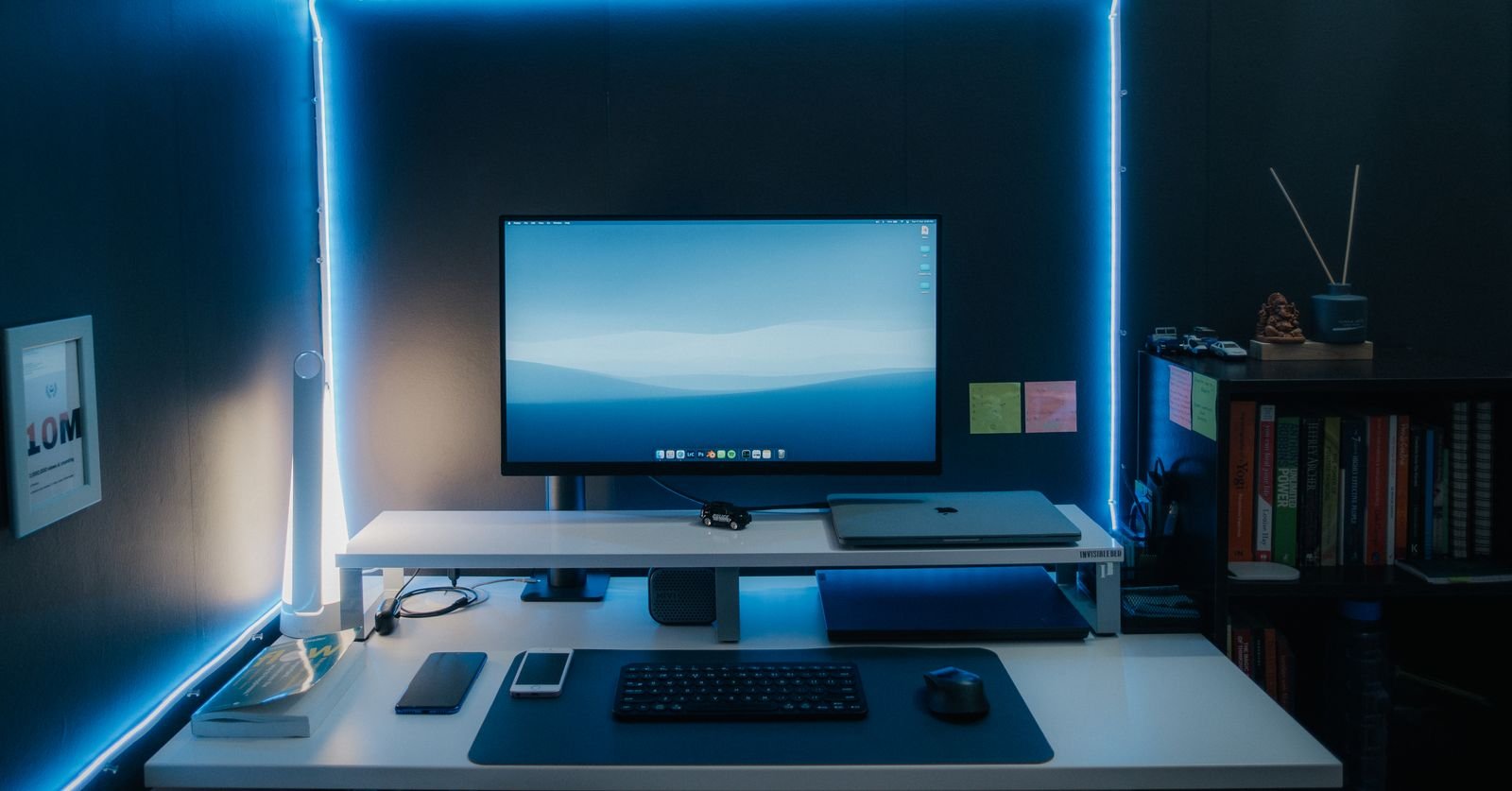
Have your operating system turn the display off after a short idle period that fits your routine. Do not leave a bright, motionless desktop running through a long break. Automatically hiding the taskbar and varying on-screen content can reduce repeated exposure in the same areas.
Keep the manufacturer's recommended panel protections enabled. Pixel shift slightly moves the image, while other features dim persistent elements. LG describes dimming static logos to reduce their impact. Feature names and availability vary across products.
Choose brightness for comfortable viewing in the room rather than leaving it at maximum for every task. HDR describes how a display handles a wider range of light and shadow, not a requirement to make a document window dazzling. Our HDR10 and DisplayHDR guide explains the difference between signal support and display certification.
Let the maintenance cycle finish
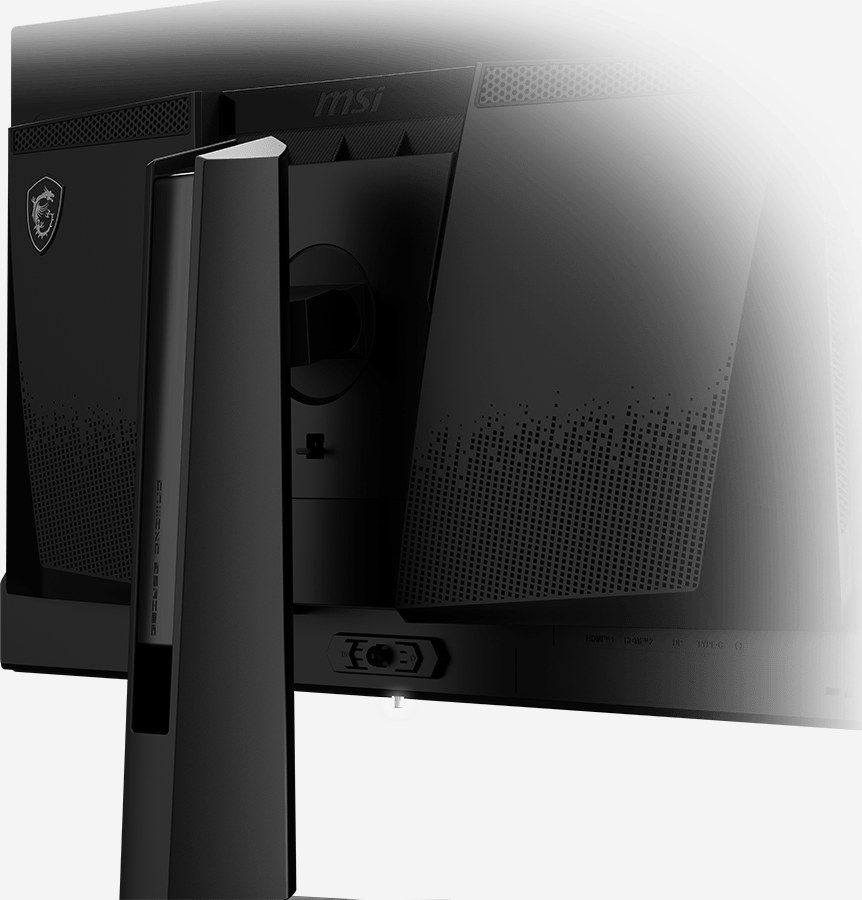
Read your model's manual for its compensation schedule. Another monitor's interval may not apply, and firmware can change the behavior. MSI says the MAG 271QPX QD-OLED can run maintenance in standby or after being switched off. Immediately cutting power at the outlet can prevent that process from completing.
If a mark appears, follow the manufacturer's diagnostic procedure, then check whether it remains across different content. Do not repeatedly force long cleaning routines or disable protections through a service menu. Persistent marks warrant contacting support with photographs and the exact model number.
Check the warranty separately for its coverage, duration and conditions. A cleaning feature neither establishes blanket burn-in coverage nor proves that permanent wear can be reversed.
The conversation starts here
Sign in with a supporter account to comment. Sign in

Nobody has commented yet. Want to go first?