
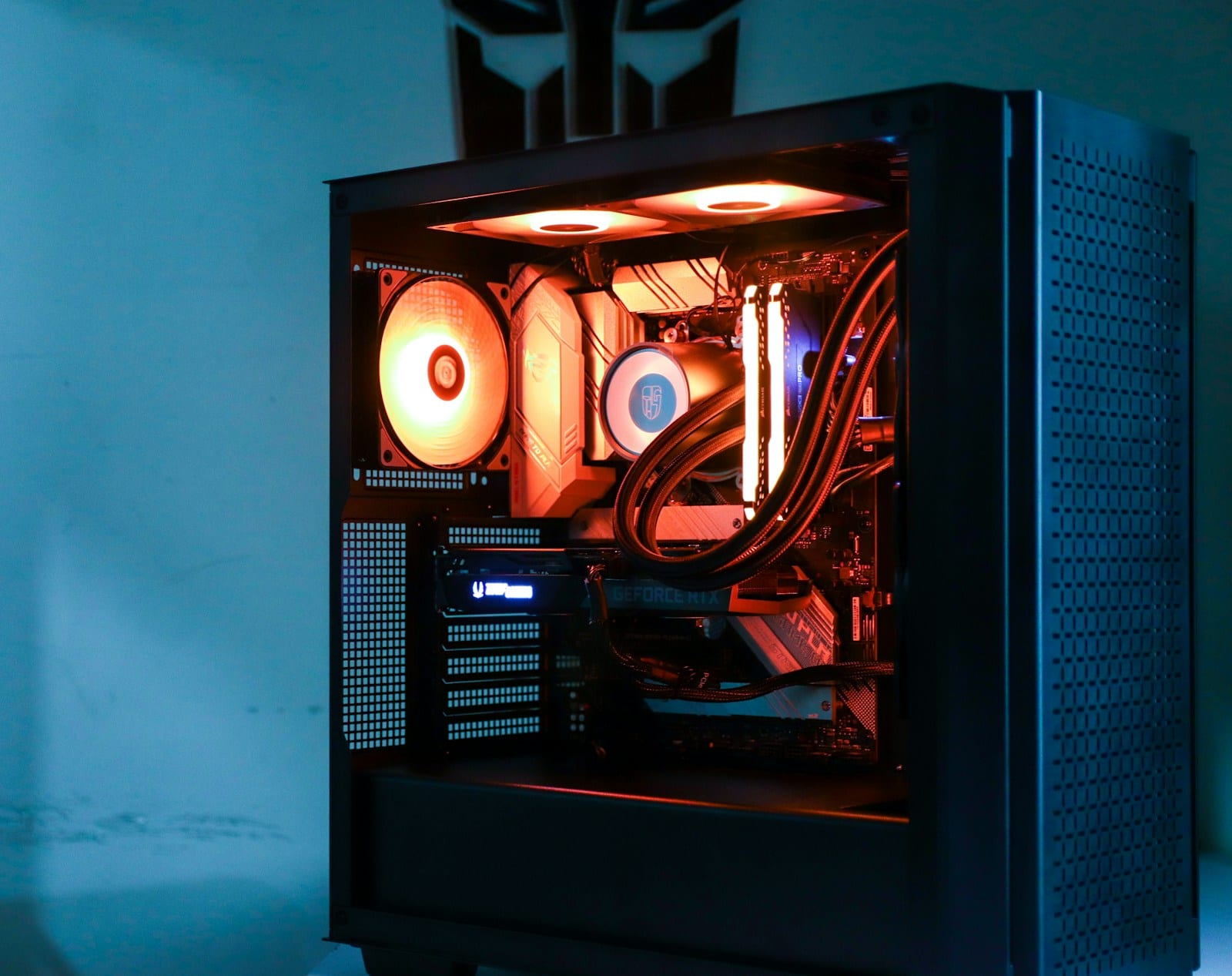
The right temperature depends on the exact model
A CPU at 85 degrees Celsius is not necessarily in danger, and another at 95 may be operating as its manufacturer intended. Laptops, desktops and graphics cards use different limits. The useful reference is the Tjunction, Tjmax or thermal maximum published for the exact model, not a generic table copied from a forum.
Intel explains that its processors reduce power and frequency as they approach Tjunction max to control temperature. Automatic shutdown provides another layer of protection. Touching the limit does not mean the chip will fail immediately, but it may mean lower performance and little cooling headroom.
Measure the workload that actually concerns you
Use the manufacturer's utility or a reputable monitor to log temperature, clocks, power and utilization during a repeatable game run. Idle temperature changes with room conditions, fan profiles and background tasks. The important questions are whether heat stabilizes and whether clock speed falls at a limit.
AMD also connects temperature, power and performance in its Ryzen guidance. Reaching Tjmax can be normal under a heavy workload when the processor is using available thermal headroom. The diagnosis changes when a light game reaches it within seconds, clocks fall and fans fail to respond.
For a GPU, watch the main temperature and, when the model exposes them, hotspot and memory readings. NVIDIA publishes different maximums for individual cards. A reading below that number can still be undesirable when it causes throttling or excessive noise. A high stable result can be expected in a compact design.
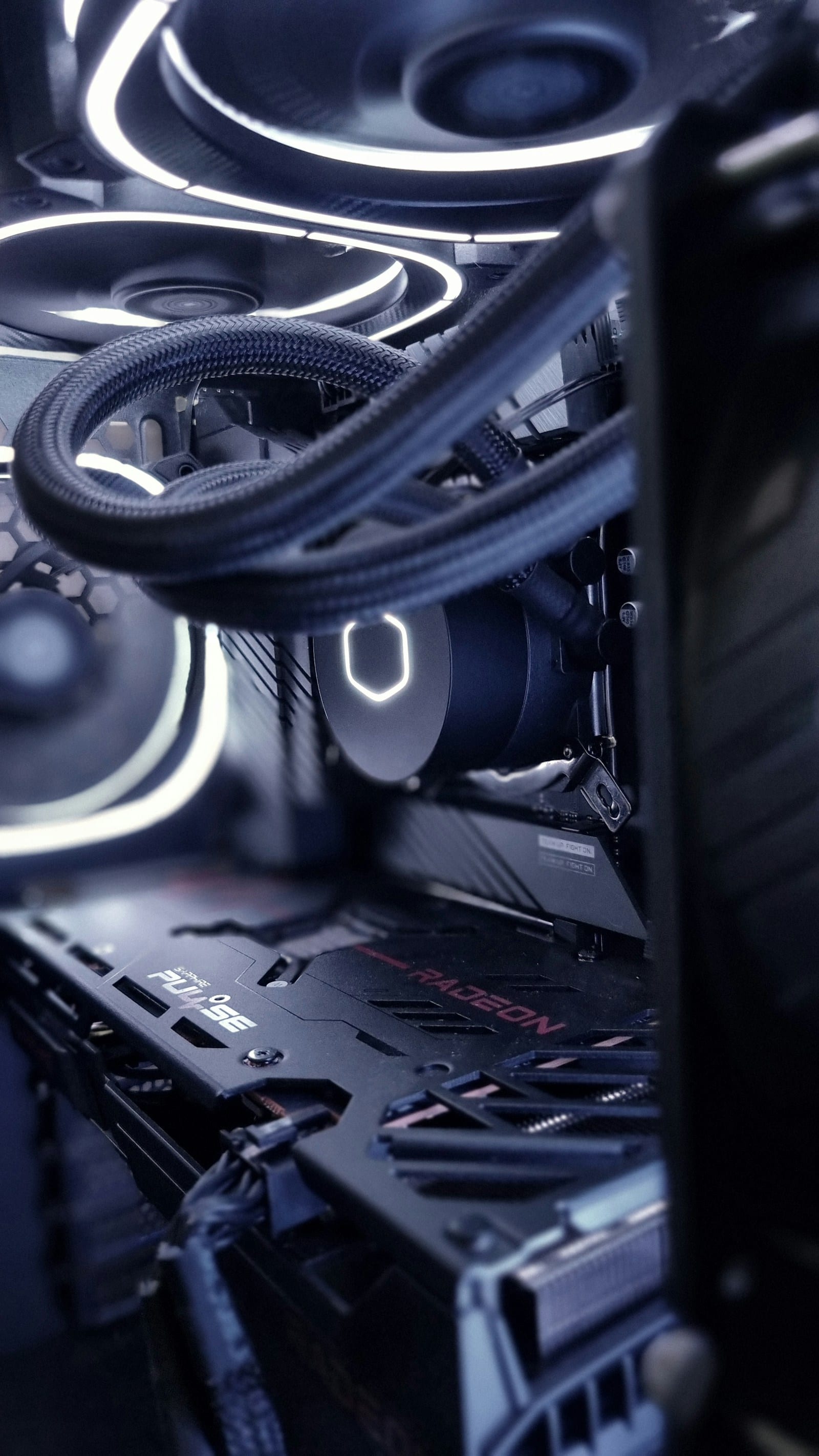
What to check before buying a larger cooler
Clean filters, verify that every fan spins and make sure the cooler is secured evenly. Check the fan curve, intake and exhaust paths, and room temperature. On a recent build, protective film or uneven mounting pressure can explain more than radiator size.
Change one variable and repeat the same test. Briefly removing the side panel can reveal restricted case airflow, but it is not a permanent fix. A modest power limit or undervolt may reduce heat and noise, although stability needs testing and warranty treatment varies for out-of-spec adjustments.
If frame rate and clocks fall as temperature rises, the relationship is measurable. Our CPU and GPU bottleneck guide separates a thermal limit from insufficient performance. Storage needs its own method, covered in our guide to NVMe temperatures and heatsinks.
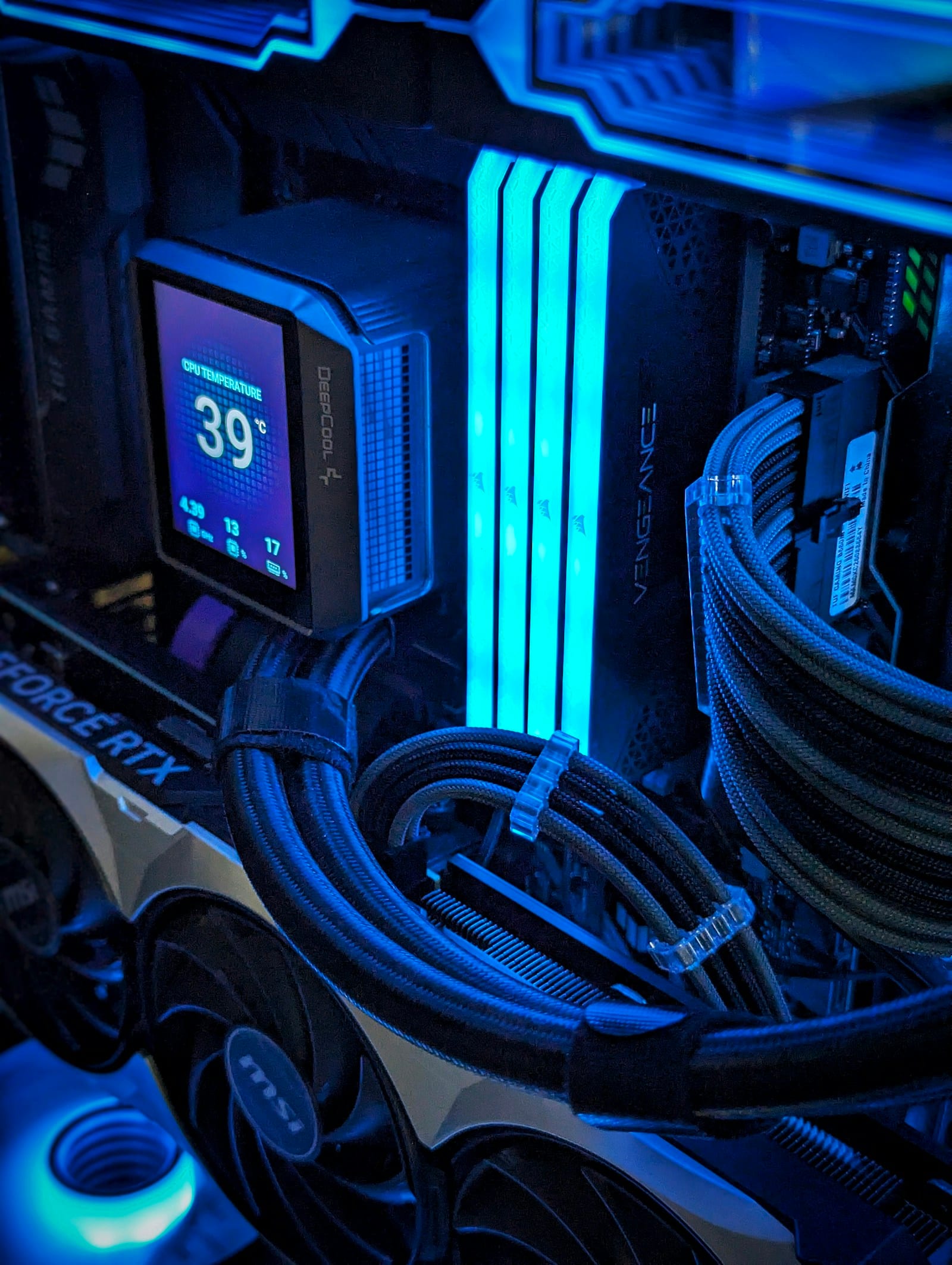
The conversation starts here
Sign in with a supporter account to comment. Sign in

Nobody has commented yet. Want to go first?