
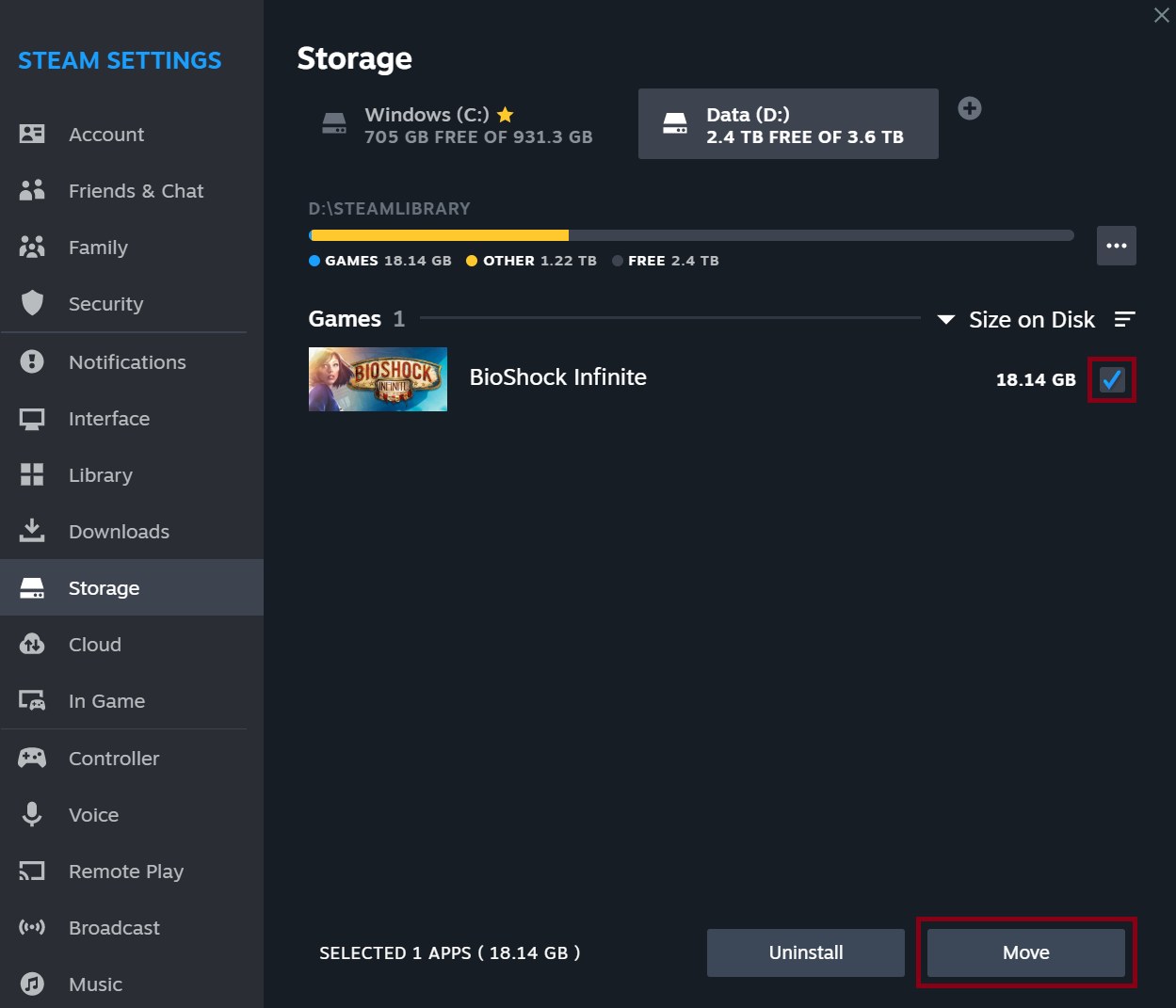
You can relocate an installed Steam game without downloading it again by using Settings, then Storage. Add a library on the destination drive, select the installation on its current drive and use Move. This handles drives attached to the same computer.
Valve’s storage instructions are useful when the main SSD is filling up and another drive has spare room. Make sure the destination stays connected and has enough free space before starting.
Add the destination library first
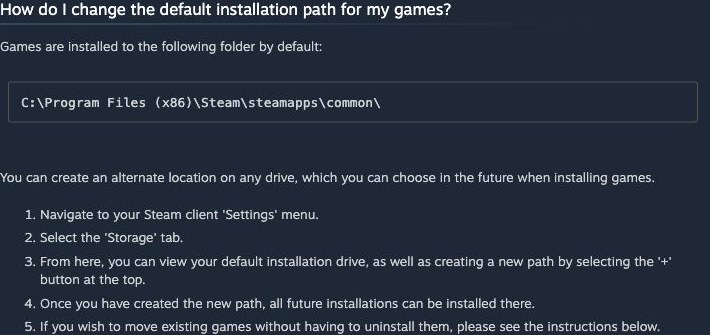
Open Steam Settings and select Storage. The + button at the top lets you add a library location on another drive. Choose the drive and folder Steam should use. Adding the library creates a destination without relocating any games yet.
An existing library on that drive works too. Check the available capacity shown in Storage and close the game before moving it. If the destination is an external drive, it will need to be connected whenever you play the games installed there.
Move the installation, then test it
In Storage, select the source drive and mark the games to relocate. Click Move and choose the destination library. Let Steam finish the operation before launching a game or disconnecting a drive.
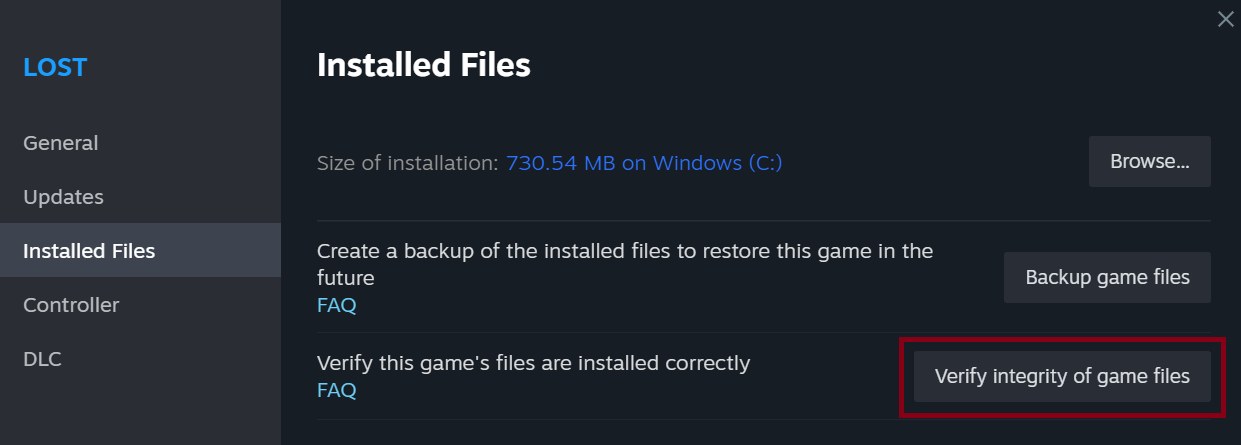
Afterward, confirm that Storage lists the game on the new drive and launch it through the normal library entry. If Steam reports missing installation data, our file-verification guide explains how to check it before reinstalling.
For a different computer, use Steam’s local-network game transfer instead. That copies compatible installation data between devices on the same network, rather than relocating a library between drives on one PC.
Keep saved progress separate from the move
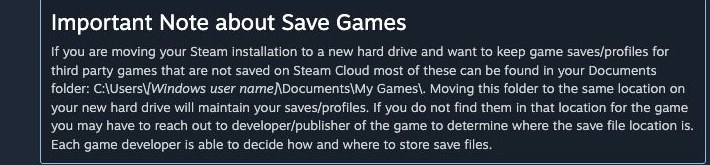
Saved games do not necessarily live in the installation folder. Valve notes that some titles store them in Documents, My Games or other locations. The developer determines those paths and whether Steam Cloud synchronizes them.
Before removing the old drive or deleting leftover folders, check that the correct save still loads. For a game without cloud support, locate its saves using the developer’s documentation and keep a backup. If synchronization presents two competing versions, use our Steam Cloud conflict guide before choosing one to overwrite.
The conversation starts here
Sign in with a supporter account to comment. Sign in


Nobody has commented yet. Want to go first?