
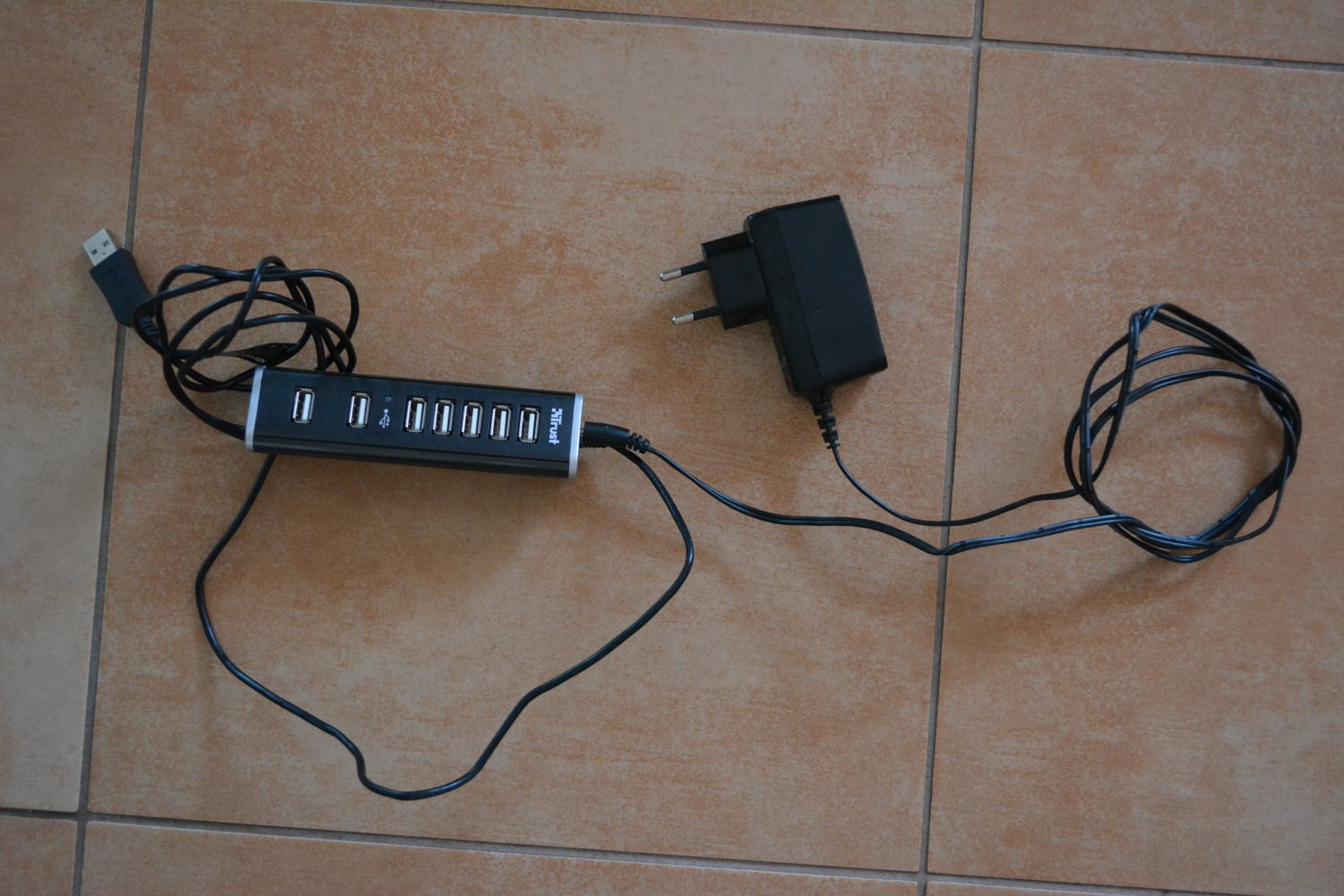
A drive that drops out through a USB hub needs a direct-connection check before you replace the hub. Stop transfers and safely eject the drive before moving its cable. A stable connection without the hub narrows the fault to the hub setup, but does not by itself establish a power shortage.
Start with the exact hub model and its manual. A separate power supply, a USB data connection and a socket for charging the laptop can serve different purposes, even when two of the sockets have the same USB-C shape.
Protect the files before changing the setup
Close files stored on the drive and finish or stop copy and backup jobs through the apps running them. Use Safely Remove Hardware and Eject Media in Windows and wait for confirmation. On a Mac, use the eject control beside the drive in Finder. If the drive is still in use, do not pull its cable.
Repeatedly interrupting writes is a poor way to diagnose a disk containing your only copy. If files are already at risk, prioritize preserving them rather than deliberately reproducing the failure. Our 3-2-1 backup guide explains how a separate copy protects you when one device becomes unreliable.
Change one connection at a time
For USB power warnings, Apple recommends a direct connection instead of a hub. Seagate also recommends bypassing a hub when its One Touch SSD disconnects unexpectedly. After safely ejecting the drive, work through these checks.
- Connect the drive to a compatible computer port, using its supplied data cable where possible. Check that it stays visible and can open an existing file. Do not launch a large write operation just to provoke a dropout.
- If the direct connection works, try the hub with only the drive attached and the power connection its manual specifies. Check whether the drive remains available.
- Add other peripherals one at a time. If a change could interrupt the drive’s power, eject and disconnect it first. Make that change, reconnect the drive and confirm it is visible again before checking whether the fault returns.
- If the drive also fails without the hub, compare another compatible computer port, then another suitable data cable. Keep the changes separate so the result means something. Our USB-C cable guide separates charging specifications from data capabilities.
Check the supply intended for the hub
A bus-powered hub draws its energy from the computer connection. That supply has to cover the hub and the accessories using it. Plugable describes insufficient available power as one possible cause of USB dropouts. A self-powered hub uses an external supply, but still has model-specific limits.
Connect an included supply as the manufacturer directs. A barrel-shaped plug fitting the socket does not establish electrical compatibility. Plugable’s replacement-adapter guidance distinguishes its original supplies from USB Power Delivery products designed to work with compatible third-party chargers. Follow the requirements for the particular device.
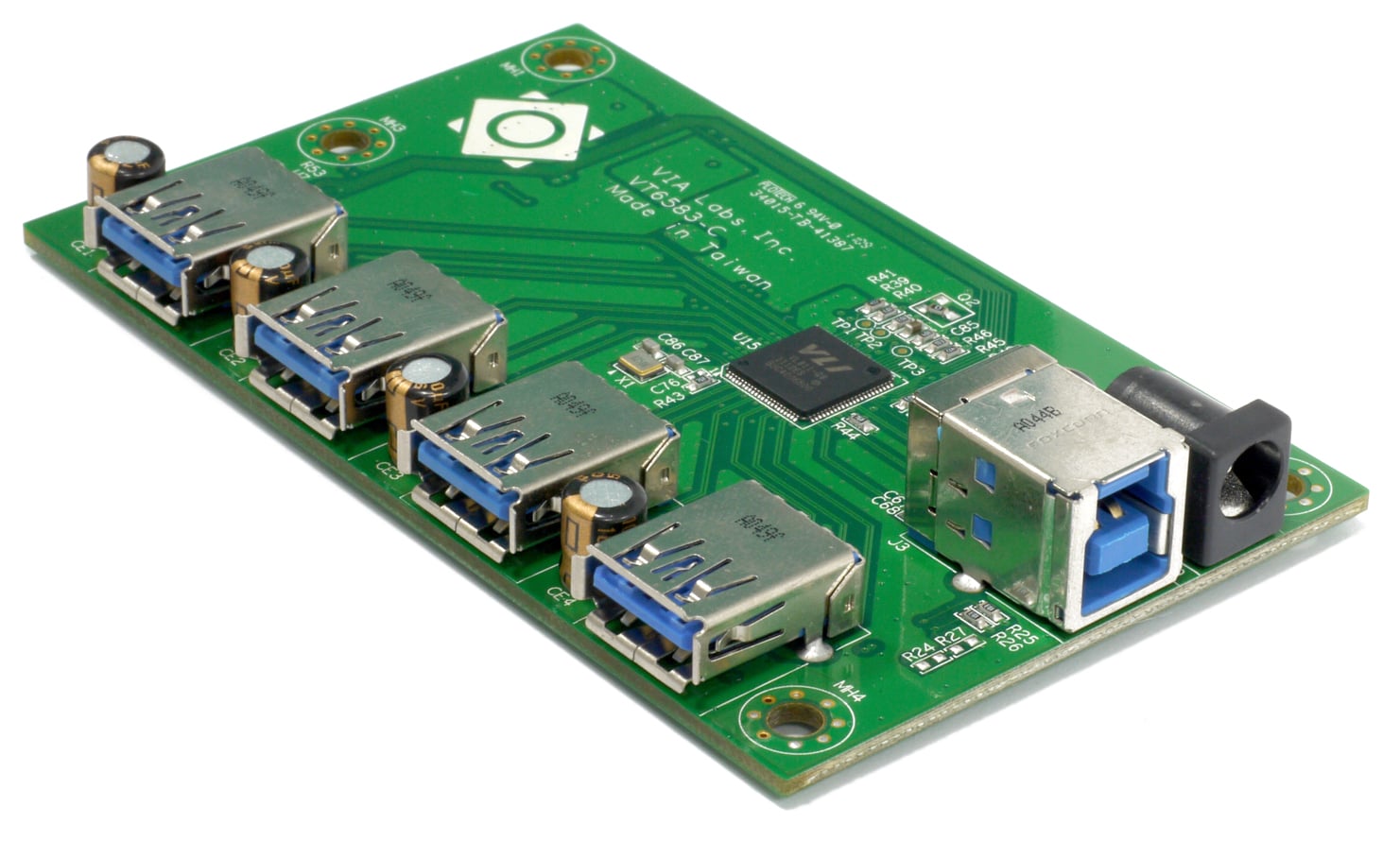
A failure that returns when you add another peripheral is a useful clue. It is not enough to rule out the hub, cables or compatibility and declare power the cause. The VIA VL811 reference board shown here makes the separate computer, peripheral and power connections visible. You do not need to dismantle your hub.
Read laptop PD charging separately from peripheral limits
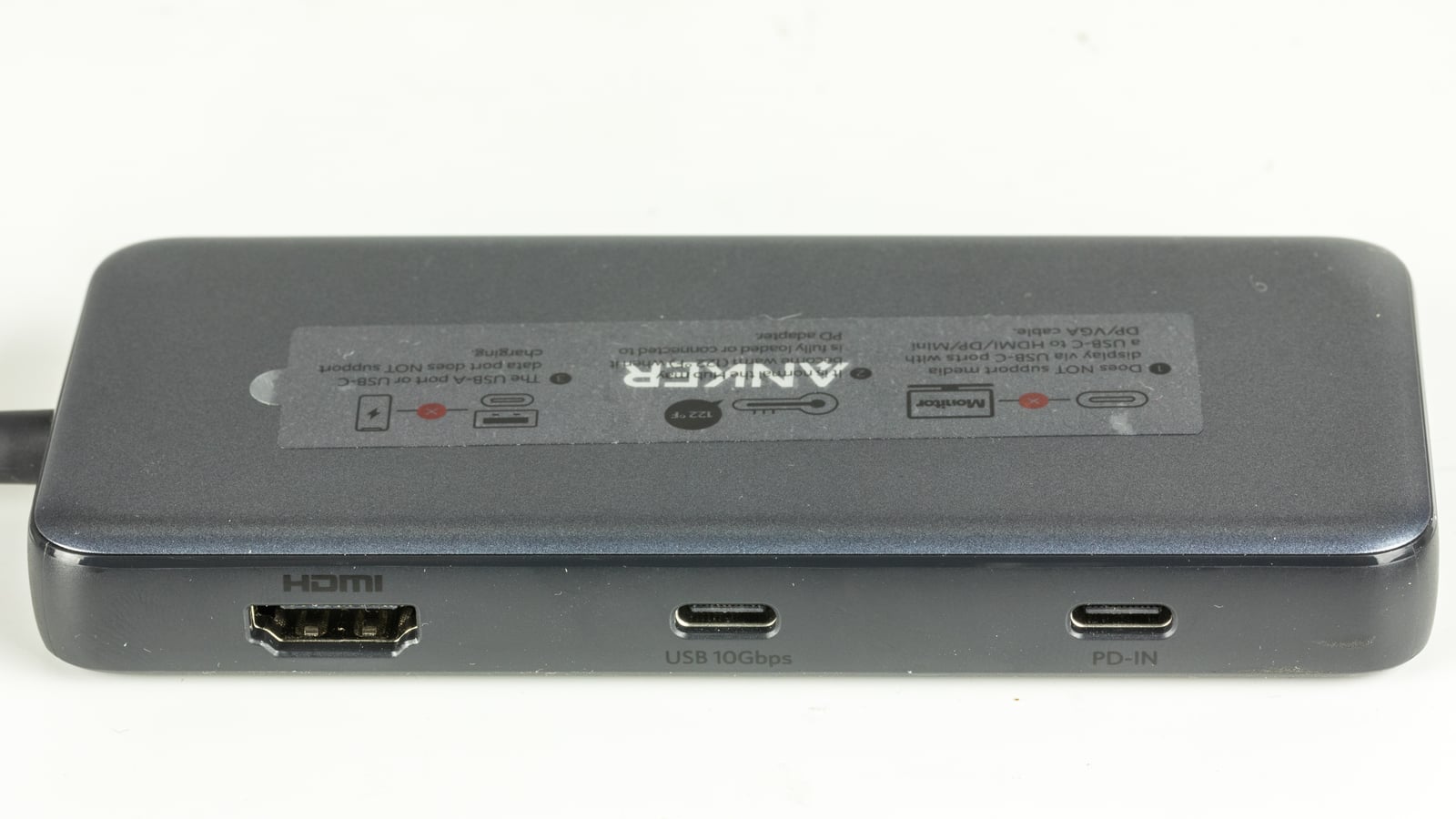
The pictured Anker A8383 labels its USB-C data port separately from PD-IN. The latter accepts charger power for laptop charging. Anker specifies up to 100W in and up to 85W to the laptop, not 85W for each attached drive. Those are this model’s limits, not a rule for USB-C hubs generally.
When considering another hub, check its supported supply and its total and per-port peripheral limits. A larger laptop-charging number is not enough information. If a drive keeps disappearing on a direct connection with a suitable cable, take that result to the drive manufacturer before blaming the hub. Do not format a drive containing your files as a connection test.
The conversation starts here
Sign in with a supporter account to comment. Sign in
Nobody has commented yet. Want to go first?