

The official way to play Mobile Legends: Bang Bang on a Windows PC is Google Play Games for PC, Google's app for running Android games on the desktop. MOONTON announced support in July 2023 on its official X account, and as of October 28, 2026, the game's listing still offers a PC install with MOONTON named as the developer. The studio has no Windows client of its own and no Mac version.
US players should look for a different listing. Since 2025, Skystone Games has published the game in the United States as Mobile Legends: Bang Bang.US, after ByteDance handed over US publishing rights, and the US version's Play page lists Windows as a supported platform too.
Emulators, apps that mimic an Android phone inside your computer, also run the game and give you more freedom with keyboard and mouse. MOONTON hasn't publicly endorsed them, though, and several ship with features that automate your plays, the kind of help you don't want anywhere near an account with years of heroes and skins on it.
- Windows: use Google Play Games, install the game from its store and sign in with your usual account.
- Mac: there is no official version, so the risk-free option is to keep playing on iPhone or iPad.
- Emulator: only if Google Play Games won't run on your machine, with the game downloaded from Google Play and no macros or scripts.
What you need for Google Play Games
Google Play Games is available in the US and roughly 130 countries, according to Android Authority, as long as your Google Play country is one of them.
Your PC also has to meet Google's minimum requirements for the app itself, not for Mobile Legends specifically:
- Windows 10, version 2004 or later, on an administrator account.
- An SSD with 10 GB of free space.
- 8 GB of RAM.
- Intel UHD Graphics 630 or a comparable GPU.
- A CPU with 4 physical cores.
- Hardware virtualization turned on.
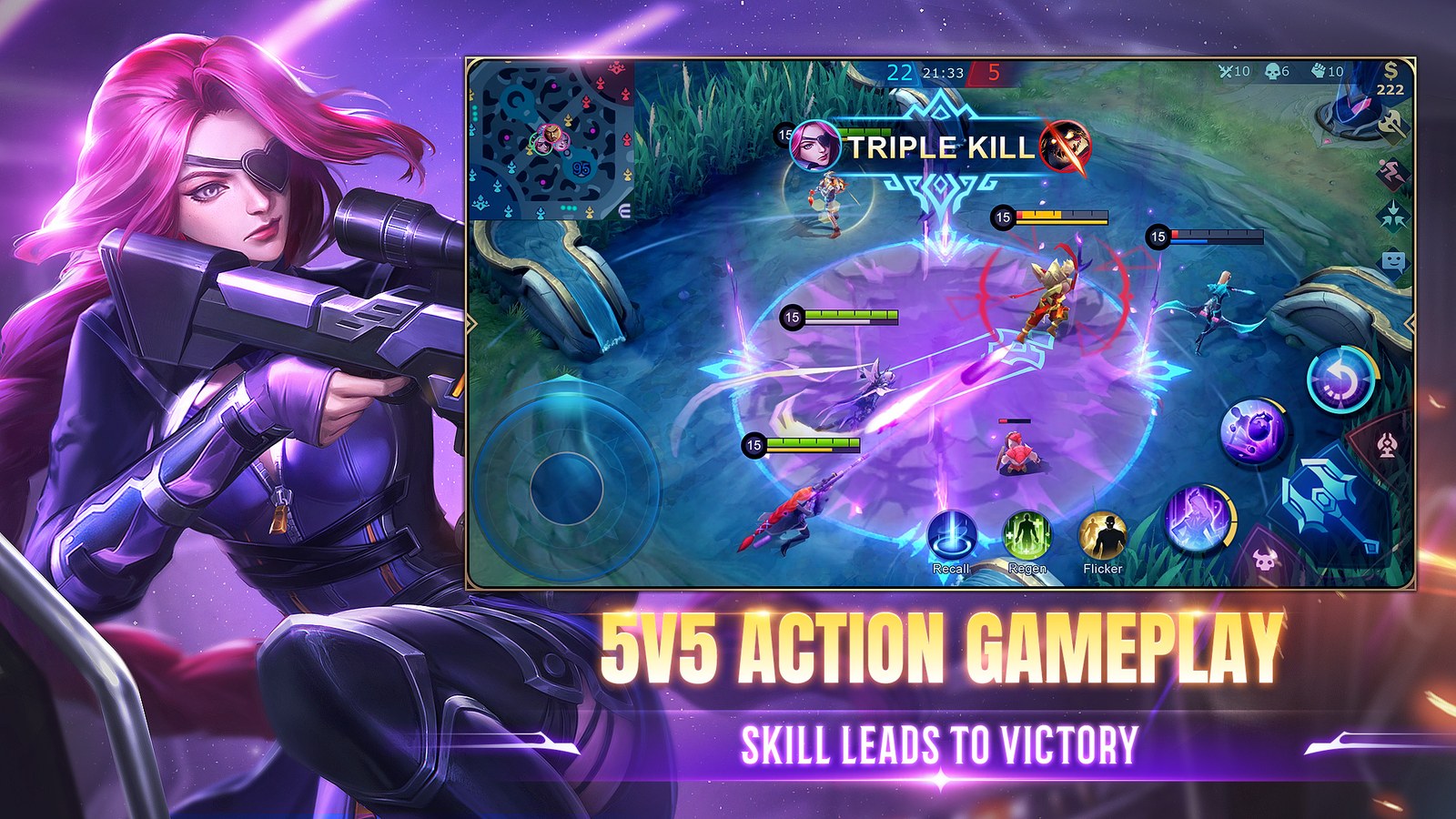
Turning on virtualization, and what performance to expect
Virtualization is a processor feature that lets one operating system, Android in this case, run inside another. Google Play Games won't work without it. You switch it on in your PC's BIOS or UEFI, the setup menu you reach by pressing a key while the computer starts, before Windows loads. Which key depends on the manufacturer. The installer may also ask you to enable Windows Hypervisor Platform, the Windows component that uses that processor feature.
For comfortable play, Google recommends a gaming-class GPU such as the GeForce MX450 and 8 logical cores. The GPU is the chip that draws each image on screen. Cores are the parts of the processor that work in parallel, and on many processors each physical core handles two tasks at once, so it counts as two logical cores. Meeting the minimum gets the app installed, but it doesn't guarantee a steady frame rate, meaning smooth motion, when ten heroes are casting at once. Run a match in Training mode before you queue for Ranked.
How to install Mobile Legends on PC
Start on your phone. Open your in-game profile and make sure the account is bound to a login you can use on another device, such as a Moonton or Google account. An unbound account lives only on that phone, and your PC will have no way to find it.
- Download Google Play Games from the game's PC listing and sign in with your Google account.
- Search the app's store for Mobile Legends: Bang Bang (or Mobile Legends: Bang Bang.US in the US) and install it.
- Launch the game and log in with the same method you use on your phone.
- Check that your level, heroes and rank show up. If the game offers to start a fresh account instead, don't play a single match. Log out and sign back in with your bound login.
Setting up keyboard controls
Google Play Games has a Controls Editor that places keys on top of the touch buttons. In windowed mode, open it from Game controls in the sidebar. In fullscreen, press Shift + Tab and pick Remap Controls. It handles two kinds of input, a joystick that defaults to WASD and keys that act as a tap on a button. Here's the layout we suggest as a starting point:
- W, A, S and D to move with the joystick.
- Q, E and R for your first skill, second skill and ultimate.
- Space for basic attack.
- F for your battle spell and B to recall.
Why aiming changes on a keyboard
Each key press counts as a tap with no drag, and in Mobile Legends a quick tap fires the skill at whatever target the game picks, not wherever you would have dragged your thumb. That makes your attack method and targeting priority, the settings that shape who the game aims at, matter even more on PC, and our guide to the best Mobile Legends settings walks through both.
Once a layout feels right, save it. The editor can export it as a text string and import schemes other players share, and F12 toggles the key labels on screen.
Playing on a Mac
There's no official route. Google Play Games is Windows-only. Apple silicon Macs can run many iPad apps, but the game's App Store page lists iPhone, iPad and iPod touch as its only compatible devices, so that door is closed too.
What's left is a macOS emulator. BlueStacks says it runs on Apple silicon Macs with macOS 11 or later, and it carries the same risks covered below.
BlueStacks, LDPlayer and MuMu Player
Emulators are what most community guides recommend. Their game pages are written by companies that need you to install their software, so it pays to separate each brand's pitch from anything MOONTON has said.
BlueStacks asks for Windows 7 or later, or macOS 11, plus 4 GB of RAM and 10 GB of free space. Its Mobile Legends page advertises a MOBA mode for keyboard and mouse, macros that chain actions to a single key, scripts that automate movement, and multi-instance sync, which runs several copies of the emulator at once and repeats what you do on your main account in the others.
LDPlayer promises 120 frames per second (fps), up to 240 in its high-frame-rate mode, and suggests making the emulator pose as a Xiaomi 14 Pro to unlock Ultra graphics. It also offers one-click macros and an operation recorder. NetEase's MuMu Player rounds out the three names you'll see most.
None of that comes from MOONTON. The fan site MLBBHub says BlueStacks has a partnership with the studio, but BlueStacks' own page doesn't mention one, and we found no MOONTON announcement confirming it.

Will you be matched against mobile players?
Probably. MOONTON hasn't publicly explained whether the game detects emulators or keeps them in a separate queue. MLBBHub says emulator players share servers, queues and the rank ladder with phone players, but it cites no official source. Your rank belongs to your account either way, so it's the same on your phone and your PC.
What could get you banned
MOONTON is clear about cheating. On April 8, 2026, it announced that police in Central Java and the studio had shut down Senpai Mod and NUI Mod, a reseller and a supplier of cheats that reveal hidden enemies on the map and give a drone-style view of the match. MOONTON said it had penalized several thousand accounts over the previous year, and summed up its position as "fair play is non-negotiable."
That announcement doesn't mention emulators. We also couldn't read the game's full terms of service, so we can't point to the clause that would apply to one. The independent summary at Terms of Service Didn't Read notes that MOONTON can suspend or delete accounts without prior notice. Given those gaps, the safe approach is to treat the emulator like an ordinary phone and switch off anything that plays for you:
- Macros that fire a combo from one key, and action recorders.
- Scripts and multi-instance sync.
- Tricks that make the emulator pretend to be a different phone model.
- APK files from anywhere other than Google Play, since a tampered copy of the game can carry cheats or steal your account.
Settings for smooth play on PC
The in-game menus are the same as on mobile. Set the frame rate to High, or the highest option the game gives you, and if big team fights stutter, lower effects and map quality first. That's the same order we follow in our settings guide.
On an emulator, you have to hand out your PC's resources first. MLBBHub suggests giving BlueStacks 4 CPU cores, or half of what your processor has, and at least 4 GB of RAM, with 120 fps in the emulator settings if your machine can keep up. If the controls start feeling sluggish after a few matches, drop the frame rate one step.
Swapping thumbs for a keyboard means relearning muscle memory, so play your first few Classic matches with a hero you already know or one of the easiest Mobile Legends heroes for beginners. Our hero pages list every skill, which helps before you start assigning keys.
The conversation starts here
Sign in with a supporter account to comment. Sign in

Nobody has commented yet. Want to go first?