
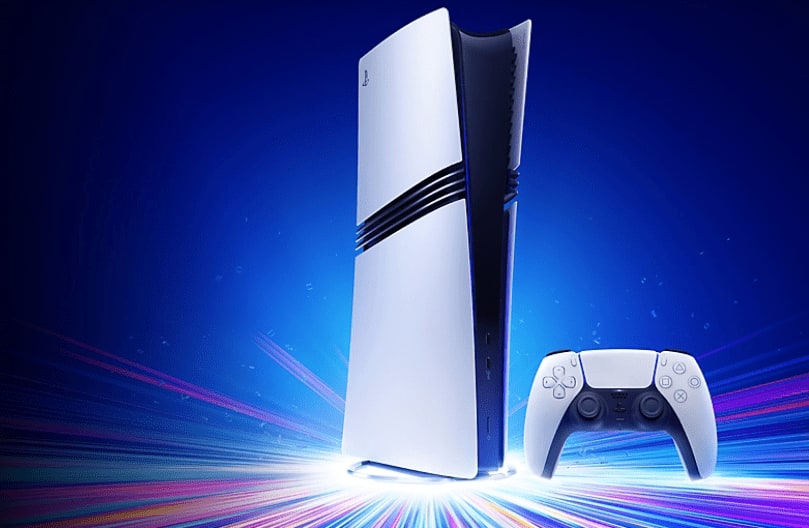
The PS5 SSD requirements that actually matter
For most people, the right answer is a 2TB PCIe 4.0 M.2 NVMe SSD with a heatsink and advertised sequential reads of at least 5,500MB/s.
A PlayStation logo is optional. If the drive meets Sony's dimensions and comes from a reliable manufacturer, it can work just as well as an officially licensed model.
Sony supports PCIe Gen4 x4 M.2 NVMe drives from 250GB to 8TB in 2230, 2242, 2260, 2280 and 22110 lengths. The complete assembly must be no wider than 25mm and no thicker than 11.25mm. A heatsink is mandatory, whether it comes fitted or you add one yourself. M.2 SATA drives will not work.
There is one less obvious warning. PS5 does not support Host Memory Buffer, which lets some DRAM-less drives borrow system memory. Sony says those SSDs may perform below expectations. It also stops short of guaranteeing every product that meets the published specification, so buy a known model and apply any important firmware update before it goes into the console.
The slot and requirements are shared by the original PS5, Slim and Pro. PS5 Pro already includes 2TB, so expanding it is less urgent. If the console itself is the question, our separate guide explains when a PS5 Pro upgrade makes sense.
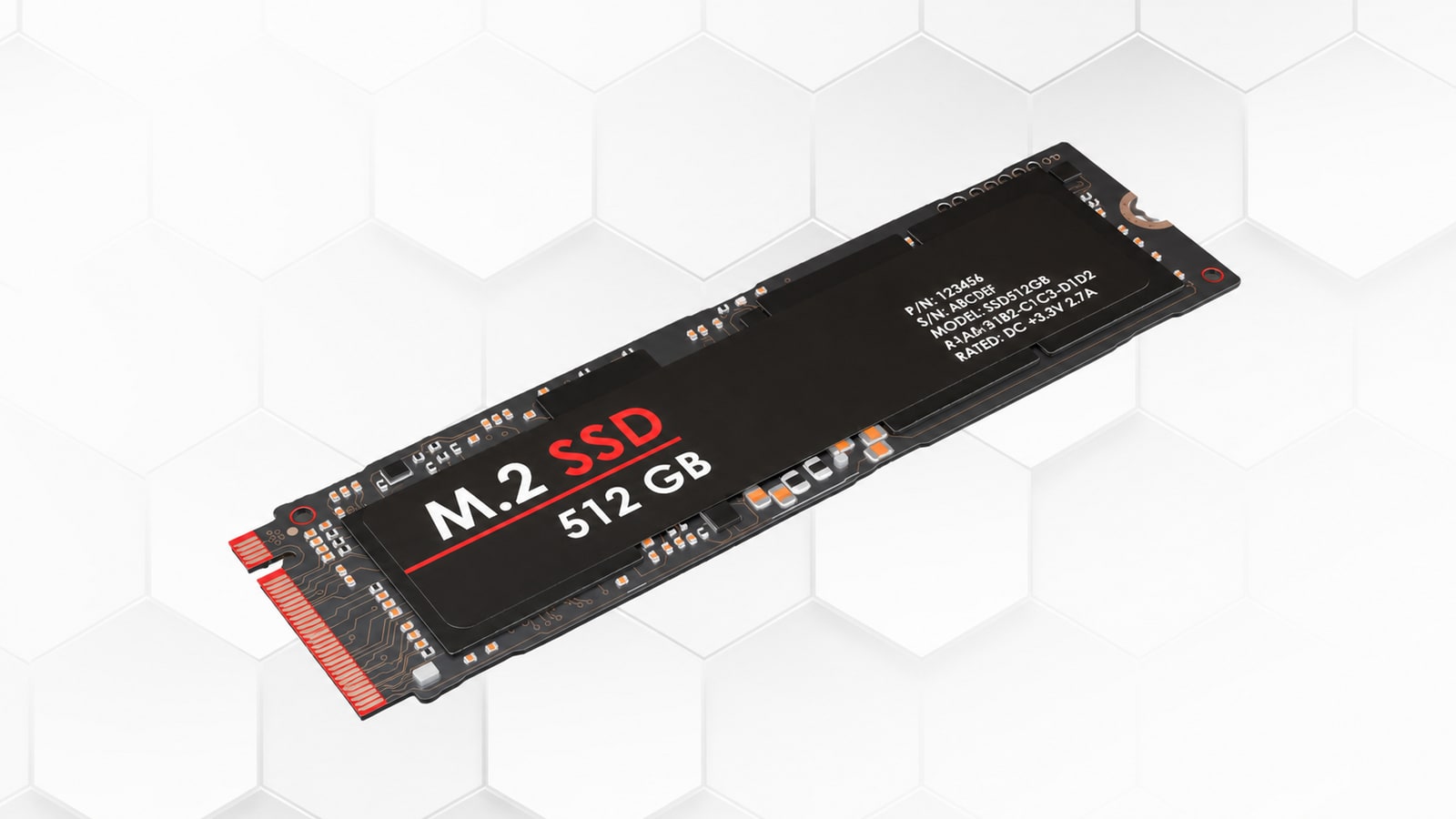
Should you buy 1TB, 2TB, 4TB or 8TB?
Two terabytes is the sweet spot. It creates a genuinely roomy library without pushing the price into enthusiast territory, and 2TB drives often offer better value per gigabyte than 1TB models. The new SSD adds to the console's built-in storage, so it neither replaces the internal drive nor deletes anything already installed.
A 1TB drive still works for a small rotation of games, particularly at a steep discount. Move to 4TB if PS5 is your main platform, several people share the console or slow broadband makes every re-download painful. PS5 accepts 8TB, but the cost is difficult to justify for almost anyone.
Game counts are a poor buying tool because one blockbuster can occupy several times as much space as an indie. If you want broad libraries such as our favourite RPGs on PS5 and PC or the best PS5 co-op games for couples ready to launch, 2TB removes most of the weekly housekeeping.
The PS5 SSDs we would buy
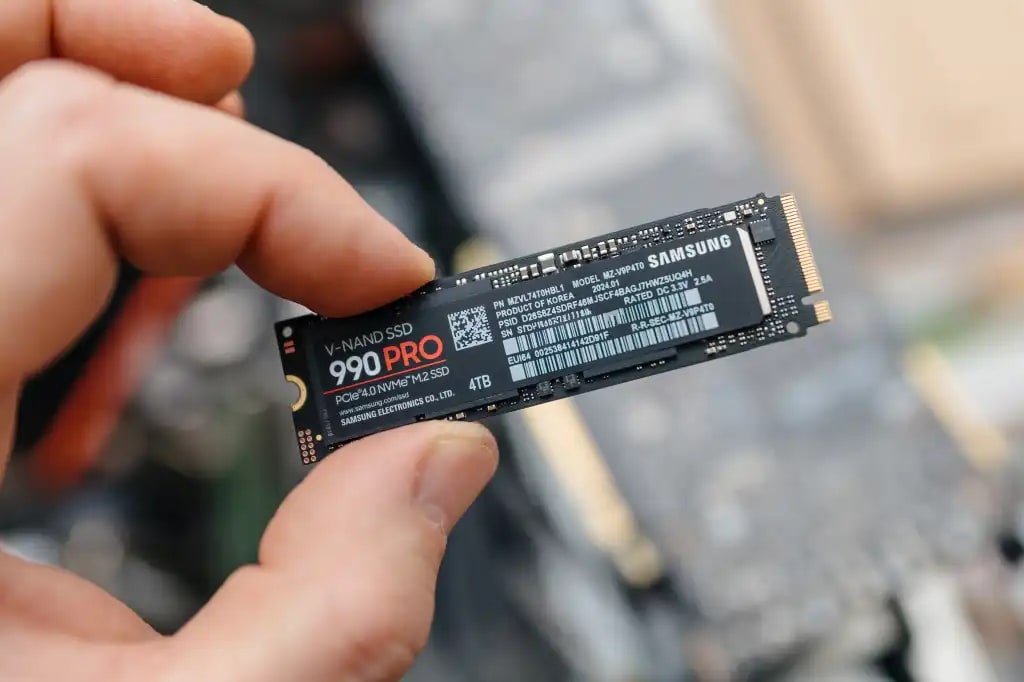
Our rule is simple: buy whichever trusted 2TB model with a heatsink is cheapest. WD_BLACK SN850X, Samsung 990 PRO, Crucial T500, Corsair MP600 Pro LPX and Kingston FURY Renegade all clear Sony's 5,500MB/s recommendation in PS5-sized versions. Their advertised speed differences matter less here than the deal available when you shop.
The WD_BLACK SN850X with heatsink is the easy default thanks to its capacities, performance and wide availability. Samsung's 990 PRO is every bit as credible, but make sure you pick the heatsink edition or add a compatible cooler. Crucial, Corsair and Kingston round out the shortlist, and if one costs meaningfully less at the same capacity, take the saving.
An official licence does not make games load faster.
WD_BLACK SN850P and Seagate Game Drive M.2 carry one. That buys reassurance and console-specific design, not extra storage or automatically shorter loading screens.
Skip PCIe 5.0 as well. PS5 runs its expansion slot at PCIe 4.0, so it cannot use the extra bandwidth, and Gen5 products also tend to cost more and run hotter. Be wary of listings that say 'PS5 compatible' without stating speed, heatsink and dimensions. The marketing badge cannot replace those three numbers.
How to install an M.2 SSD in PS5
1. Update the PS5 system software, shut the console down completely, unplug every cable and let it cool. Work on a clear table and discharge static electricity by touching a grounded metal object.
2. Remove the stand and the outer panel covering the M.2 bay. The correct panel differs across original PS5, Slim and Pro hardware, so use the model selector in Sony's official installation guide if the layout does not match. Never force a cover that will not slide.
3. Unscrew the metal bay cover, then move the spacer into the hole matching your SSD's length. Most recommended drives use the 2280 format and therefore sit on the 80 mark.
4. Hold the SSD by its edges, line up the connector notch and slide it fully into the socket at an angle. Lower it gently onto the spacer and secure the screw. It should sit flat, without bending or shifting.
5. Refit the bay cover, outer panel and stand. Reconnect and start the console. PS5 will detect the SSD and ask to format it. Formatting erases anything left on a previously used drive, but it does not touch the console's built-in storage.
6. Open Settings > Storage > Installation Location to choose where new games go. Existing titles can be moved through Settings > Storage > Console Storage > Games and Apps.
A correct installation should not affect the warranty, although Sony can exclude damage caused while fitting the drive. If PS5 cannot see it, shut down and first check that the connector is fully seated and the screw is in the correct spacer position.
Internal M.2 or external USB? Do not buy the wrong one
An internal M.2 can download, update and play PS5 and PS4 games directly. External USB storage can hold PS5 games, but they must be copied back to internal storage before they will launch. PS4 games can run from USB.
An external drive remains a useful, inexpensive archive when broadband is slow, but it does not create more playable PS5 space. For that, buy the M.2: 2TB, a heatsink, PCIe 4.0 and at least 5,500MB/s. Everything after that is just finding the best deal among the trusted models we've covered here at INSERT FUTURE.
The conversation starts here
Sign in with a supporter account to comment. Sign in


Nobody has commented yet. Want to go first?