
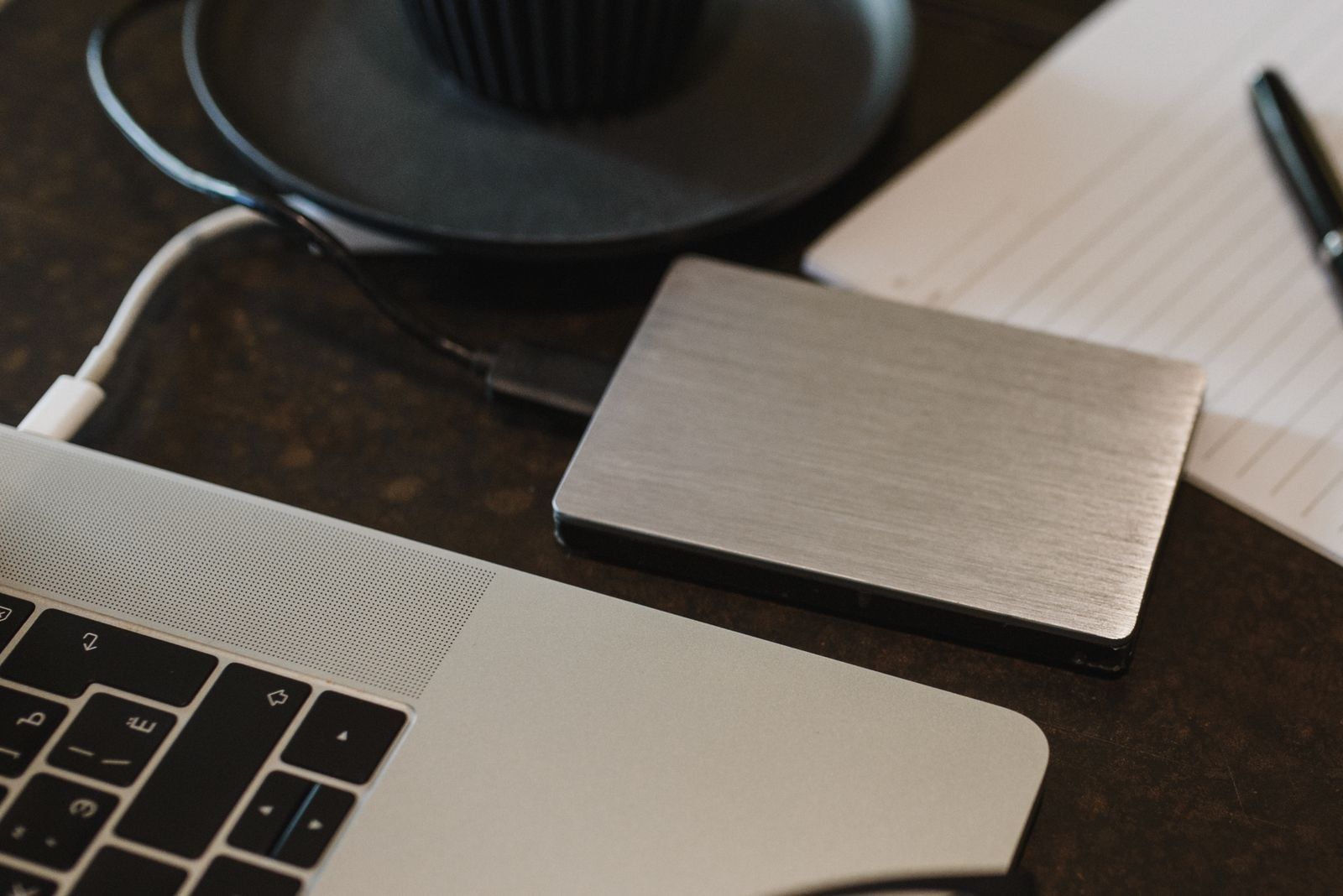
Three copies, not three folders
The 3-2-1 rule calls for three copies of your data: the original and two backups, across two storage types, with one copy away from the main location. Backblaze’s explanation describes a strategy for keeping one failure from taking every copy with it. You can start with irreplaceable photos and documents rather than backing up the entire computer immediately.
A home setup might keep originals on a laptop SSD, a backup on an external hard drive and another with a remote backup service. Three folders on the same laptop do not meet the purpose. A lost or failed laptop takes all three with it.

Sync can copy your mistake too
Synchronization keeps locations up to date, including changes you did not mean to make. Microsoft’s OneDrive guidance explains that deleting within OneDrive can remove a file from both the computer and the cloud. Recycle bins and version histories help, but their retention limits matter.
A synced folder can contribute to your protection. Before counting it as a backup, check that deleted files and earlier versions can be recovered for a useful period. A green sync icon is not evidence that you have tested recovery.
Game saves deserve similar care. If a conflict appears, do not pick a version at random. Our guide to preserving a save before resolving Steam Cloud conflicts explains how to keep your options open before overwriting anything.
Build a routine you can sustain
Start with one important folder and check that the files are actually downloaded, not merely cloud placeholders. Make an initial copy to an external drive with sufficient space. If the backup software asks to erase or format the drive, stop and check what it contains. Choosing between exFAT, APFS and NTFS is a separate decision and never a reason to erase your only copy.
Then arrange automatic backups. On a Mac, Time Machine can retain backups and recover earlier versions. Whatever system you use, check that the chosen folders are included and completed backups are reported. For an off-site copy, use a remote backup service with version recovery or another drive kept elsewhere and updated regularly.
Choose a schedule based on how much work you could afford to lose. Monthly backups leave a large gap if you work daily. Store recovery keys safely if the copies are encrypted, and make sure you can still access the remote service account.

Test recovery without deleting the original
Choose a test photo and document. Restore them from each backup into a new folder, without replacing or deleting the originals. Open them and confirm they are the expected versions. If one backup fails, preserve the others while you fix it.
Safely disconnecting an external drive after a backup reduces its exposure to accidental changes from the computer, but you must reconnect it for fresh backups. No arrangement removes every risk. A recent, separate copy you have successfully restored is worth more than several you have never tested.
The conversation starts here
Sign in with a supporter account to comment. Sign in



Nobody has commented yet. Want to go first?