
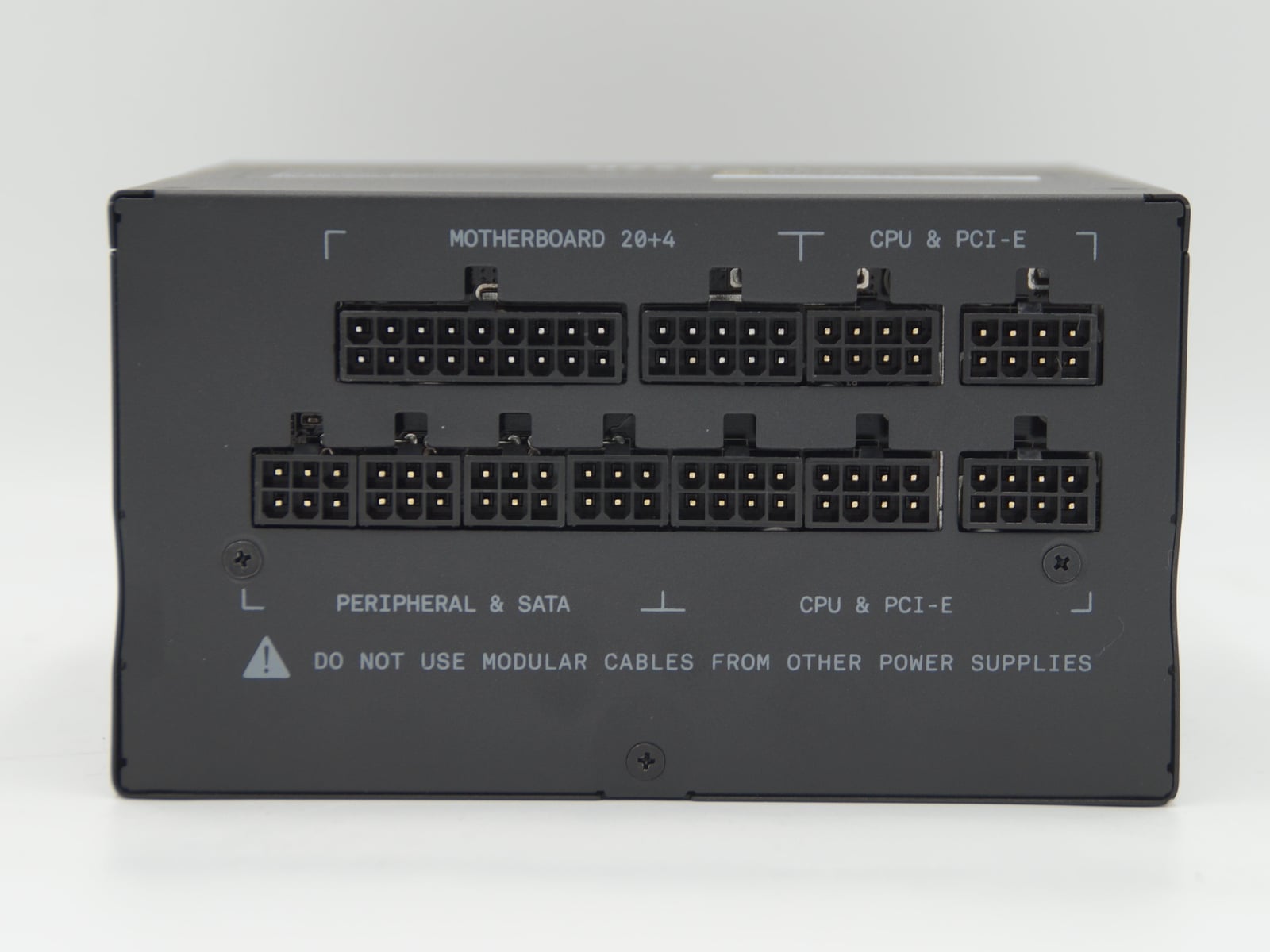
A modular power supply lets you unplug its cables, but that does not make them universal. When replacing a PSU, use the new unit's included cables unless its manufacturer explicitly approves the old ones. Leaving the existing wiring in place can save a lot of routing work, but the wrong cable can damage connected hardware.
Make the decision from documentation before applying power. You need a match between the exact PSU and each cable, not just two familiar brand names. Some cable families are interchangeable, and there are documented cross-brand exceptions, but neither should be guessed from a plug.
A matching plug does not prove the wiring matches
A connector's metal contacts carry particular voltages or signals. Their arrangement is called the pinout. As Corsair explains, standard component-side connections do not make the wiring at the PSU end universal. The wrong cable can connect a power output to the wrong contact at the device.
CPU or EPS cables and PCIe graphics-card cables are another distinction worth checking. Their eight-pin component connectors are different. Read the labels and the manual rather than treating every eight-pin cable as a spare for the same job.
Build a match from the model number and cable reference
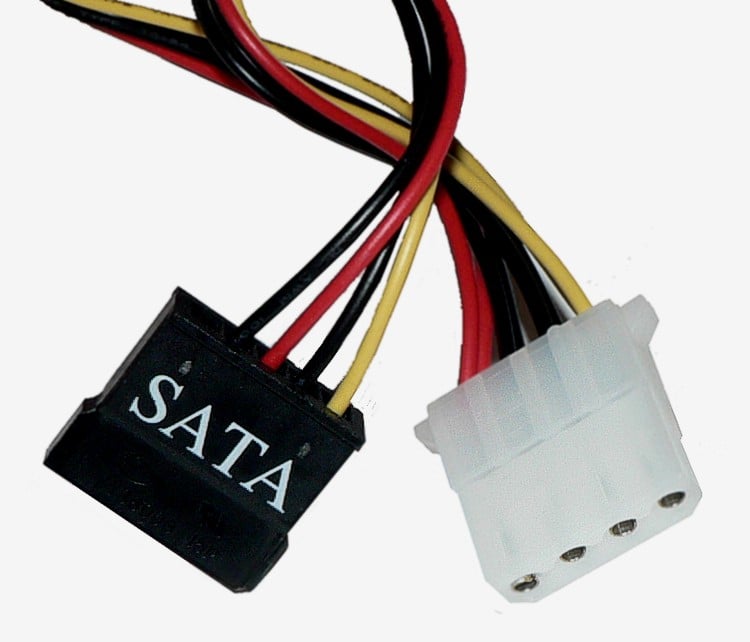
1. Shut down the PC, set the PSU switch to O, and disconnect AC power before handling its connections. Read the external label or your documentation to identify the unit. Do not open the PSU enclosure. Seasonic's installation guide warns of high voltage inside.
2. Record the replacement PSU's full model number, wattage and revision where listed. Record the old unit too if you want to retain its cables. Two 850 W units do not necessarily share wiring. Neither does a matching Gold efficiency rating, which describes a different property.
3. Identify the cable's type or part number and what it powers. Check motherboard, CPU, graphics-card and SATA power cables separately. SATA power may also feed accessories such as fan controllers. Approval for one cable does not establish compatibility for the whole set.
4. Find the exact PSU in the manufacturer's compatibility chart, then read the relevant cable row and its footnotes. Seasonic's chart distinguishes current families, legacy models and native cables from versions that use two PSU-side connectors. If your model is absent or the cable cannot be identified, send support photos of the PSU label and both cable ends. Without that confirmation, install the new PSU's supplied set.
Two exceptions show why the specific cable matters
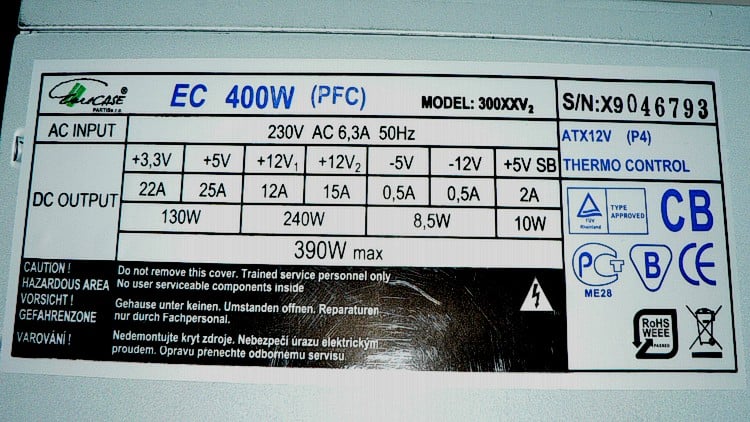
Corsair's Type 3 and Type 4 families share compatibility except for the 24-pin ATX motherboard cable, according to its cable-family guide. Type 5 uses smaller PSU-side connectors. Buying the same brand again is therefore not enough information to decide which cables can stay.
Cross-brand compatibility is possible when explicitly documented. Corsair says its native 12V-2x6 ThermalProtect cable supports other brands' PSUs with that native socket. Native means the cable connects directly to a 12V-2x6 socket on the PSU. That approval does not cover cables fed by two eight-pin PSU sockets, or every cable with a 12V-2x6 plug at the graphics-card end.
Check the complete route before powering up
When installing the replacement set, remove old cables still attached to drives, fan controllers or other accessories. Trace each connection from the correct PSU to its intended device. Follow the manual's insertion instructions, seat connectors fully, and avoid forcing them or putting strain beside the plug. Do not reuse a cable with damaged plastic or burn marks. Ask the manufacturer about a suitable replacement.
Cable compatibility is separate from having enough power for a graphics-card upgrade, so check the new card's requirements too. If poor gaming performance started the upgrade plan, identify the component that is actually holding the PC back before spending money on the wrong replacement.
The conversation starts here
Sign in with a supporter account to comment. Sign in

Nobody has commented yet. Want to go first?