
A slow PS5 download is almost always held back in one of four places: PlayStation Network's servers, the link between your console and your router, other devices sharing your connection, or the speed your internet plan actually delivers. No console setting can make your plan faster. What you can do is work out which of those four is the bottleneck and remove it.
The method matters. Change one thing, then repeat the same measurement. If you plug in a cable, switch DNS servers and wait until midnight all at once, a faster download tells you nothing about which change helped or which one is worth keeping. Use the same game for every test and write down the time of each attempt.
Check PlayStation Network status
Sony lists this step first in its own troubleshooting. If PlayStation's status page shows an alert for PlayStation Store or downloads, nothing you change at home will help, and the useful move is to wait for service to recover and try again. With no alert showing, the problem is most likely on your side.
Measure with the PS5 connection test
The console has its own speed test. Go to Settings > Network > Connection Status and select Test Internet Connection, the path PlayStation Support gives for stuck downloads. Among other results, it reports your download speed in megabits per second (Mbps). Run it two or three times and go with the typical figure, since a single run can land while someone else in the house is streaming.
That number converts to waiting time. A 100GB game is 800,000 megabits, so at 100Mbps it takes about 2 hours 13 minutes in the best case, and at 600Mbps about 22 minutes. Real downloads usually run a little below the test result because they also depend on the server you are pulling from. If the test shows 600Mbps but a 100GB game is still projecting two-plus hours, the pace of a 100Mbps line, your internet connection is not the problem.
For an outside reference, test from a laptop or desktop wired to the router. If the computer gets close to your plan's speed and the PS5 does not, the problem sits between the console and the router. If both fall short, skip to the last section.
Wired vs. Wi-Fi: the most revealing test
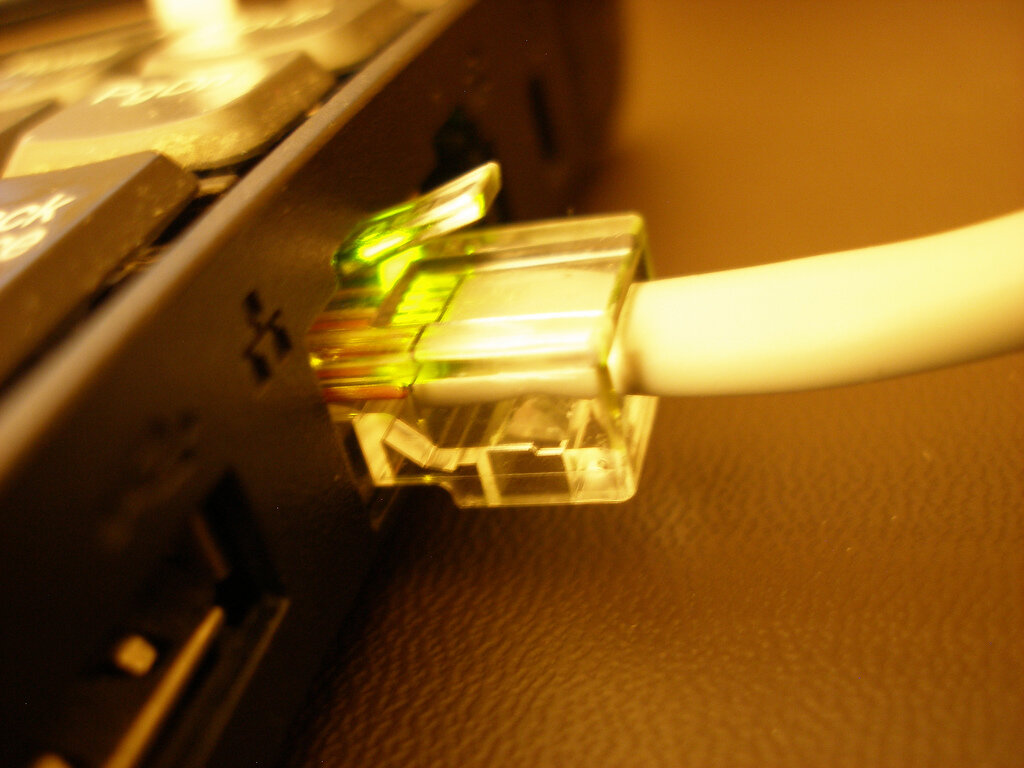
Connect the PS5 to the router with an Ethernet cable. Sony's connection guide puts the option under Settings > Network > Settings > Set Up Internet Connection, then Set Up Wired LAN > Connect. Run the connection test and the same download again.
If the wired download is much faster, the wireless link was the bottleneck: distance, walls, the band the console is using or neighboring networks crowding the same channels. If it is no faster, you can rule Wi-Fi out. One special case: if a wired test sticks near 100Mbps on a faster plan, the link may have negotiated down to 100Mbps because of a bad cable or port. Our guide to Ethernet stuck at 100Mbps shows how to check.
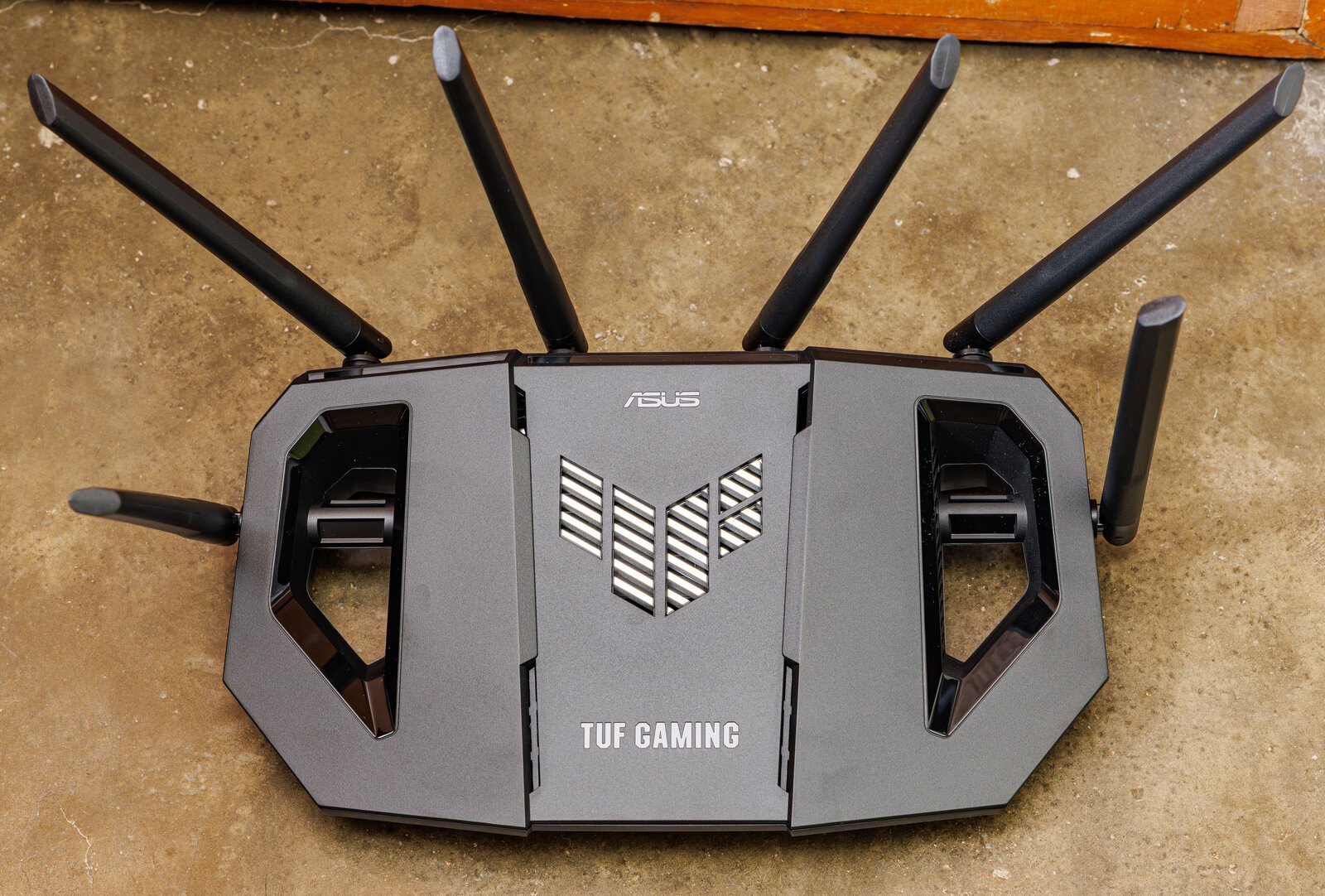
If running a cable is not practical, check which band the console uses. Intel notes that 2.4GHz reaches a little farther and passes through walls better but is the slowest band, with a typical maximum around 100Mbps, and is often cluttered with older devices. 5GHz can deliver up to 1Gbps. If your router broadcasts two networks with different names, join the 5GHz one and test again. Our Wi-Fi 5, 6, 6E and 7 guide for gaming covers the differences between router generations.
Pause and resume: when the trick helps
The most-shared fix is also an official one, though Sony recommends it for a download that will not start. Open Downloads/Uploads in the control center, select the download, then choose Pause followed by Resume. Sony describes this as a way to restart the download. If the slowdown came from that particular connection to the server, resuming may help. If it comes from your Wi-Fi or your plan, the speed will settle back where it was, which at least rules out the server.
If the download still will not move, PlayStation suggests selecting Cancel and Delete, finding the game in your Game Library and downloading it again. For a stuck download, the final step in Sony's guide is to start the console in Safe Mode and choose Clear Cache and Rebuild Database.
Let it download in rest mode
To keep the PS5 downloading while it sleeps, go to Settings > System > Power Saving > Features Available in Rest Mode and turn on Stay Connected to the Internet. PlayStation's auto-download guide says games and updates will not download in rest mode without it.
Sony does not claim rest mode downloads any faster. What it buys you is time. A 100GB game that needs more than two hours at 100Mbps can finish overnight, when nobody else at home is using the connection.
Changing DNS: what it does and what it doesn't
A DNS server translates a name such as playstation.com into the numeric address of the machine your console needs to reach. Cloudflare explains that a device cannot do this translation itself and asks a resolver instead. That lookup happens when a connection opens. The game data never flows through the DNS server, so switching DNS cannot raise your connection speed.
It can change which download server you get. Many content delivery networks hand out a different server depending on where they think the request comes from, and they often judge that by the location of the DNS resolver asking, as RFC 7871 describes. A public DNS service might point you to a closer server than your ISP's DNS does, or to one farther away. Cloudflare's 1.1.1.1, for example, does not pass your network location on to those services, so they can only go by where Cloudflare's resolver sits. Sony does not publish how DNS affects its server choice, so the only way to know is to measure.
DNS is set during connection setup, under Advanced Settings > DNS. PlayStation advises asking your ISP if you are unsure about these settings. Write down your current configuration before you change it. Then repeat the same game download and switch back if nothing improves.
Other devices sharing your connection
Everything in your home shares one internet line. A TV streaming in 4K, a cloud backup or a PC grabbing another game all split that capacity with the PS5. To check, pause those jobs during the test or measure when nobody else is online. If speed jumps, the fix is timing, or leaving the download for rest mode overnight. Some routers can prioritize a single device, but the feature and its name vary by model, so check your router's manual.
Full storage stops a download from starting
A full drive does not slow the data down, but it can keep a download from starting. PlayStation explains how to check: in your Game Library, select the game, choose … (more) > View Product and look for the minimum free space on the right of the screen. Your available space is under Settings > Storage.
If the game will not fit, delete or move data. According to PlayStation's PS5 storage guide, USB extended storage can hold PS5 games, but you have to move them back to console storage or an M.2 SSD to play them. If you need more room for good, we cover which SSD to buy and how to install it in a PS5.
When the limit is your internet plan
If a computer wired straight to the router cannot beat a low number either, there is nothing to fix on the PS5. Compare that result with the speed in your plan. If they match, your plan is the ceiling, and a 100GB game at 100Mbps will still take more than two hours whatever you do on the console.
If wired results land well below your plan several times and at different hours, save them with dates and take them to your ISP. With the console, Wi-Fi and other devices already ruled out, the fault is in the router or upstream of it, and that part is your provider's responsibility.
The conversation starts here
Sign in with a supporter account to comment. Sign in


Nobody has commented yet. Want to go first?