
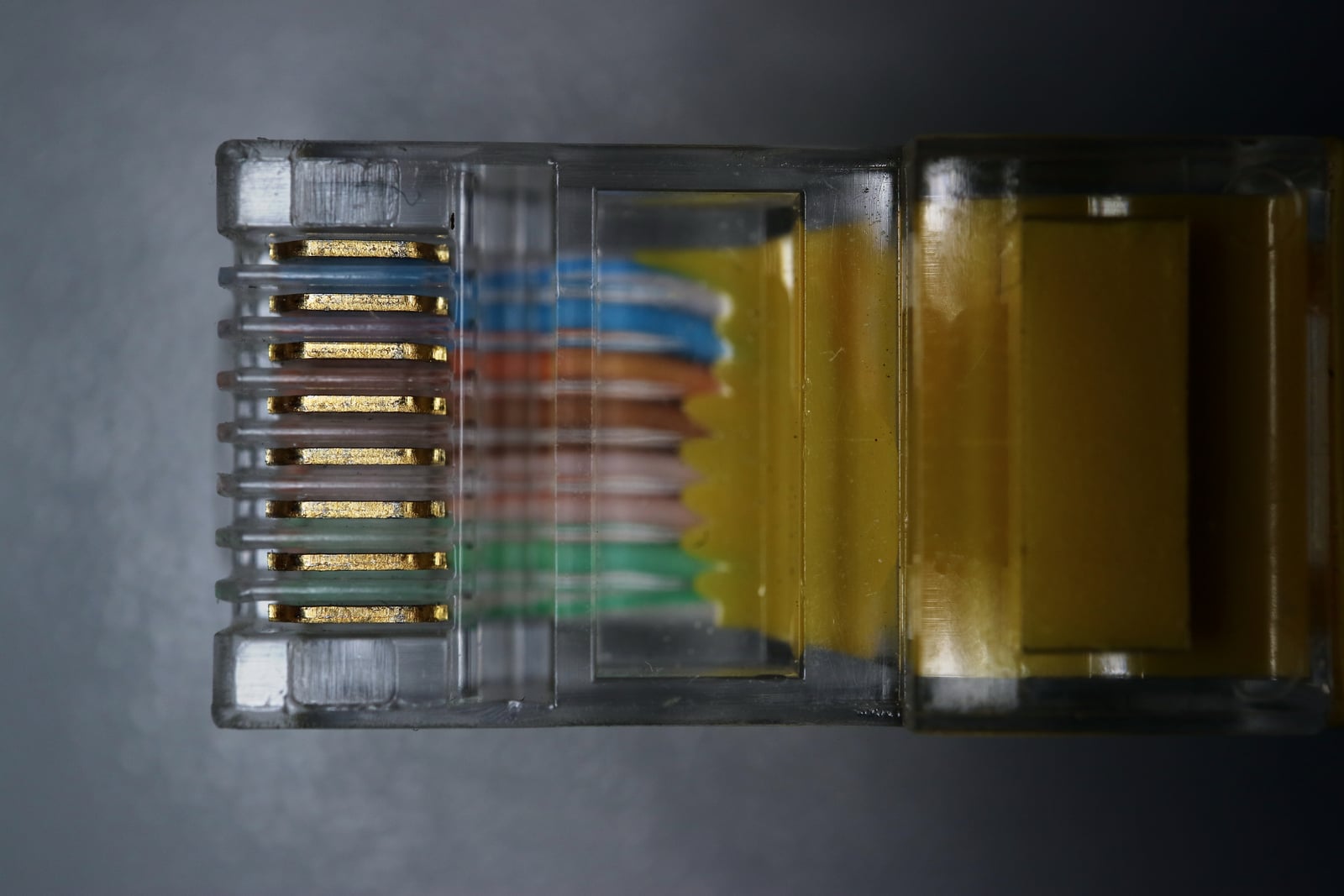
A 100 Mbps Ethernet link can hold back a faster internet plan, but first check what the computer is actually reporting. Link speed is the connection between your network adapter and the device at the other end of its cable. It is not a measurement of your broadband service.
If that local link reads 100 Mbps, check the capabilities of both ports and test the cable before replacing the router. If it already reads 1 Gbps, a slow download does not establish this particular problem. The bottleneck may be elsewhere along the path.
Read the connection status first
With Ethernet connected, use the built-in status screen. TP-Link documents the Windows and Mac checks. Neither requires an extra app or a change to network settings.
- On Windows, press Windows + R, enter ncpa.cpl and confirm. Right-click the active Ethernet connection, choose Status and read Speed. If several adapters appear, select the wired connection you are testing.
- On a Mac, open System Settings, Network, the relevant Ethernet service, Details and Hardware. Read the speed without switching Configure to Manually. 1000baseT means 1 Gbps, while 100baseTX means 100 Mbps. A USB adapter or dock may appear under its own name.
Check the port specifications at both ends
A 1 Gbps link carries 1,000 megabits per second, ten times the link capacity of 100 Mbps. That can help with large transfers. It does not promise ten times faster downloads or automatically improve game latency.
Look up the Ethernet adapter in your computer and the LAN port on the router or switch. A switch connects several wired devices to the network. A 10/100 specification stops at 100 Mbps. Both ends must support Gigabit or 10/100/1000 to connect at 1 Gbps. Include the Ethernet adapter inside a USB dock when that is where the cable plugs in.
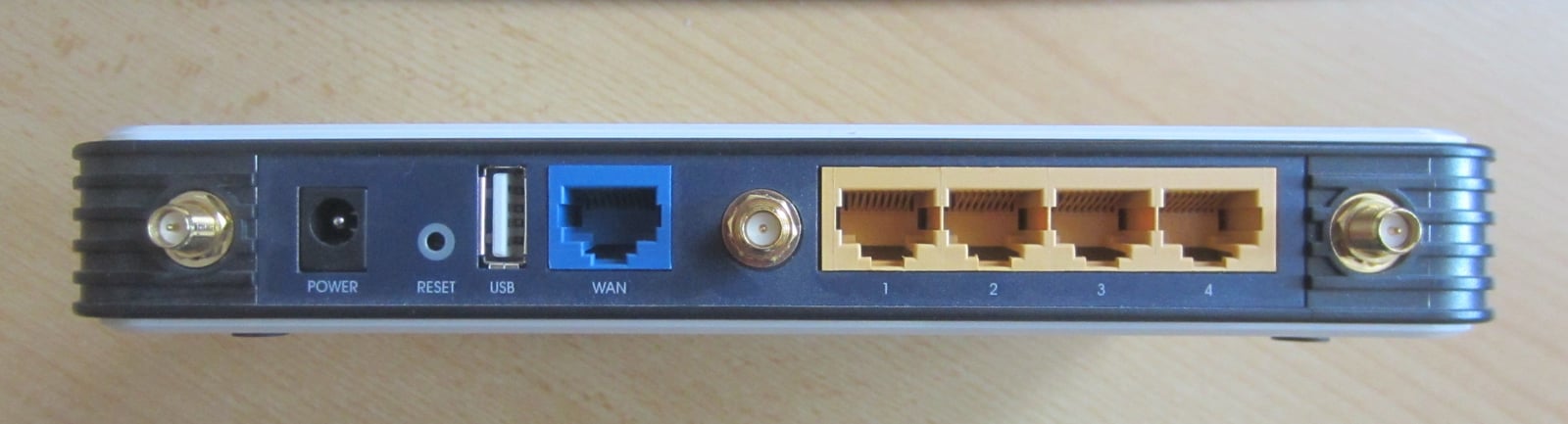
The router’s headline Wi-Fi rate does not tell you what its wired ports support. TP-Link separates wireless rates, LAN links and WAN limits. LAN is the local network connection used by your computer, while WAN leads toward the internet. A PC can have a 1 Gbps LAN link and still encounter a 100 Mbps limit at the WAN connection or another device farther along.
The photograph uses an older TP-Link TL-WR1043ND V1 to illustrate a separate WAN socket and numbered local-network sockets. Port colors are not universal and do not establish speed. Check the labels and documentation for your own model.
Why a connected cable can still limit the link
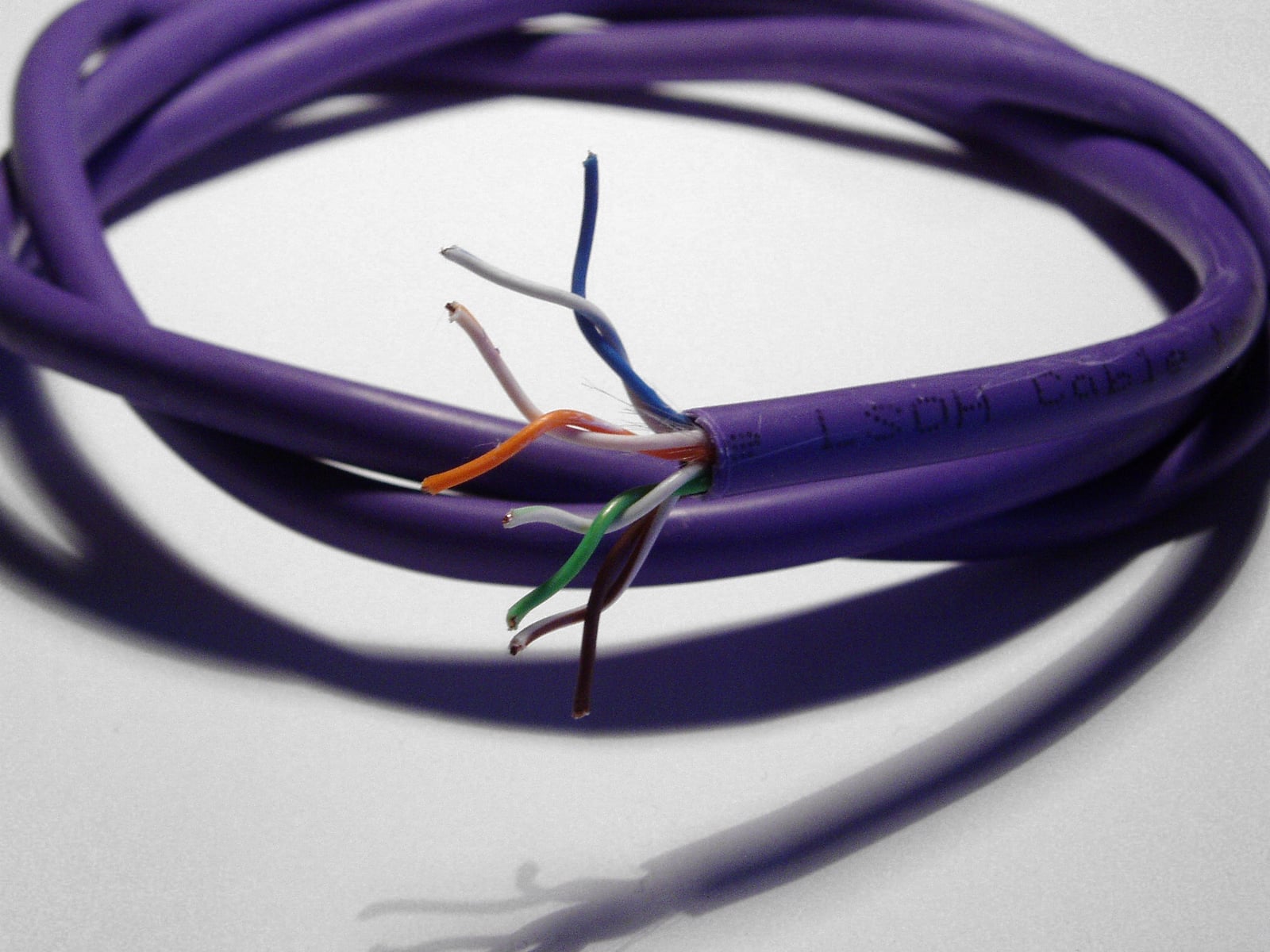
Ordinary Gigabit Ethernet over twisted-pair copper uses all four wire pairs. Intel’s adapter manual says its adapters can reach only up to 100 Mbps with two- or three-pair cabling. A connection that still works therefore does not rule out a cable problem.
A suitable Cat 5e cable can carry Gigabit. Cisco’s cable specifications list four-pair Category 5, 5e or 6 for these ports. Buying Cat 7 or Cat 8 is not a necessary step in diagnosing a 100 Mbps limit. Nor does a printed category prove that an individual cable is correctly terminated and undamaged.
The opened cable in the photograph shows the four pairs for illustration. Do not strip or cut your cable to inspect it. Temporarily swapping in a cable already known to work at 1 Gbps is a more useful check than judging the connector by its visible contacts.
Isolate the cause one change at a time
Pause transfers and wait until any call or remote session has ended. Unplugging Ethernet will interrupt that connection. Record the current link speed, then use this sequence when both endpoints support Gigabit.
- Check that the plug is seated without forcing it. If the link remains at 100 Mbps, replace only the cable with a Cat 5e or Cat 6 lead you have already seen connect at 1 Gbps. Keep the same computer and LAN port.
- If that makes no difference, keep the test cable and try another Gigabit-capable LAN port. Reopen Ethernet status after each change.
- Where practical, connect the computer directly to a router LAN port to exclude an intervening wall run, switch or powerline adapter. Leave the WAN cable, modem and fiber connection alone. A new 1 Gbps link narrows the problem to the path you bypassed, but does not identify which individual part caused it.
- Reintroduce those sections one at a time. If this computer still connects at 100 Mbps using a cable and port that give another computer 1 Gbps, report that comparison to the computer or adapter manufacturer.
Use the result to choose the next check
Moving from 100 Mbps to 1 Gbps removes that limit on the link you tested. Measure internet performance separately afterward. If the local link was already Gigabit, investigate the remaining network path and service rather than continuing to buy cables.
Do not force a manual speed just to make 1 Gbps appear. Intel recommends automatic negotiation for its Gigabit adapters, including drivers that have no manual 1 Gbps option. Consult the administrator before changing a managed computer’s configuration.
If the wired connection works and the problem returns only on Wi-Fi, move on to the wireless connection. That is a different diagnostic path.
The conversation starts here
Sign in with a supporter account to comment. Sign in

Nobody has commented yet. Want to go first?