
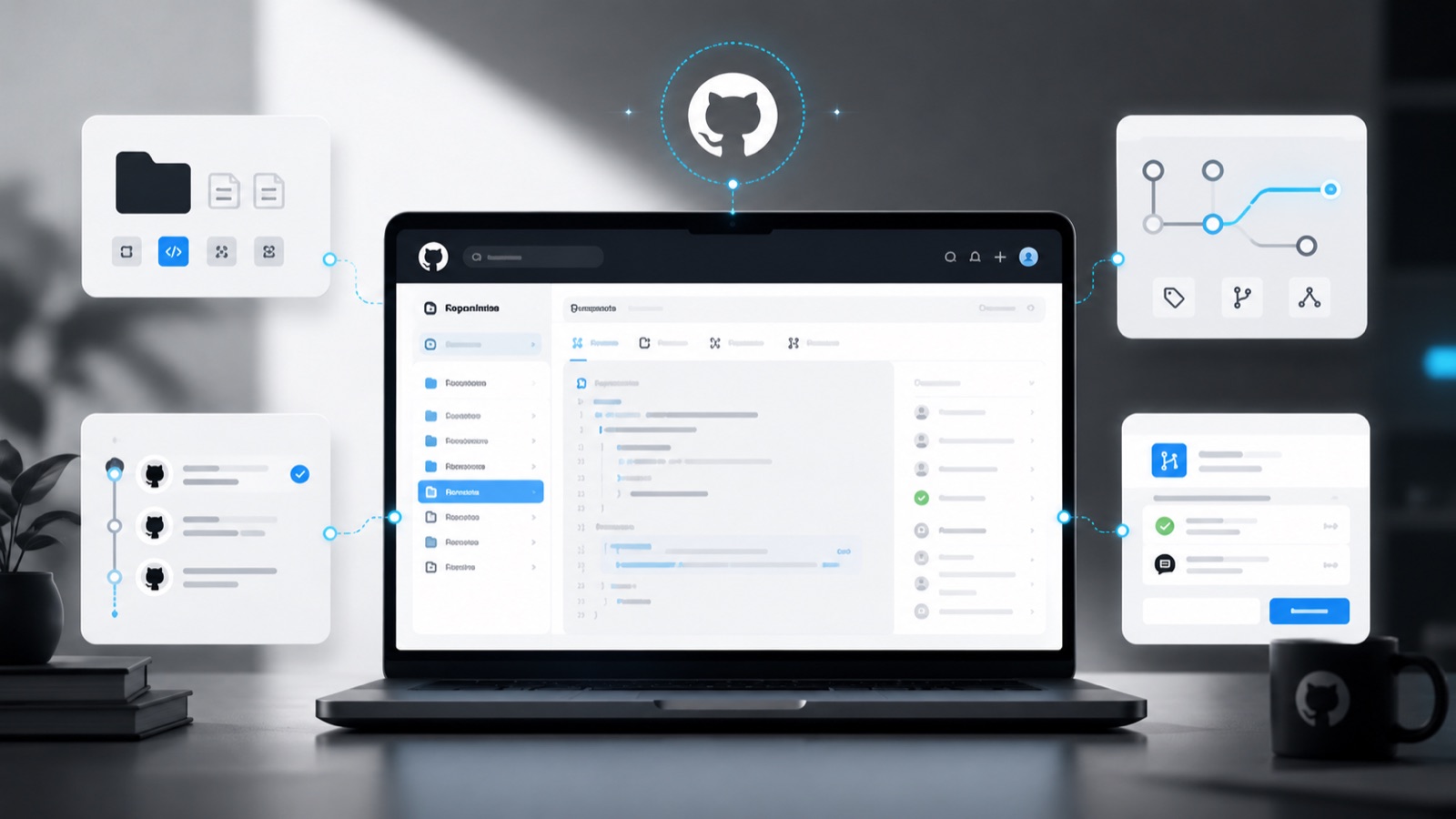
Automate the time, not the editorial decision
GitHub Actions can publish while your computer is off. It should not decide whether an article is ready. The safest division is simple: a person approves the story and the automation obeys the release time.
Lock the headline, copy, sources, links, images, credits and timing before the workflow enters the picture. Store two values the system can test, such as an `approved` status and a timezone-aware `publishedAt` date.
The job should continue only when both conditions are true. An expired draft must stay private, and an approved article without a publication date must stay put. If either check fails, the workflow exits without changing the site.
This continues the boundary from part three's branch and pull-request workflow. AI may prepare, validate and propose. Publishing executes a decision you have already made.

Run it manually before adding a schedule
Create the workflow file inside `.github/workflows` and begin with `workflow_dispatch`, GitHub Actions' manual trigger. At this stage the job should publish nothing. It should list the content it considers ready and explain why.
Test three cases: an unapproved draft with a past date, an approved article scheduled for later and an approved article whose time has arrived. Only the third should qualify. Repeat the complete run with dummy content before any real story is at risk.
Once the manual test is reliable, add `schedule`. GitHub uses cron syntax and accepts an IANA timezone such as `America/New_York` or `Europe/London`. Without one, the schedule runs in UTC. GitHub's schedule documentation also warns that busy periods can delay jobs, so do not build a release that depends on second-perfect timing.
Scheduled workflows use the latest version on the default branch. Review the time, timezone, command and affected files in the pull request. Keep the manual trigger after scheduling because it remains the quickest way to investigate a failed run.
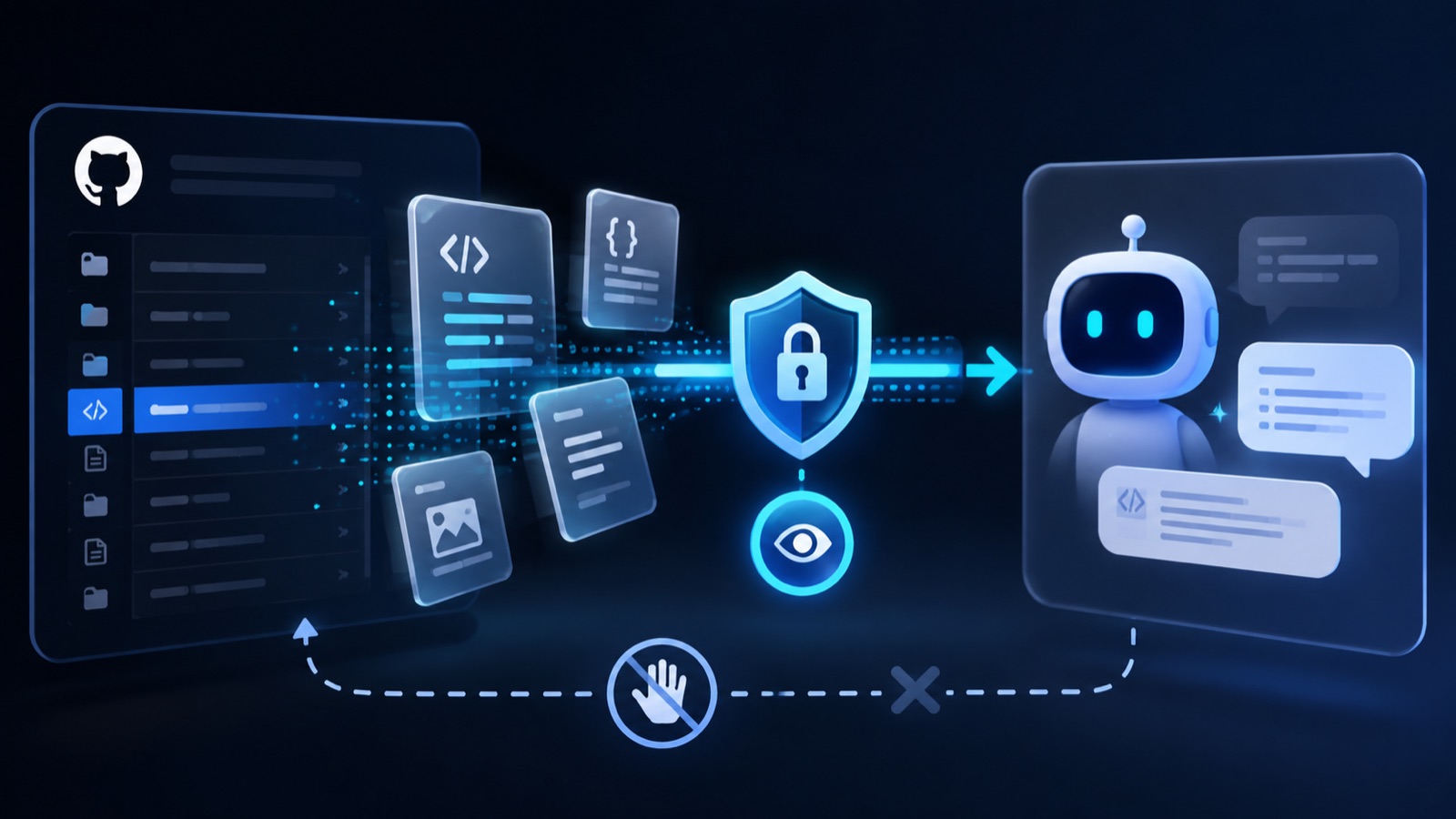
Use minimum permissions and watch the first release
GitHub creates a temporary `GITHUB_TOKEN` for each job. A read-only workflow may need no more than `contents: read`. If one job must create a commit, grant write access only there. Credentials for outside services belong in Secrets, never in the YAML file or article data.
Fail the run when an image, required field or publication file is missing. Keep logs and configure a failure notification. A stopped release is easier to repair than an incomplete page nobody noticed.
Watch the first real publication. Open the URL, load the cover image, verify the date and confirm that the story appears in the right place. Then inspect the Actions history to make sure no other content was processed.
The finished route is easy to follow: the repository records history, ChatGPT reads authorized files, a branch isolates proposed changes and Actions releases work that was already approved. Good automation removes repeat clicks, not responsibility.
The conversation starts here
Sign in with a supporter account to comment. Sign in



Nobody has commented yet. Want to go first?