
Update the system and controllers first
Nintendo recommends installing current system software and updating each controller before calibration. Its official guide places the route under System Settings, Controllers and Accessories, Calibrate Motion Controls, then Calibrate Controllers.
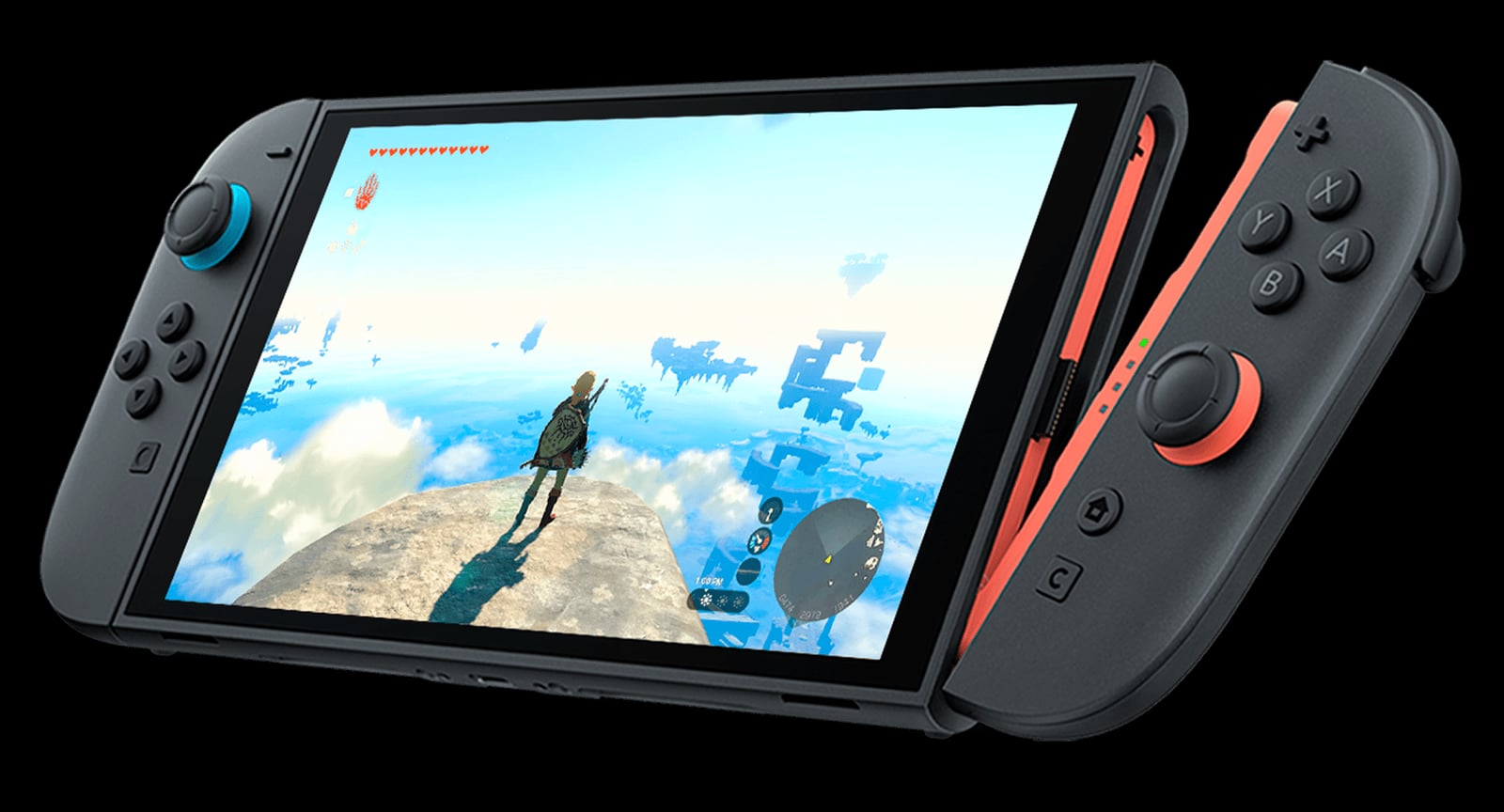
Remove straps and accessories, hold + or - on the controller being calibrated, and place it on a flat surface with the stick facing up. Leave it still until the process ends, then repeat separately for every Joy-Con 2 that behaves incorrectly.
Re-centre aiming inside the game
Many games establish a neutral direction through a button or calibration pose. Do this after the system process. If drift appears in only one title, inspect its control menu before assuming physical damage.
For sports, clear the surrounding area and tighten the strap. Accurate sensing does not prevent impacts or replace the game's safety notices.
Rule out interference
Move away from large speakers, metal surfaces, chargers and busy wireless equipment. Test close to the console with a charged battery. The result can rule out the environment, but it does not prove that either the sensor or wireless connection is damaged.
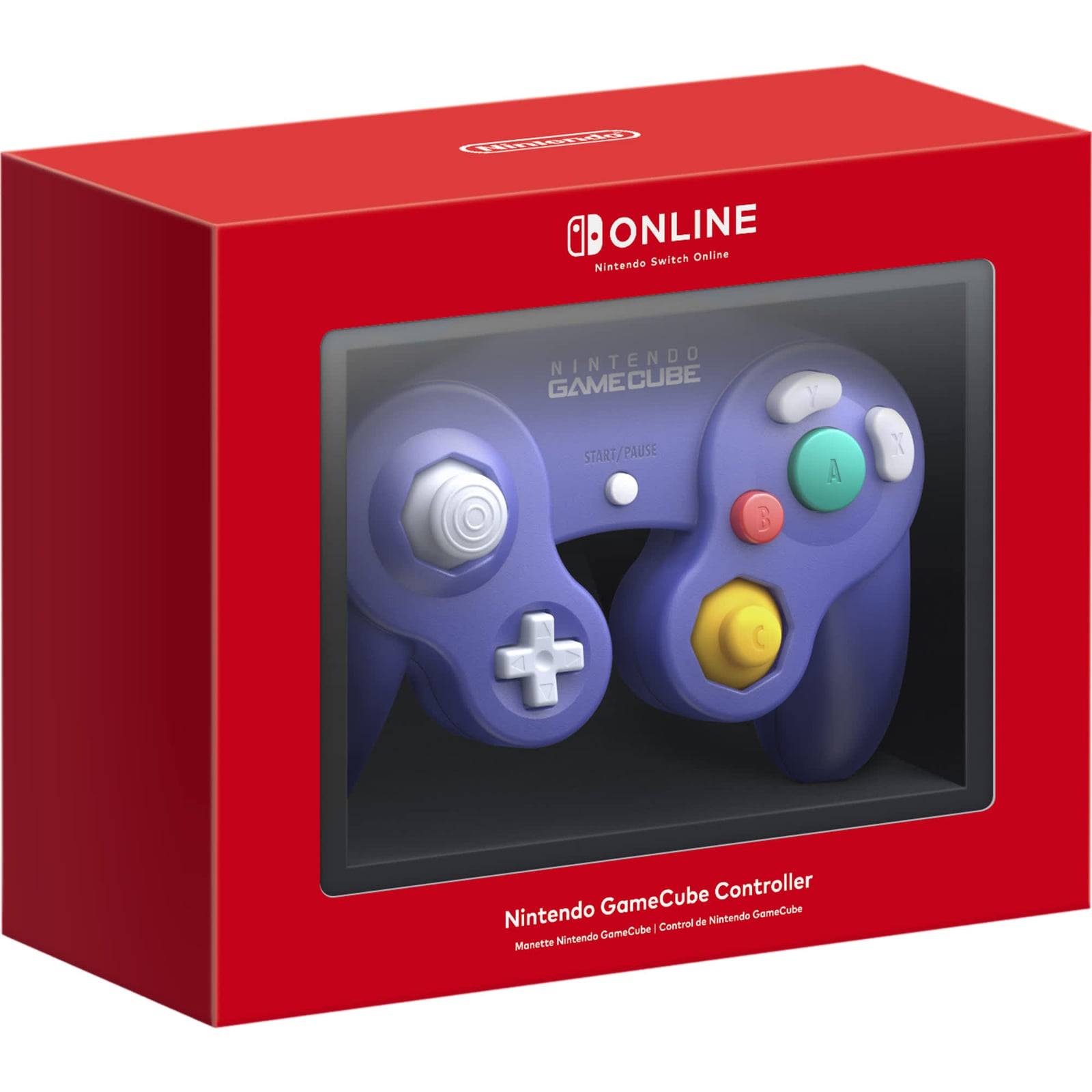
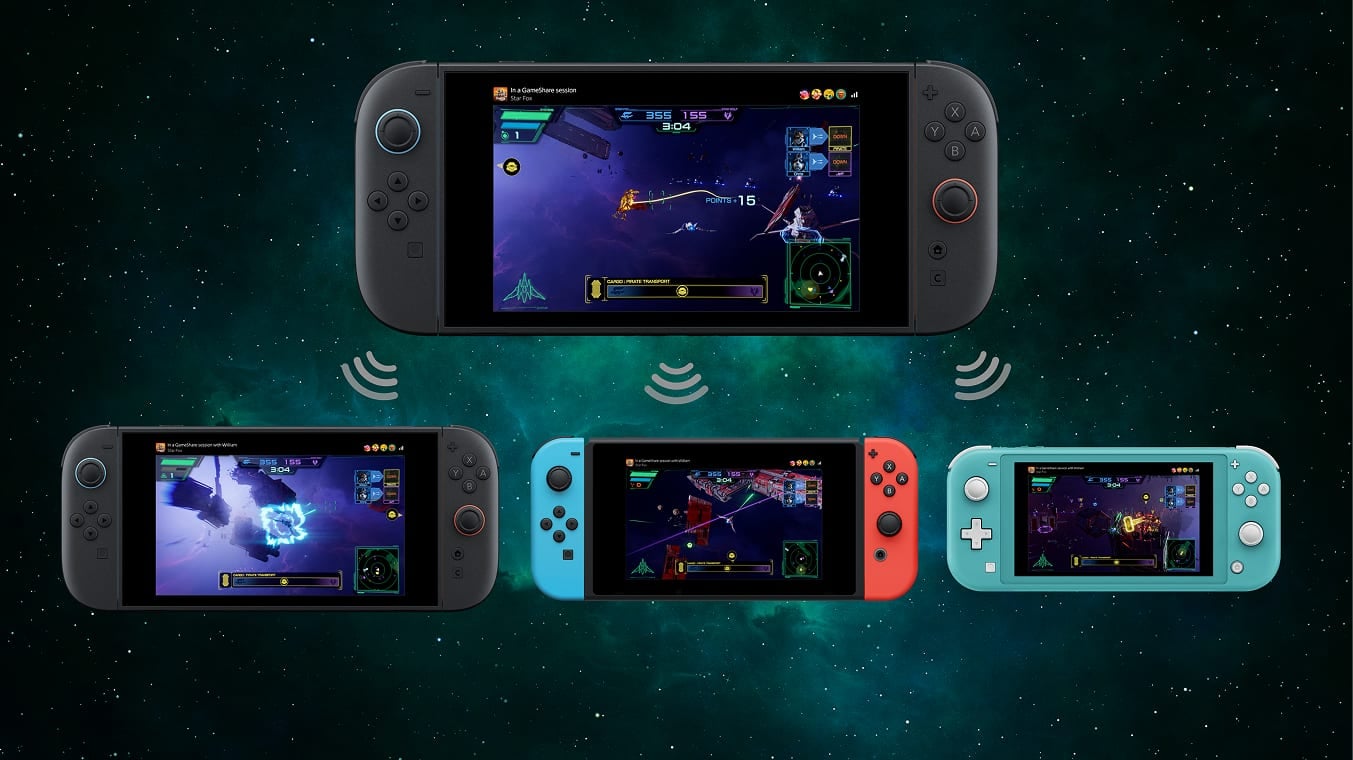
Not every original Switch accessory accepts Joy-Con 2. Read Switch 2 game and controller compatibility and our Switch 2 game selection if the problem appears with older grips, wheels or adapters.
When to request a repair
First verify that the game supports motion controls, then reset the controller by pressing SYNC once before pairing it again. In TV mode, Nintendo also asks you to test the Ultra High Speed HDMI cable. If calibration cannot finish or the problem continues in compatible software, note the serial number and request service.
The conversation starts here
Sign in with a supporter account to comment. Sign in
Nobody has commented yet. Want to go first?