
Updating is not a race
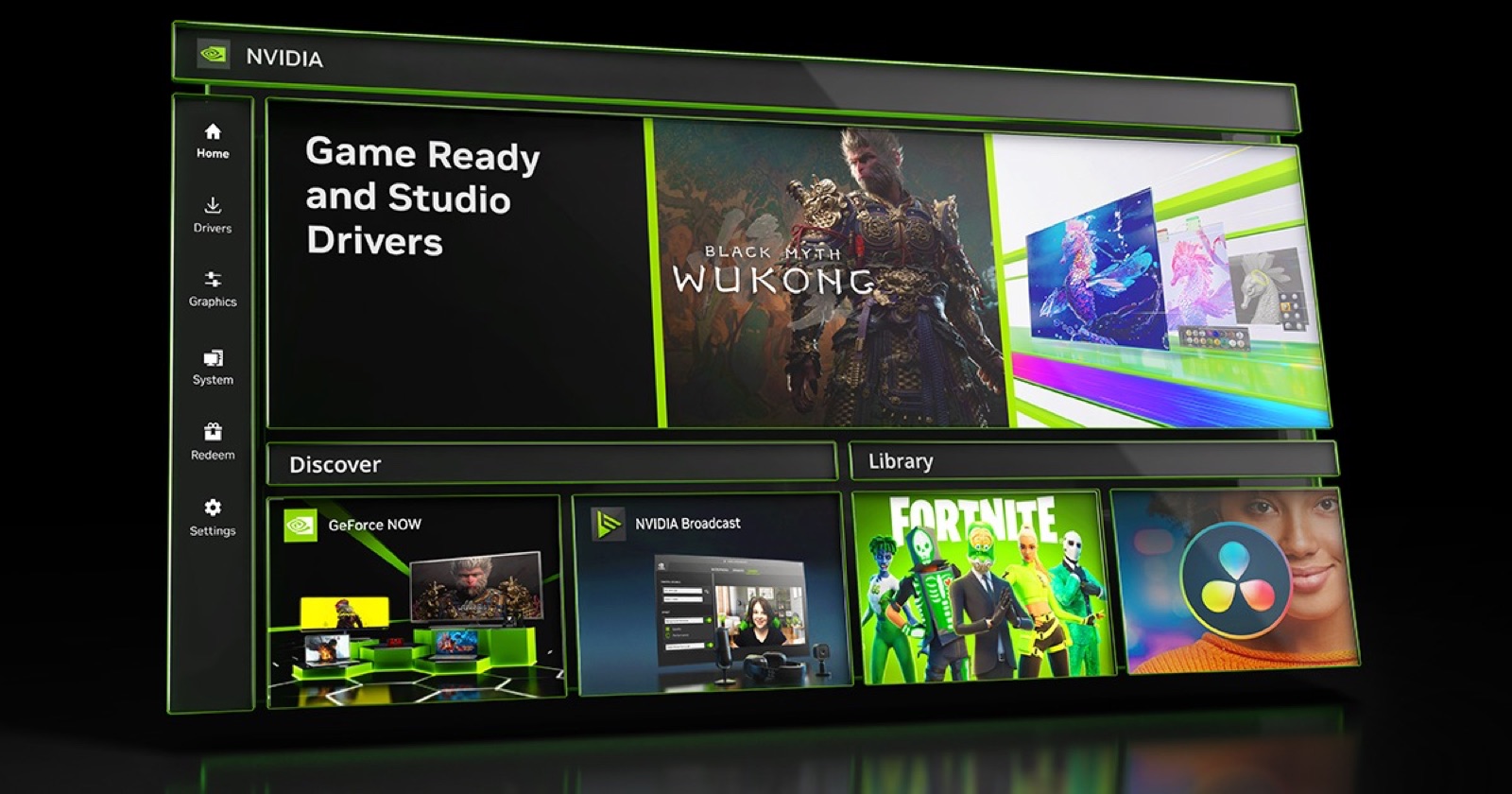
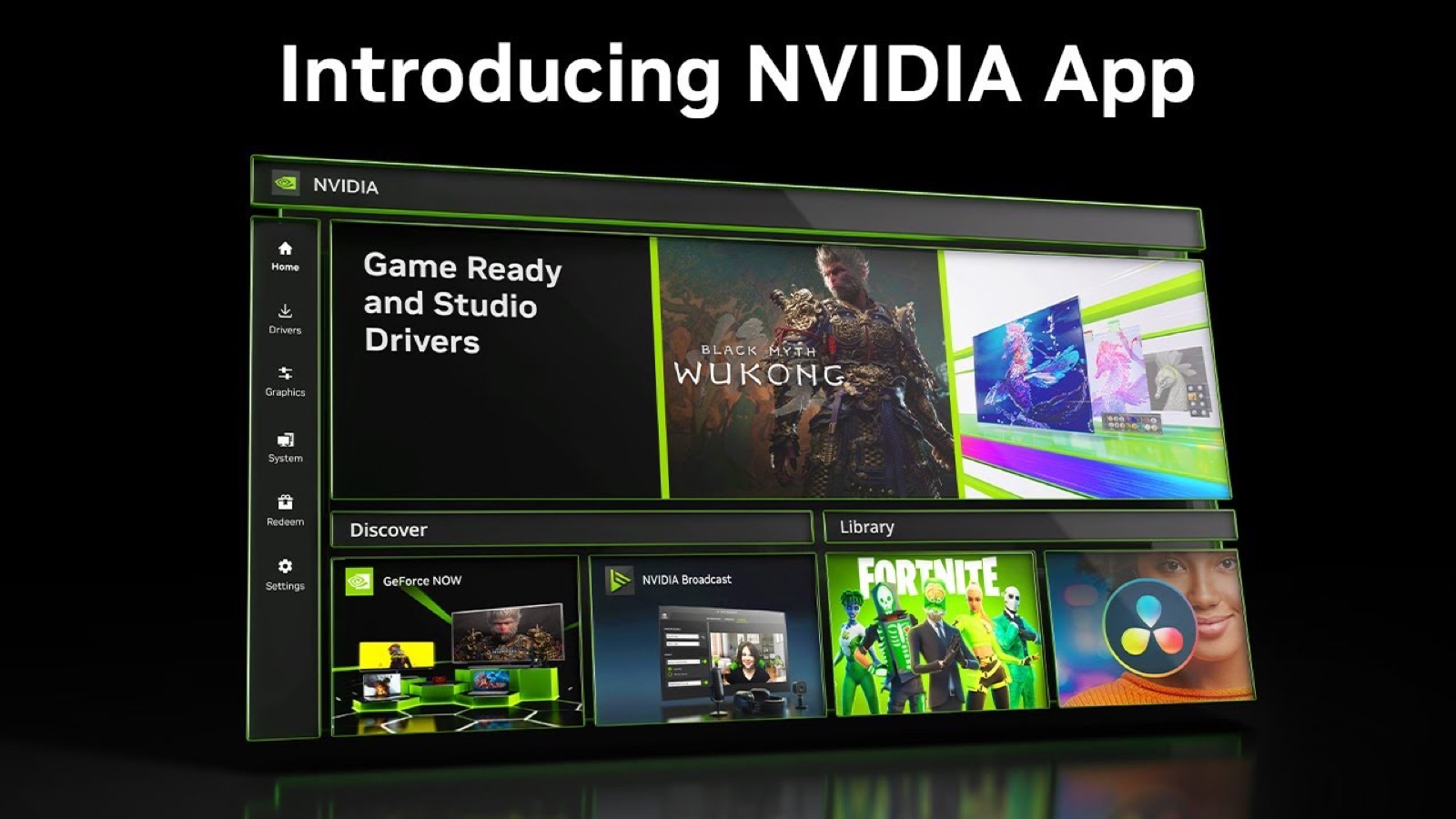
The NVIDIA app announces a new driver and its button can feel mandatory. It is not. A Game Ready driver improves compatibility, profiles and stability for particular releases, but your graphics card does not expire because you stay on the previous build for another week.
NVIDIA says Game Ready Drivers prioritize day-one support for new games, patches and DLC. That gives you the useful test: update when you are about to play the featured title, need a newly added function or see a fix for a problem you actually have.
If you keep playing the same games and the PC is stable, waiting is reasonable. The first few days can expose narrow regressions that testing missed: flicker with one display, a crash on one Windows build or lower performance in an older game.
Game Ready and Studio are not incompatible worlds
Game Ready focuses on game launches. Studio prioritizes validation with creative software and follows a more conservative cadence. NVIDIA makes clear that either branch can run games and professional applications. The choice is about which work you most want to protect.
If video editing pays the bills and gaming happens at night, Studio is often the calmer baseline. If you buy new releases on day one or need a profile introduced in an update, Game Ready is the better fit. NVIDIA App can switch branches without reinstalling Windows or performing an elaborate cleanup ritual.
A clean installation should not be automatic either. It resets profiles and may delete useful caches. Save it for damaged configurations, troublesome branch changes or issues that remain after a normal install. More cleaning does not inherently create more performance.
A practical four-step rule
First, read the release notes and look for your games, GPU and known issues. Second, if the machine matters for work or competition, wait 48 to 72 hours unless you need an urgent fix. Third, create a restore point or keep the previous installer. Fourth, test the same game and scene before blaming the update.
If black screens, crashes or a clear performance loss appear, NVIDIA App includes driver rollback. Returning to the earlier version is a valid diagnostic step, not a defeat. Avoid driver packages from unknown download sites.
A new driver may also trigger shader rebuilding and temporary stutter. Our guide to shader compilation explains when to wait and when to investigate. If performance remains limited, check the CPU–GPU bottleneck before expecting a driver to repair saturated hardware.
The definitive answer
Update immediately when a driver adds support for the game you are about to launch, fixes an issue you have or closes a relevant security problem. Wait when the system is working, you do not use the new features and an interruption would cost more than the promised improvement.
Remaining several months behind is not a strategy either. You accumulate missing fixes, lose compatibility and make the next problem harder to diagnose. The sensible position sits between installing everything blindly and never touching anything.
Read, decide and preserve a way back. The best driver is not always the newest one. It is the newest version that keeps the things you actually do stable.
The conversation starts here
Sign in with a supporter account to comment. Sign in
Nobody has commented yet. Want to go first?