

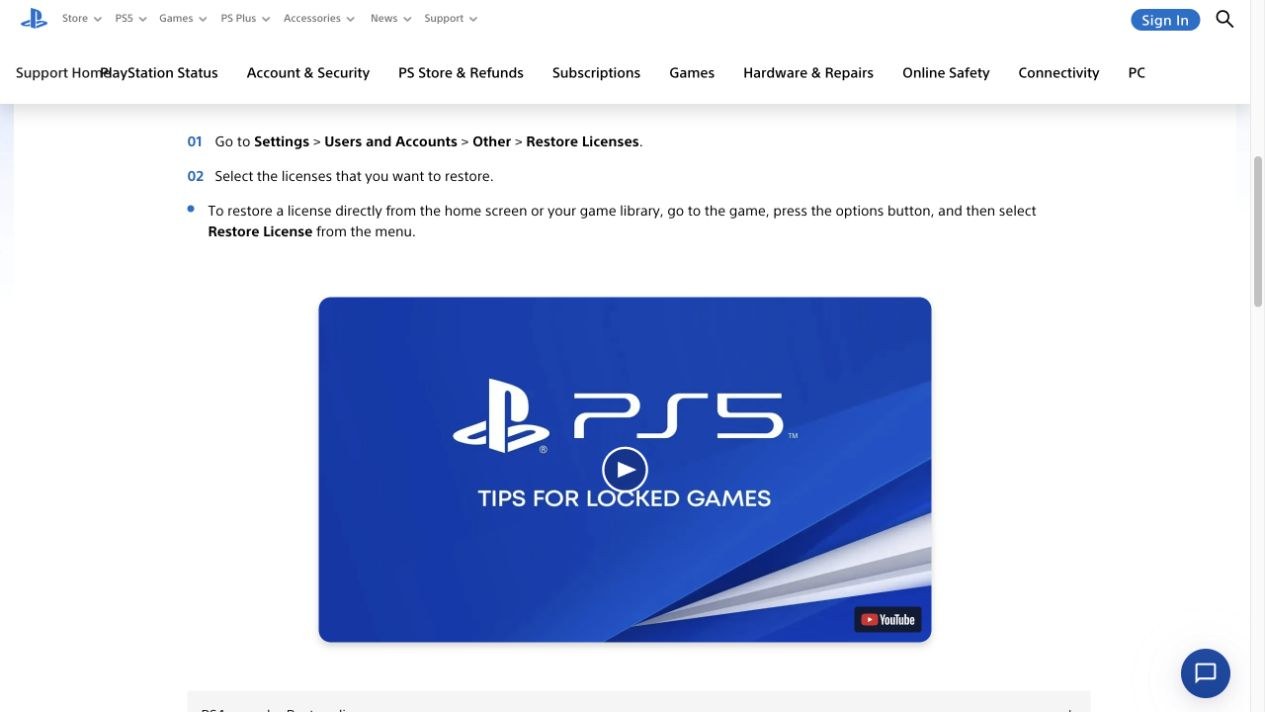
On PS5, go to Settings > Users and Accounts > Other > Restore Licenses, then select the licenses you want to restore. Sony’s official instructions confirm that restoring licenses does not affect your data, including saved games.
This can resolve a lock caused by a license problem. It cannot replace an expired PS Plus subscription or give an account a purchase it never owned. A license controls access, separately from installed files and saves. Our guide to digital game ownership explains what that permission means.
Restore, then test the same game
1. Use the account that purchased the game or obtained it through PS Plus. Keep the console online for access checks.
2. Open Settings > Users and Accounts > Other > Restore Licenses. Select the relevant licenses and wait for the process to finish.
3. Return to the affected game and launch it with that same account. Being able to play is the useful confirmation, rather than simply seeing the lock disappear.
There is also a per-game shortcut. Select the game from the home screen or library, press the controller’s options button and choose Restore License.
Check the owner, subscription and family permissions
If the game remains locked, confirm which account owns it and look for the purchase in that account’s transaction history. Installed game files are not proof that the current account bought the game. If you cannot sign in to the owning account, our account recovery and security guide covers the recovery steps.
For PS Plus access, check that the subscription is active and that the title remains available under the membership that provides it. Restoring licenses cannot return a game that has left the Extra or Premium catalog.
Sony also distinguishes a padlock beside a game from a lock covering its entire image. The latter can involve parental controls, which the family manager must review. The locked-game troubleshooting page explains these checks.
A different account on the console owns the game
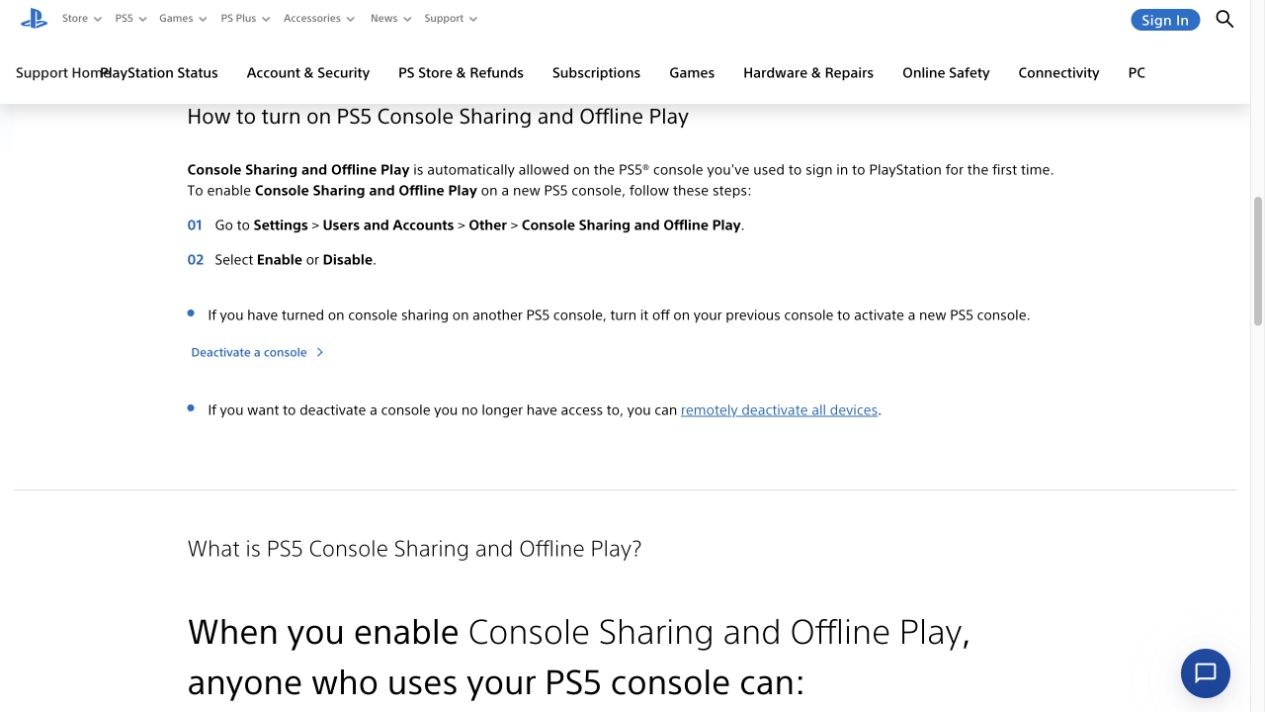
For another user’s purchase on the same PS5, the owning account needs Console Sharing and Offline Play enabled on that console. The menu is Settings > Users and Accounts > Other > Console Sharing and Offline Play.
Review Sony’s console-sharing instructions with the owner before changing the setting. One account can enable it on only one PS5 at a time. Moving it from another console changes where that account’s purchases can be shared.
Check service status before repeating the process
Look at PlayStation’s service status. If a relevant outage is reported, wait for service to recover and try again. Also check that the console’s system software is current.
If the correct account still has access rights but the game remains locked after restoration, follow the official troubleshooting guide or contact PlayStation with the purchase history and error message. Repeating restoration cannot fix an expired subscription, an unreadable disc or ownership held by a different account.
The conversation starts here
Sign in with a supporter account to comment. Sign in


Nobody has commented yet. Want to go first?