
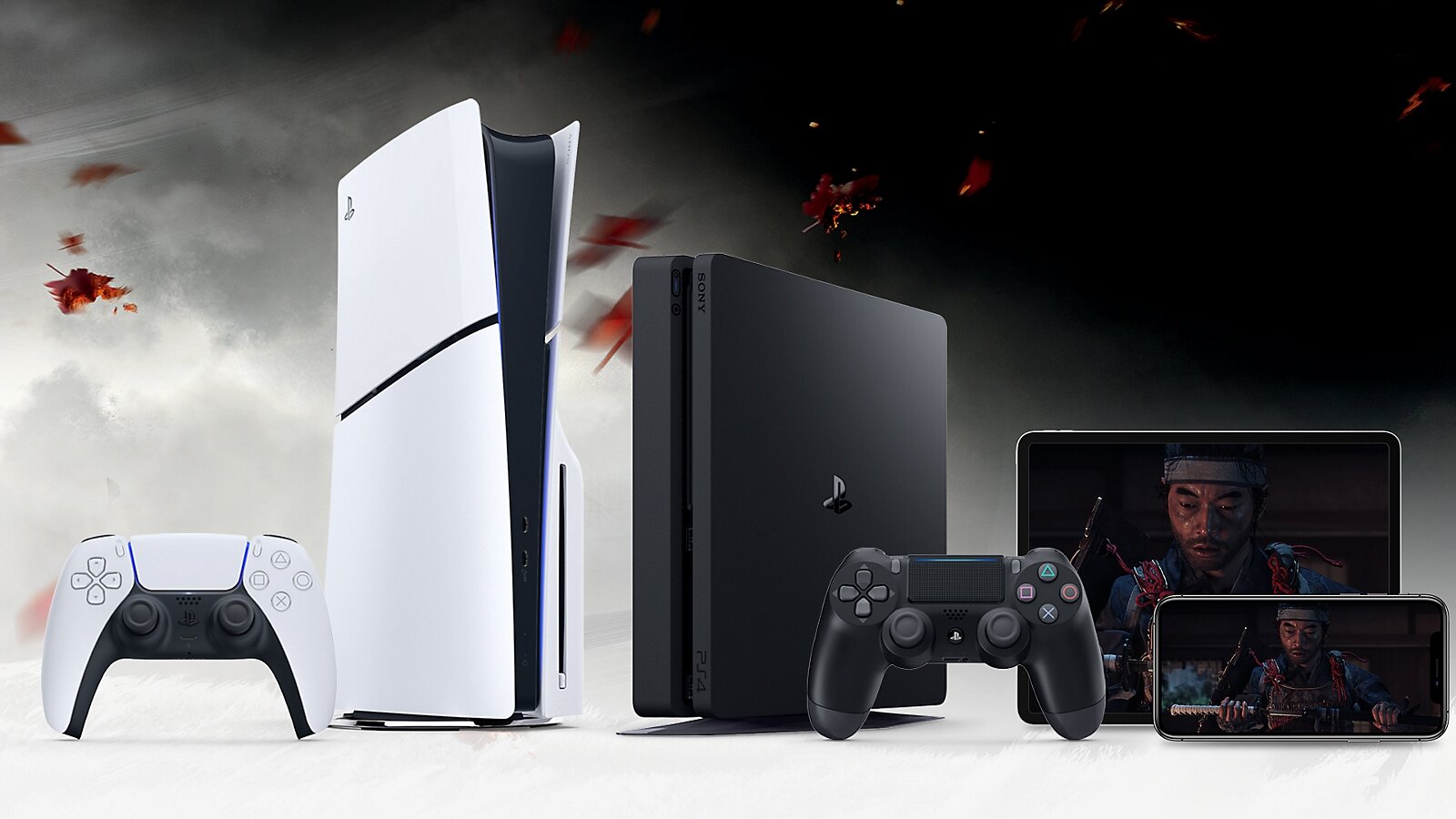
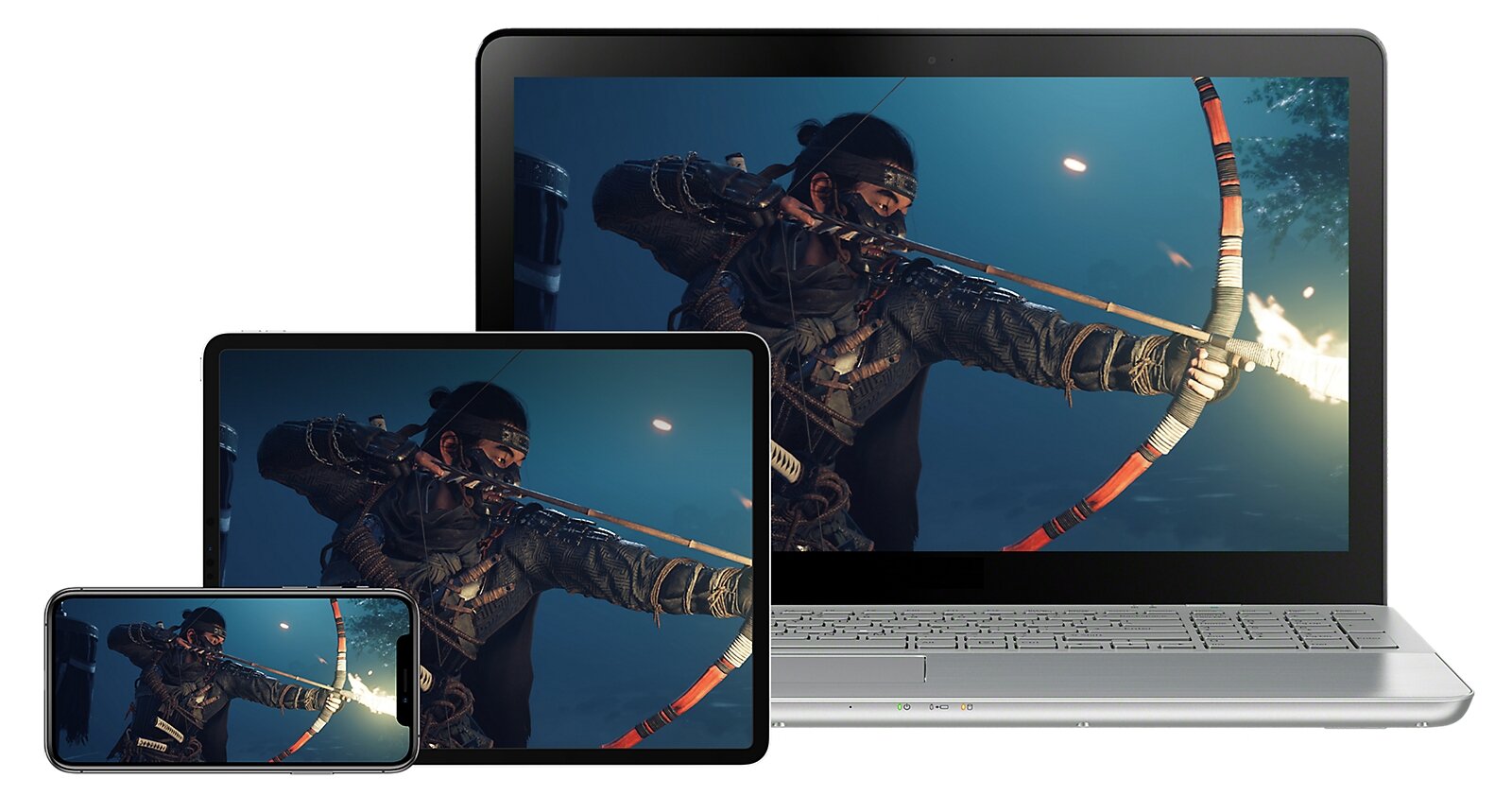
PS Remote Play lets you play your PS5 on an Android phone, an iPhone, an iPad, a Windows PC or a Mac. Nothing gets installed on that device. The console keeps running the game at home and streams the picture and sound over the internet, while your button presses travel back to it.
You need Sony's free PS Remote Play app, the same PlayStation account you use on the console and Remote Play switched on in the PS5 settings. Two more power settings let the app wake the console from rest mode. On its official PS Remote Play page, Sony sets 5 Mbps as the baseline and recommends 15 Mbps, in both directions, for the best experience.
What you need first
A supported device. Android phones and tablets need Android 9 or later for on-screen controls and Android 12 or later for a DualSense controller. iPhone and iPad need iOS or iPadOS 14, or 14.5 and later to pair a DualSense over Bluetooth. On a computer, Sony lists Windows 10 (64-bit) or Windows 11 with a 7th-generation Intel Core processor or newer and 2 GB of RAM, or a Mac running macOS Big Sur through Tahoe.
The same account on both ends. The app only finds consoles linked to the account you sign in with. If several people share the PS5, use your own profile.
A connection that holds up both ways. The 15 Mbps recommendation covers upload and download because traffic flows in both directions. When you play away from home, the video leaves through your home router, so your home internet upload speed matters as much as your phone signal. Sony also warns that Remote Play uses much more data than most video services.
A controller, unless you play on the touchscreen. For computers, Sony's PC and Mac setup guide says to plug the controller in with a USB cable.
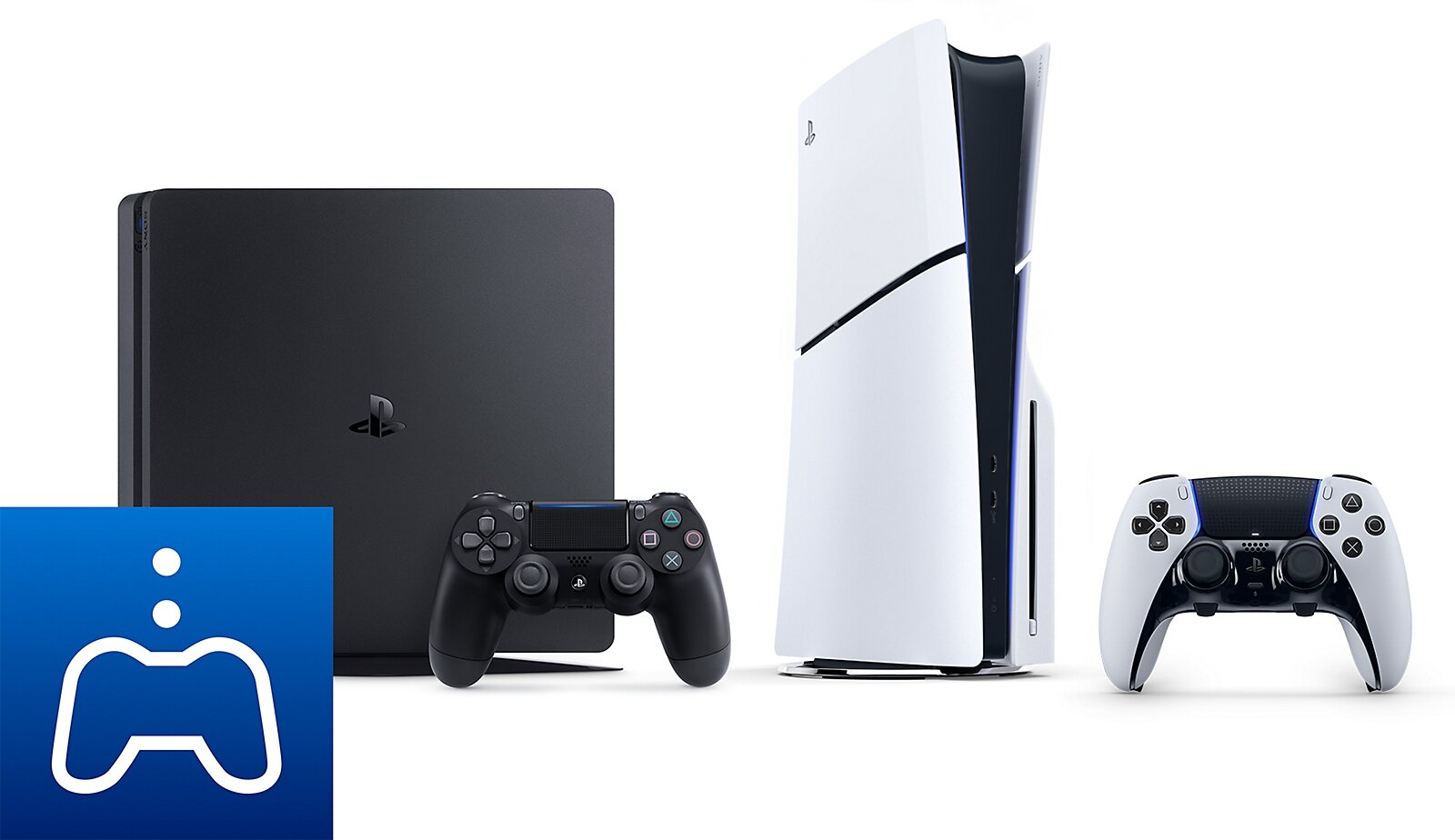
Set up the PS5, including rest mode
You only do this once, at the console.
1. Go to Settings > System > Remote Play and turn on Enable Remote Play. The setting is per user, so repeat it for every profile that will play remotely.
2. Go to Settings > System > Power Saving > Features Available in Rest Mode.
3. Turn on Stay Connected to the Internet and Enable Turning on PS5 from Network.
4. Put the console in rest mode instead of shutting it down. With those two settings on, the PS5 keeps listening to the network and the app can wake it. A fully powered-off console has to be switched on by hand.
Your first connection
Run the first test at home, with your device and the PS5 on the same network. If something breaks, you will know your outside connection is not the cause.
1. Turn the PS5 on or leave it in rest mode.
2. Install PS Remote Play from Google Play, the App Store or PlayStation's website for Windows and Mac.
3. On a computer, plug in the controller over USB. On a phone or tablet, pair it over Bluetooth first or use the on-screen buttons.
4. Open the app, select Sign In and use the console's account.
5. Choose PS5. If you own more than one console, pick yours. Next time the app remembers the last one and connects straight away.
If the console does not show up, register it manually. On the PS5, go to Settings > System > Remote Play > Pair Device. The console displays a number for you to type into the app. Manual pairing only works when both devices share the same network.
To end a session, open the app's settings and choose to disconnect. You can tick the box that sends the PS5 into rest mode so it is ready for next time.
Controllers and touch controls
Remote Play supports the DualSense, DualSense Edge and DualShock 4. Phones and tablets pair them over Bluetooth, and Windows uses a USB cable. Our guide to connecting a DualSense to a PC over USB or Bluetooth covers which cable to use and how to check that Windows sees the controller.
Some features do not make the trip. Sony says haptic feedback and adaptive triggers only work when the game supports them, and some DualSense features may be missing on Android, PC, Mac, iPhone or iPad.
Without a controller, the app overlays buttons as soon as you touch the screen. The three-dot options button in the bottom-right corner opens a panel with the PS button, the Create button and the microphone toggle. That works for menus and slow games. For anything fast, a real controller makes a big difference.
If you would rather keep your phone free, PlayStation Portal is Sony's dedicated Remote Play handheld, with a built-in controller and screen. It also needs the PS5 online, either on or in rest mode, and Wi-Fi of at least 5 Mbps.
Playing away from home or on cellular data
Away from home the steps are the same. Open the app, pick the PS5 and it wakes up if you left it in rest mode with the settings above. Sony advises testing the connection near the console before you leave, because the app may stop finding a PS5 you have not signed in to for a while.
Cellular data has to be enabled in the app's settings first. Sony's mobile setup guide warns that some carriers and network conditions can block it, and that the stream uses a lot of data. If your plan has a cap, lower the video quality in the app.
On iPhone and iPad, Remote Play can keep running in the background for up to 5 minutes once you enable background streaming. After that, the session closes.
What does not work remotely
Reaching your console does not mean reaching your whole library. Sony excludes games that require PlayStation VR or PlayStation VR2, games that need peripherals other than a controller, and games streamed through PlayStation Plus Premium. A racing wheel or a VR title stays in the living room.
When it will not connect or keeps stuttering
Change one thing at a time and test again. Change three at once and you will not know which one fixed it.
The app cannot find the PS5. Check that you signed in with the same account, that Enable Remote Play is on for your profile and that the console is on or in rest mode rather than fully off. If it still does not appear, use Pair Device on the same network.
It works at home but not outside. That pattern points to your router, which has to let the incoming connection reach the console. Check the NAT type the PS5 reports. Our explainer on open, moderate and strict NAT walks through the safe order of fixes without blindly opening ports.
The picture turns blocky, drops out or your inputs lag. Every wireless hop adds interference and delay. Wiring the PS5 to the router removes one of them. On the receiving device, move closer to the router or join its 5 GHz band if it has one, which is usually less crowded than 2.4 GHz. Our breakdown of Wi-Fi 5, 6, 6E and 7 for gaming explains why distance and walls matter more than the number on the box. If your connection cannot give more, lowering the resolution in the app cuts how much data has to travel.
How to check it works
Start with the console's own network test under Settings > Network > Connection Status > Test Internet Connection. Upload and download should both clear Sony's recommended 15 Mbps. Upload is the one that suffers most when you play away from home.
Next, put the PS5 in rest mode and connect from the app at home. If the console wakes itself and its home screen appears, the power settings work. On the PS5, Settings > System > Remote Play > Connection History lists the devices that have connected, a quick way to confirm your phone or computer is linked.
The final test is the real one. Connect over cellular data or from another network, open a game and play for a few minutes. If it works at home and fails outside, the problem lies with your router or your home upload speed, not with the app.
The conversation starts here
Sign in with a supporter account to comment. Sign in


Nobody has commented yet. Want to go first?