
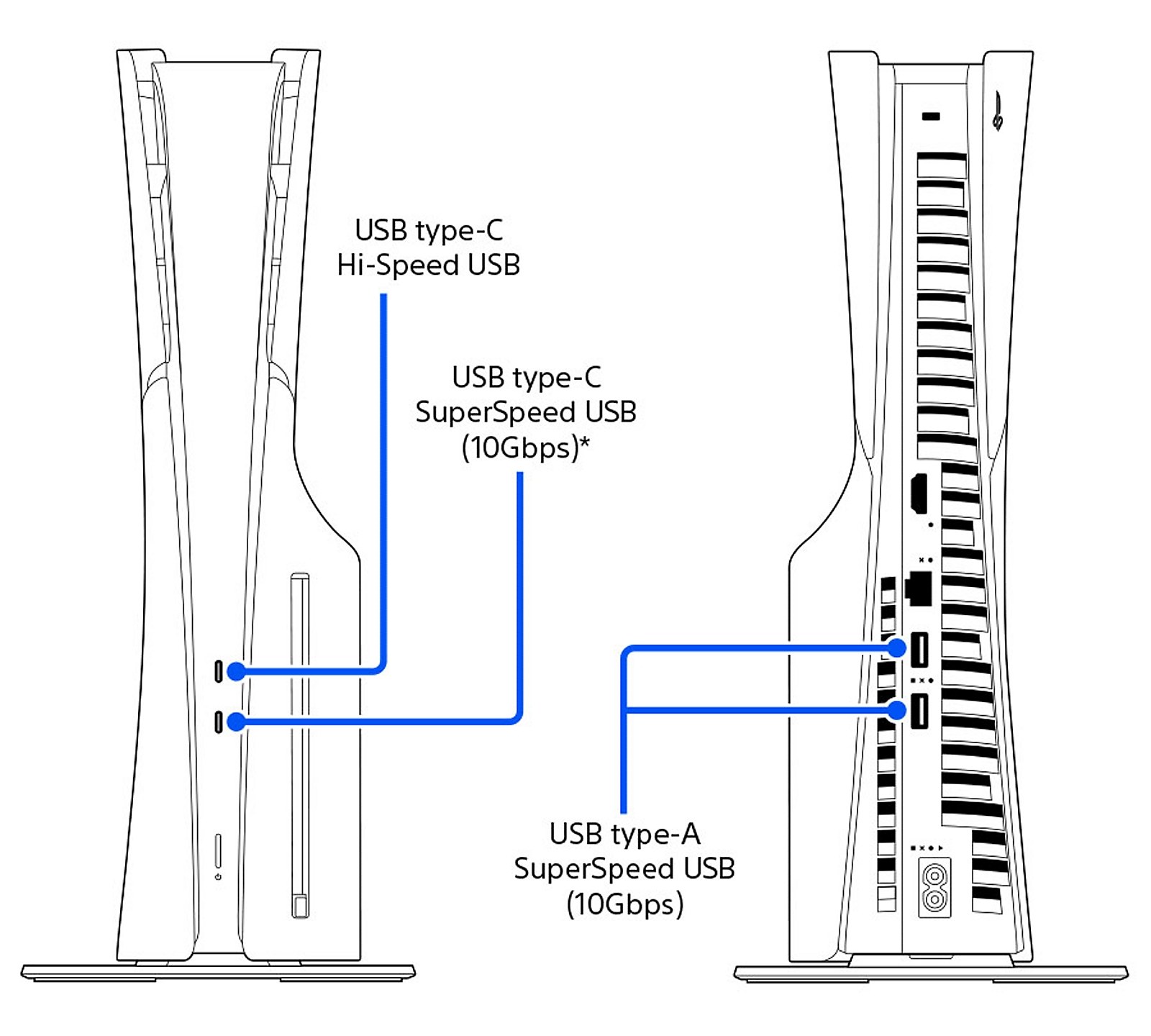
A PS5 system glitch and a deleted game still appearing on the home screen do not necessarily need the same fix. Clearing the system software cache addresses temporary system data. Rebuilding the database scans storage and creates a new database of its contents.
Sony’s Safe Mode menu groups both under Clear Cache and Rebuild Database, currently option 6. Open that entry to choose one of the two tools. You do not need to run both as a routine, and neither should be confused with the separate Reset PS5 entries.
Boot into Safe Mode with a wired controller
1. Shut down the console. Hold the power button for three seconds. Wait until the blinking power indicator goes out.
2. Hold power again. With the PS5 off, keep the button pressed until the second beep, about seven seconds after the first. Then release it.
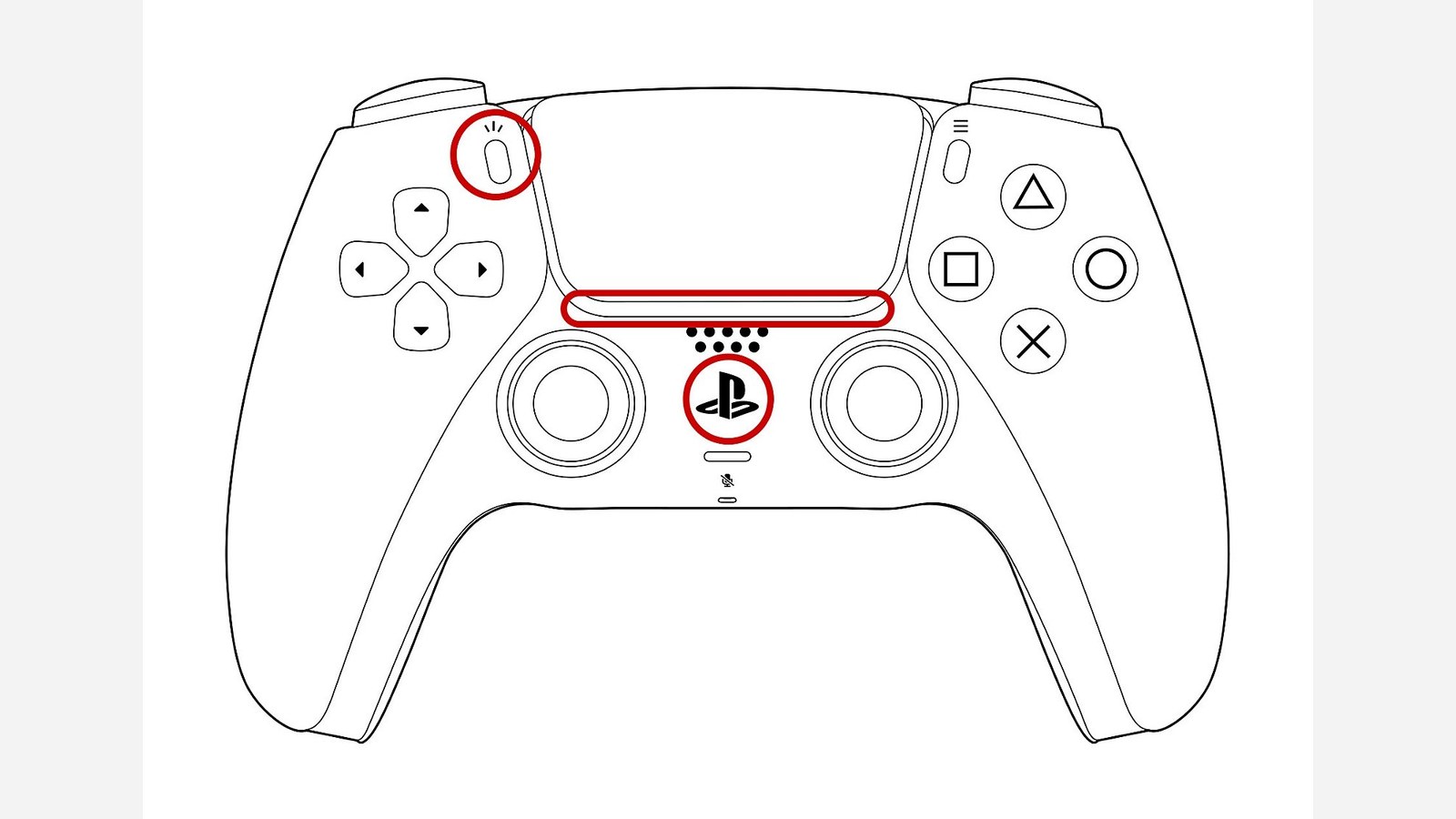
3. Connect the controller by USB. Press its PS button to navigate Safe Mode. Use the wired connection Sony specifies for this procedure.
Choose Clear Cache and Rebuild Database to reach the two tools. If you need to leave the menu without using either, Restart PS5 boots the console normally.
Match the tool to the symptom
Clear System Software Cache is Sony’s suggested option for system-feature failures and performance problems. Select it and follow the console’s confirmation. It cannot upgrade the hardware or guarantee higher frame rates in every game.
Rebuild Database rescans the drive and registers its contents in a new database. Sony specifically lists a deleted game’s icon remaining on Home as a reason to try it. For that symptom, rebuilding addresses the content listing more directly than repeatedly clearing temporary data.
A locked purchased game instead calls for checking the account and restoring PS5 licenses. Rebuilding the database does not grant ownership. A missing save after changing console or game version is another separate issue covered by our PS4-to-PS5 save transfer guide.
Keep the reset entries out of this procedure
Reset PS5 and Reset PS5 (Reinstall System Software) delete user data. They are separate Safe Mode options, not required steps for clearing the cache or rebuilding the database.
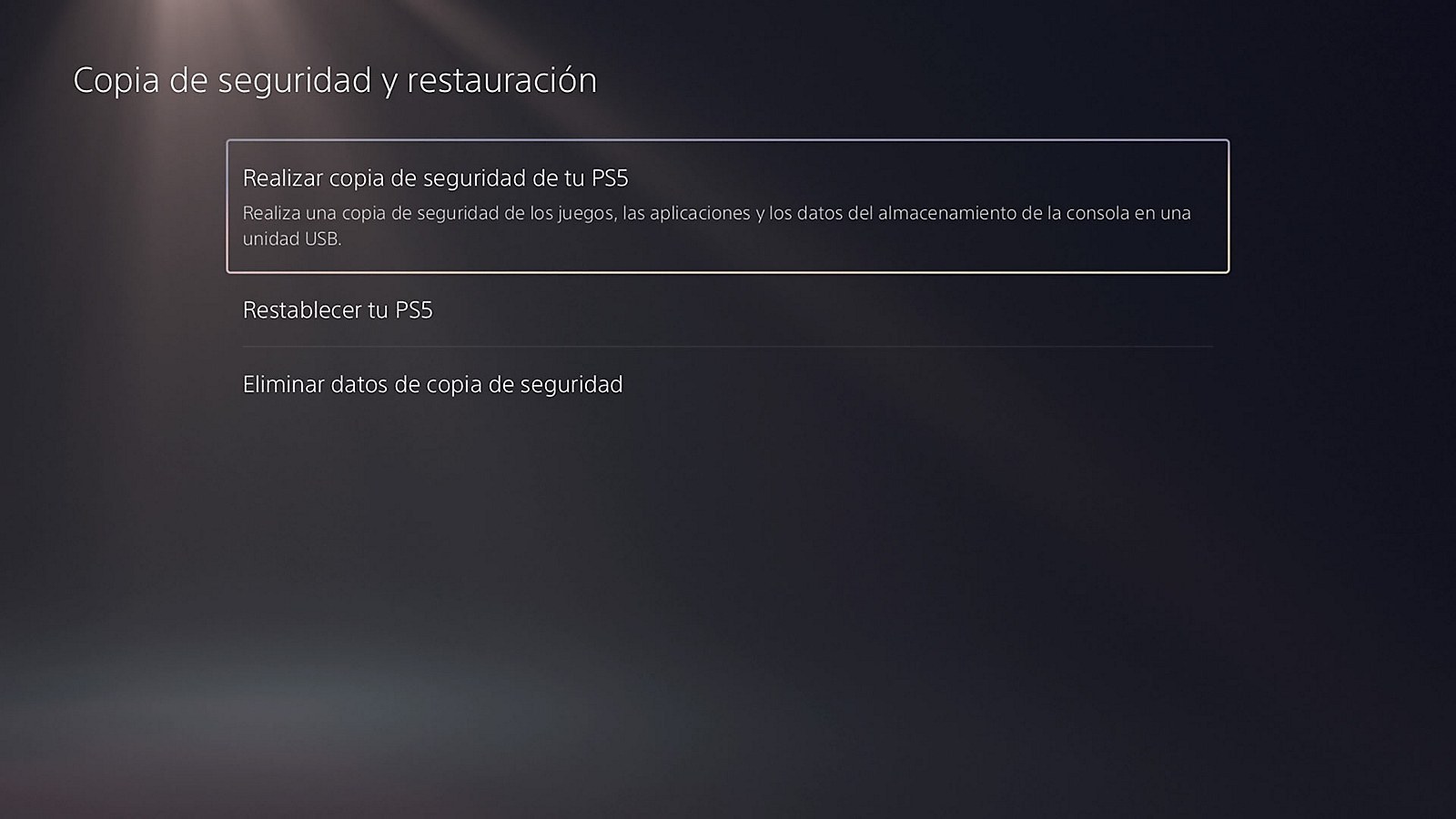
Sony advises keeping a backup before choosing Safe Mode options that can cause data loss. If normal settings are accessible, follow its USB backup instructions: Settings > System > System Software > Back Up and Restore > Back Up Your PS5. The official screenshot below shows that menu in Spanish.
If Safe Mode will not open, use Sony’s cable and power troubleshooting. Persistent failures need a diagnosis based on the error code or symptom. Database rebuilding has no universal completion time and is not a cure for every console fault.
The conversation starts here
Sign in with a supporter account to comment. Sign in



Nobody has commented yet. Want to go first?