

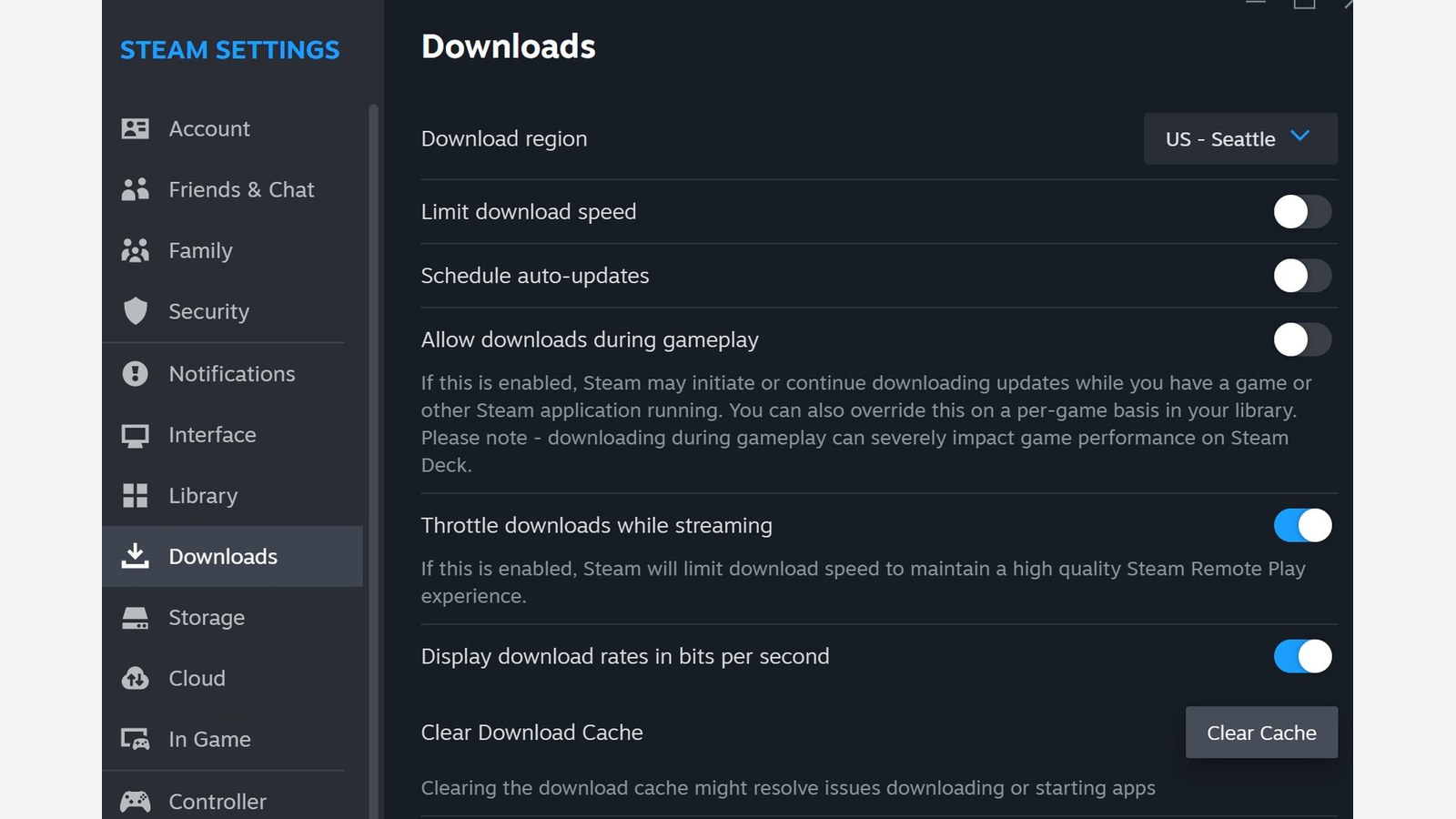
You do not need to uninstall your games to clear Steam’s download cache. Open Steam > Settings > Downloads and use the cache-clearing option. Valve says installed games are unaffected, but you will have to sign in again afterward.
This is worth trying when a download refuses to begin or an installation keeps failing. Steam discards locally cached configuration and retrieves it again from its servers. Treat it as a troubleshooting step, rather than a way to increase your internet speed or improve in-game frame rates.
Check whether the update is actually stuck
Look at both the network and disk graphs on the Downloads page. An update can finish receiving data while Steam continues installing it. No network traffic does not automatically mean nothing is happening.
Start by restarting Steam and your computer, as Valve’s installation guide recommends. If that does not resolve the error, make sure you can access your password and Steam Guard authentication before clearing the cache. Losing the session is an expected part of the process.
Find Clear Cache in the desktop client
1. Open the Steam menu. Select Settings from the menu at the top left of the desktop client.
2. Select Downloads. Find Clear Cache or Clear Download Cache. This is a client setting, so you do not need to manually delete files from a Steam library folder.
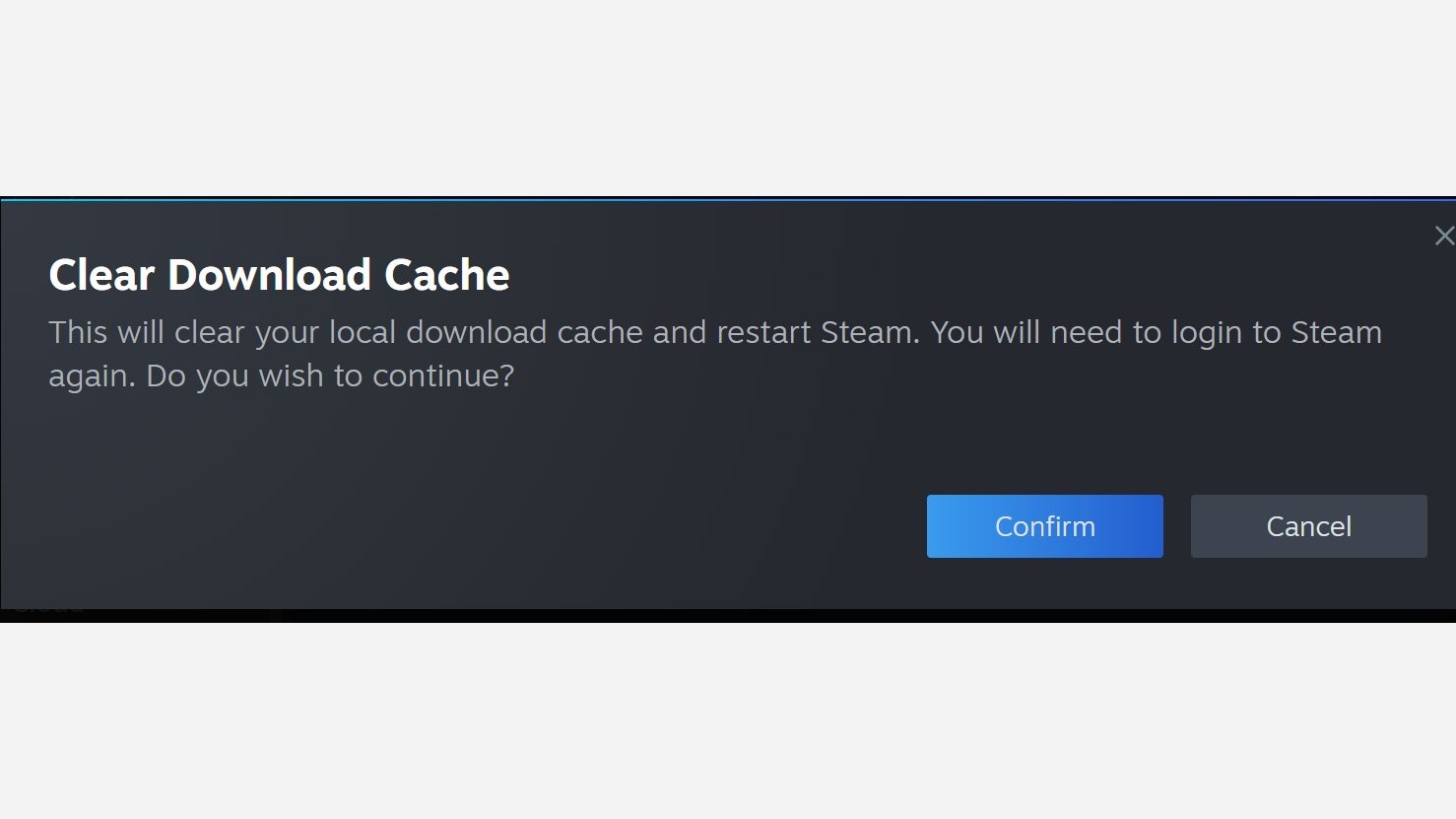
3. Confirm the prompt. The dialog warns that clearing the cache requires another sign-in. Accept it once you have your account access ready.
Retry once, then follow the specific error
Sign back in, return to Downloads and retry the affected installation. Let it run long enough to see whether the same error returns. If the update now completes, there is no reason to perform further repairs.
Verify the game files if one installed game is damaged or will not launch. File verification checks that game’s installation and replaces missing or corrupted content. Clearing the download cache resets the client’s download configuration. One does not replace the other.
A save-sync warning needs a different decision. Our Steam Cloud conflict guide explains which save to keep and what to back up before choosing. Clearing the download cache does not resolve a conflict between saved games.
When multiple installations still fail, Valve’s troubleshooting guide includes library-folder repair and a temporary change of download region. Try one change at a time and retain the exact error message. If repeated cache clearing gives the same result, move on to the problem identified by that message.
The conversation starts here
Sign in with a supporter account to comment. Sign in


Nobody has commented yet. Want to go first?