
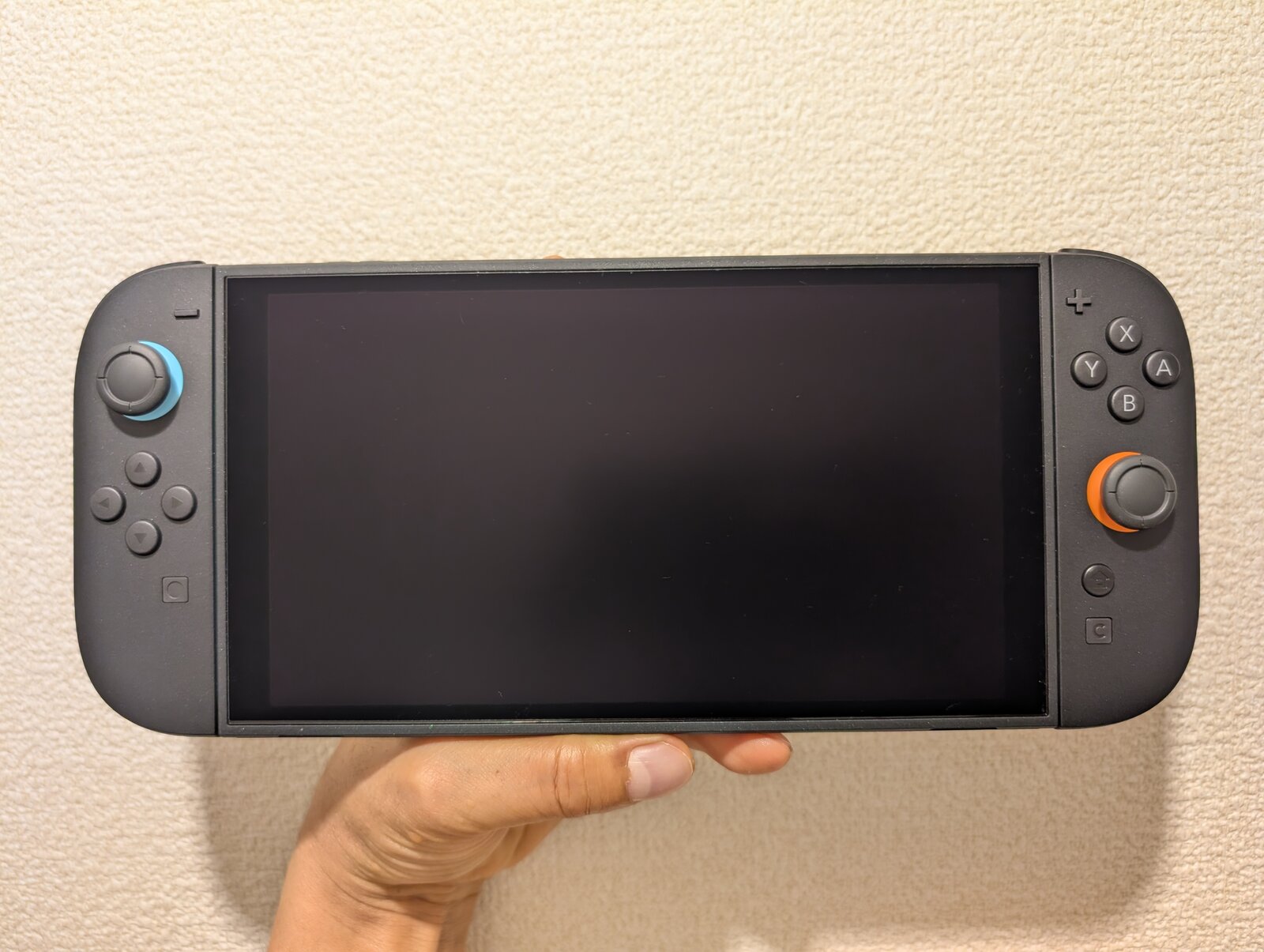
Deleting or archiving a game on Nintendo Switch 2 does not delete your progress. Save data lives in the console's internal memory rather than with the game, and Nintendo's Switch 2 data management FAQ says it stays put when you delete downloaded software. Redownload the game later and you pick up where you left off.
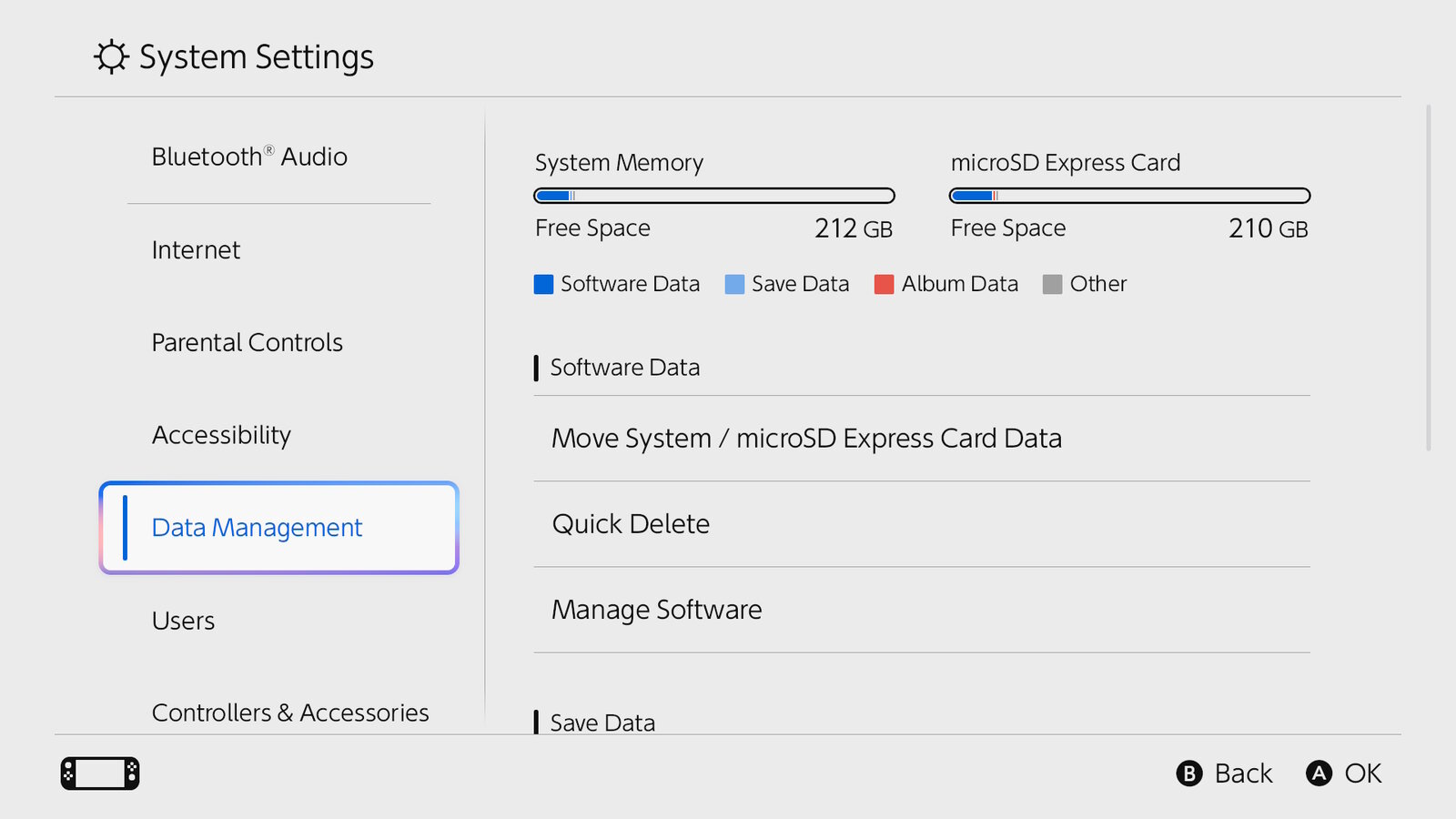
Three things can wipe a save: the Delete Save Data option, deleting a user profile and a factory reset. Everything else in this guide happens under System Settings > Data Management, which is also where the console reports how much room you have left.
How much storage Switch 2 really has
Switch 2 ships with 256GB of internal storage, but part of it is reserved for the system and Nintendo does not say how much. The number that matters is the one on your own console. Nintendo's support page says that opening System Settings and scrolling down to Data Management shows the free space in system memory at the top of the screen, along with the free space on a microSD Express card if one is inserted.
Downloaded games, updates and DLC can live in system memory or on a microSD Express card, and so can screenshots and videos. Save data is the exception. It can only be stored in system memory, whether you play a digital copy or a physical card, and external USB drives are not supported.
Buying physical does not mean using no storage. A standard game card holds the game, but its updates and DLC still install on the console. A game-key card holds only a key that unlocks a full download, and the box lists the free space you need. Our Switch 2 game-key card guide covers how that works.
Archive vs. delete: what each one keeps
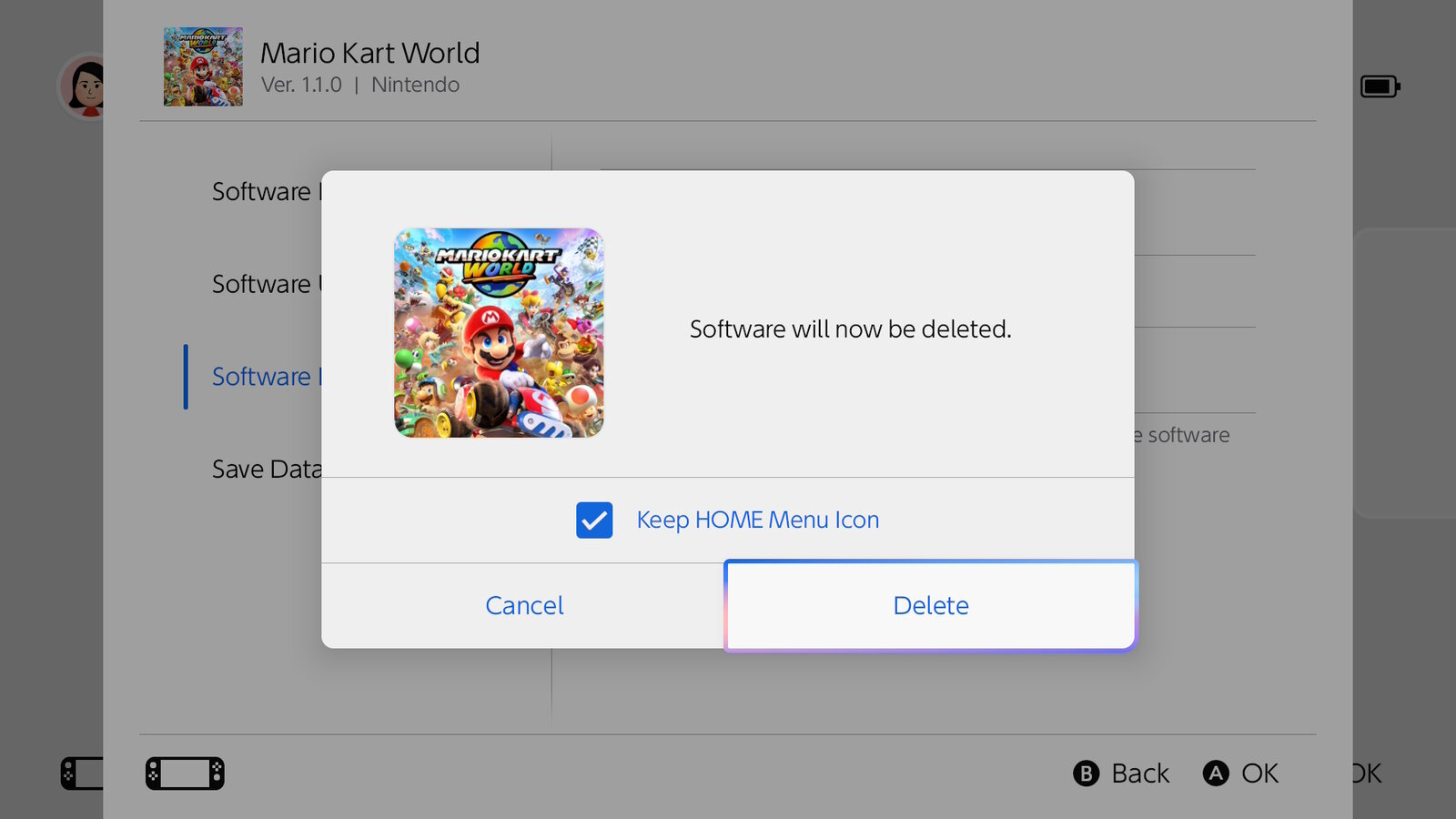
On Switch 2, archiving is a delete that keeps the icon. Nintendo's Switch 2 manual shows a Keep HOME Menu Icon checkbox on the confirmation screen that appears when you choose Delete Software. Tick it and the game is archived. Leave it empty and the icon disappears as well.
- Save data: kept either way. - HOME Menu icon: kept when you archive, removed when you delete. - Updates and DLC: removed either way, since Nintendo does not let you delete them separately from the game. - Your license: stays on your Nintendo Account, so you can redownload with the account that bought the game.
To bring an archived game back, select its icon and download it again. If the icon is gone, the game is still listed under Virtual Game Cards on the HOME Menu. Nintendo's support page shared by Switch and Switch 2 still refers to Archive Software and Quick Archive. If your menus show those names, they do the same job and keep both the icon and the save.
How to delete or archive a game
For a single game, start from its icon:
1. On the HOME Menu, highlight the game and press the + or − Button. 2. Choose Manage Software, then Delete Software. 3. Tick Keep HOME Menu Icon if you want to archive it, then select Delete.
To clear several games at once, go to System Settings > Data Management > Quick Delete, pick the titles and select Delete, as described in Nintendo's Switch 2 deletion guide. Nintendo does not say whether Quick Delete offers the icon checkbox, so read the confirmation screen before you accept.
Nintendo suggests starting with games you have finished and do not plan to replay soon. Deleting something you play every week just means sitting through the same download again.
Move games to a microSD Express card instead
If you would rather not redownload anything, move the games. With a microSD Express card inserted, open System Settings > Data Management > Move System / microSD Express Card Data, choose a destination and select the software. According to Nintendo's Switch 2 manual, save data and some update data cannot be moved, and data from later updates may end up in the other location.
Switch 2 only installs games on microSD Express cards, up to 2TB. Regular microSD cards will not work for that. Nintendo recommends sticking to one card because software spread across several cards cannot be merged later. If you are shopping for one, our microSD Express buying guide for Switch 2 covers compatibility and capacity.
Clear screenshots and videos without losing them
Album captures take up space too. Before deleting them, Nintendo suggests uploading them to the Nintendo Switch App or copying them to a computer over USB. Uploads only stay on Nintendo's server for 30 days, with a cap of 100 files per Nintendo Account, so save them to your phone from the app before they expire.
Once they are backed up, you can delete them in three ways:
- For a single capture, open Album, select the item, press A and choose Delete. - For several, use Quick Actions > Delete in Album and pick the files. - For everything in one location, go to System Settings > Data Management > Manage Screenshots and Videos and choose system memory or the microSD Express card.
If you use a microSD Express card, the same Manage Screenshots and Videos screen lets you choose where new captures are saved, so they stop filling up system memory.
When a download does not fit
If a download needs more room than you have, Switch 2 shows a warning with an option to clear space. Nintendo's manual says the console then suggests software you are not playing, and the download starts on its own once there is enough room. Save data is not deleted in that process either.
A separate prompt may flag old data for a game, meaning outdated update files. You can remove them before the latest version downloads without touching your save.
Mistakes that actually delete saves
- Picking the wrong delete option. Delete Save Data sits in the same Data Management menu as Quick Delete, but it erases progress and leaves the game installed. - Shared saves. In games such as Animal Crossing: New Horizons, save data is shared by every user on the console and can only be deleted for everyone. - Deleting a user. Nintendo warns that all of that user's save data goes with it and cannot be restored. - Factory resetting to make room. It wipes system memory, saves included, and leaves software stored on the microSD Express card unusable. - Treating the microSD card as a backup. Save data cannot be copied to it.
The only off-console copy is Nintendo Switch Online's Save Data Cloud, which needs a paid membership and a game that supports it. If your game does not, the save exists only on that Switch 2.
How to check that it worked
Go back to System Settings > Data Management and compare the free space with what you had before. Then redownload an archived game, open it with your usual user profile and load your save.
Nintendo ties progress to the user profile rather than the format. If you switch from a game card to the digital version of the same game, your save shows up as long as you pick the same profile.
The conversation starts here
Sign in with a supporter account to comment. Sign in
Nobody has commented yet. Want to go first?