
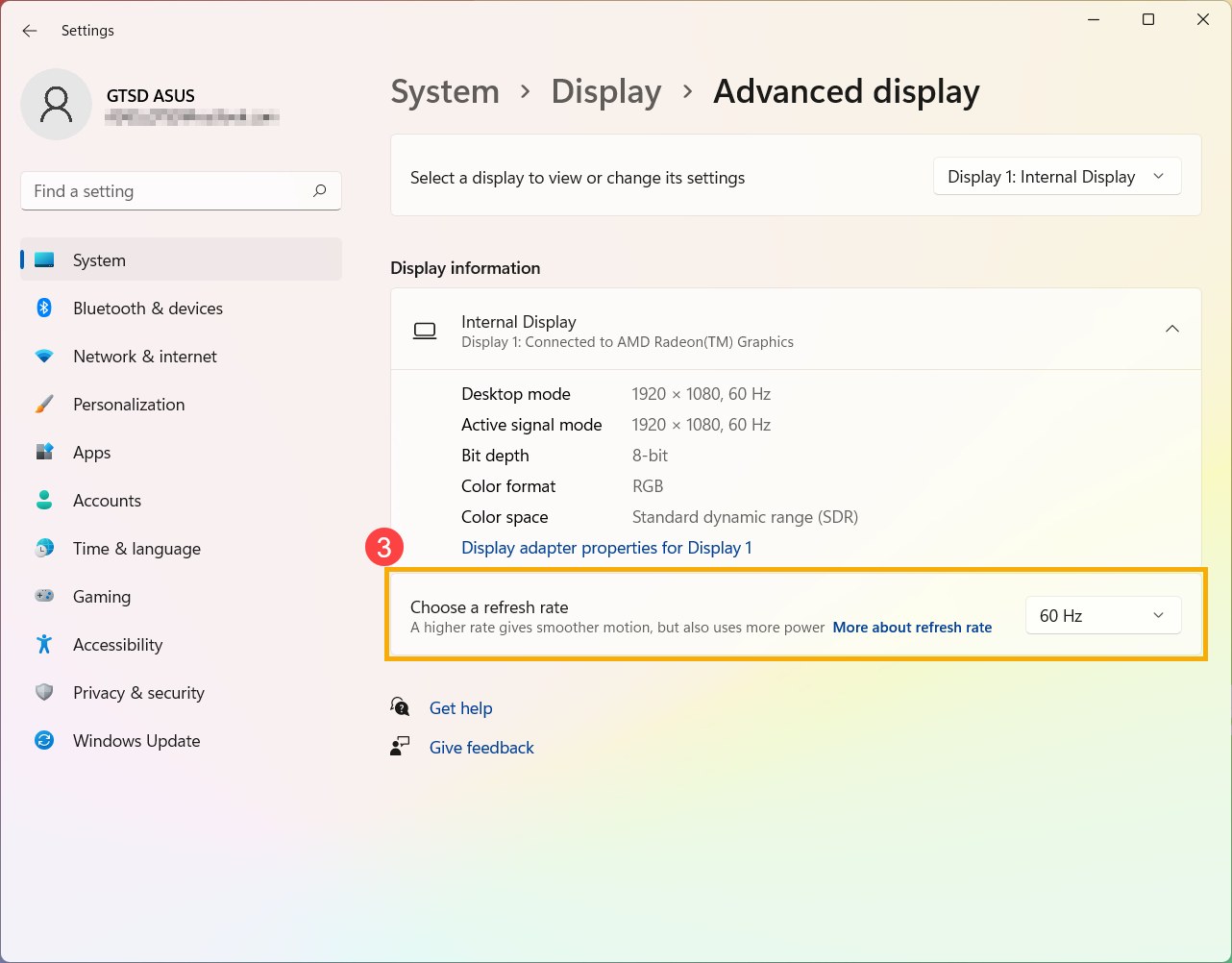
Start with the number Windows reports, rather than the refresh rate printed on the monitor’s box. A 144, 165 or 240 Hz display can still be set to 60 Hz. In Windows 11, open Settings > System > Display > Advanced display, select that monitor and look for Choose a refresh rate.
Pick a supported rate for your current resolution and connection. This changes how often the screen can refresh, not how many frames the game renders. Our FPS versus Hz explainer covers why a screen running at 165 Hz does not make a 70 FPS game render faster.
Choose the correct screen before changing the rate
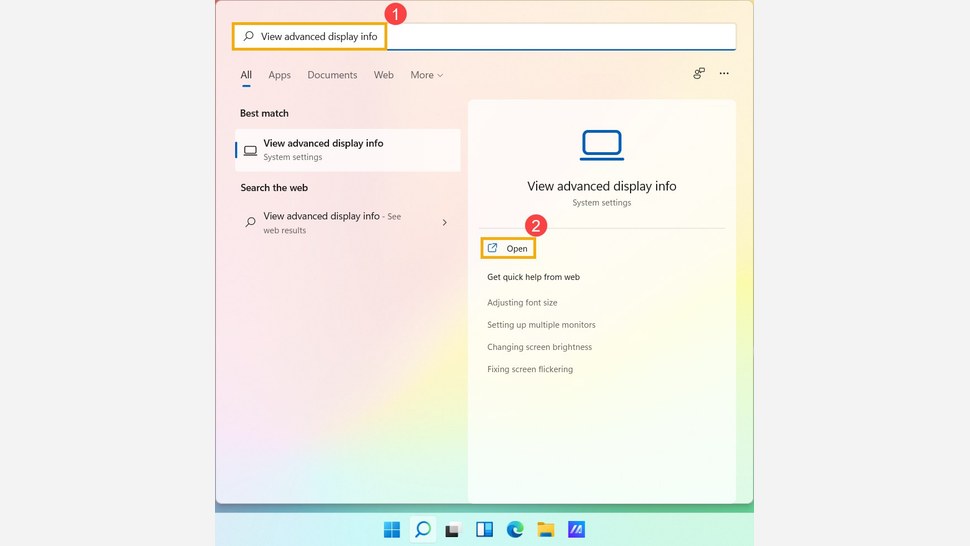
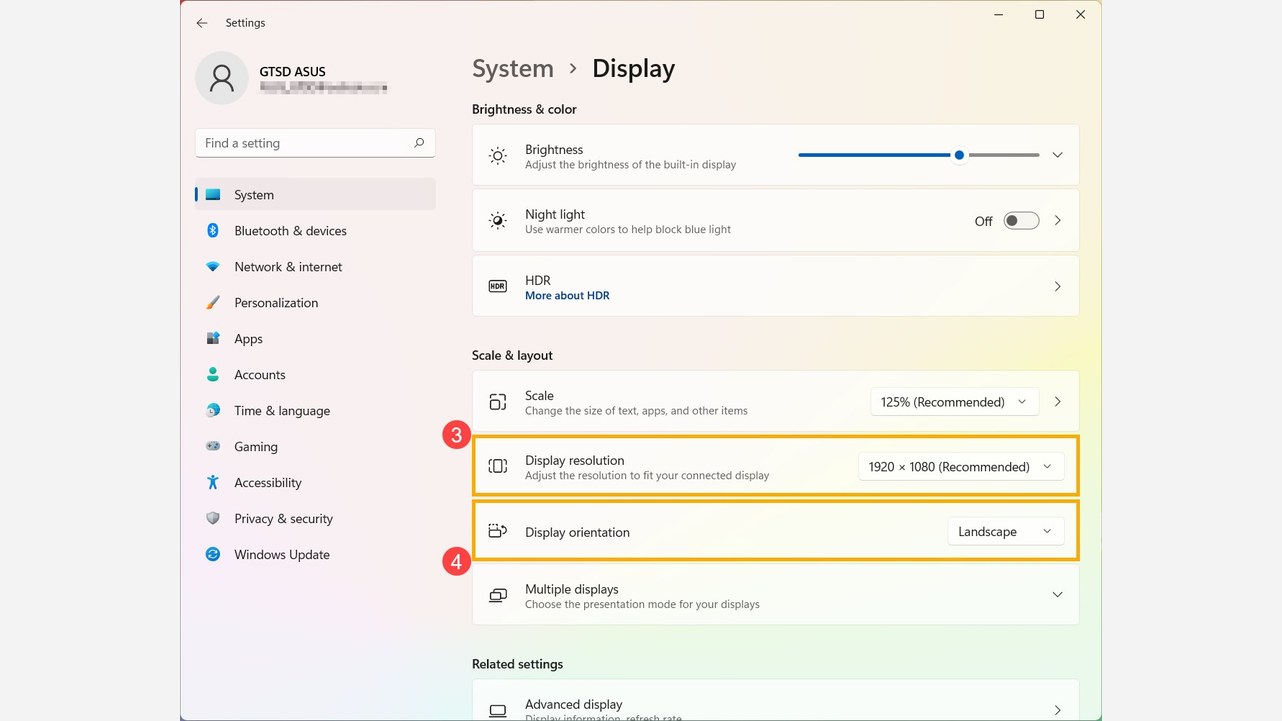
1. Open Advanced display. Reach it through Settings > System > Display, or search for advanced display from Start. ASUS documents both the Windows setting and the search shortcut.
2. Check the display selection. On a multi-monitor PC, make sure the chosen name belongs to your gaming monitor. Note the resolution shown for that screen.
3. Change Choose a refresh rate. Select 144, 165, 240 Hz or the supported value you want. Check the selected rate again after applying it.
An asterisk beside a rate matters. Microsoft says it indicates that the current resolution cannot support that rate, so choosing it changes the resolution. If your target is 144 Hz at 1440p, confirm Windows still reports 2560 × 1440 afterward.
When the list stops at 60 Hz
Check the monitor manual for the combination of resolution, refresh rate and input you are using. A maximum rate available through one input is not a promise for every other connection. The graphics output, cable and any adapter or dock must also support that combination.
For connection problems, Microsoft recommends checking the cable, testing another port and temporarily removing docks or adapters. Make one change, then inspect Advanced display again. If a direct connection exposes the higher rate, you have narrowed down where the limitation appears.
Using USB-C? Check whether both the port and cable support video. The connector shape alone does not establish its display capabilities. Verify the connection before replacing an otherwise capable monitor.
Check DRR separately from gaming VRR
Windows Dynamic Refresh Rate adjusts refresh behavior according to the task. Microsoft lists a VRR-capable display with a refresh rate of at least 120 Hz as a requirement. Supported systems expose a Dynamic refresh rate toggle in Advanced display.
Microsoft also warns that DRR can limit the maximum refresh rate in some games. If a game runs at a lower rate after you enable it, try switching DRR off. An absent toggle does not mean you missed a mandatory setup step.
Gaming VRR, including G-Sync and FreeSync, matches display refresh to arriving game frames to reduce tearing. It is related to the rate you select, but the Windows DRR toggle does not replace the monitor’s and game’s other synchronization settings.
The conversation starts here
Sign in with a supporter account to comment. Sign in
Nobody has commented yet. Want to go first?