
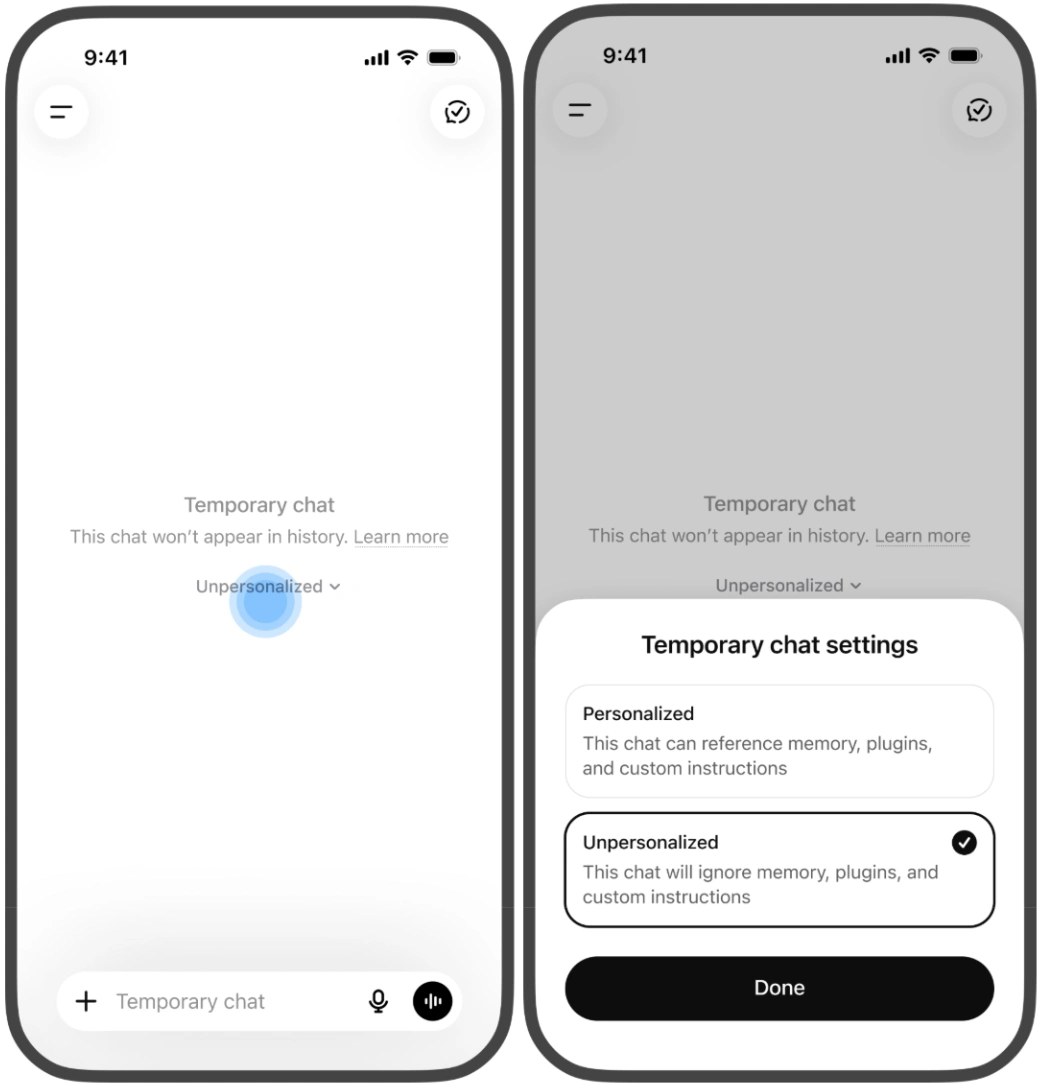
Choose Temporary Chat when you want a conversation to stay out of ChatGPT’s history unless you deliberately save it. Start a new chat, select Temporary, and choose whether it should be personalized before sending the first message.
According to OpenAI’s current instructions, you can later save that conversation as a regular chat. While it remains temporary, it does not create memories or contribute to model improvement. Saving it brings your normal account settings back into play.
Decide what context it should use
The Personalized option can use existing memories, custom instructions and plugins. Unpersonalized excludes those sources. Choose before the conversation begins, because the personalization choice cannot be changed afterward.
OpenAI’s Memory documentation confirms that neither choice creates or updates memories while the conversation remains temporary. Account and workspace restrictions still apply. A personalized temporary conversation can use information you already provided without adding a new memory.
For a fresh comparison that should not draw on saved preferences, use Unpersonalized. For a one-off task that should follow your usual instructions, Personalized can save you from repeating them. Both can stay outside chat history until you choose to save.
Saving changes the conversation’s status
Saving turns a temporary conversation into a regular chat that you can reopen from history. From then on, it follows your personalization and model-improvement settings. With Memory enabled, that saved conversation may help personalize future responses.
An unsaved temporary chat cannot be reopened from history once you leave it. If your interface does not offer a save option, copy any answer you need before closing the conversation.
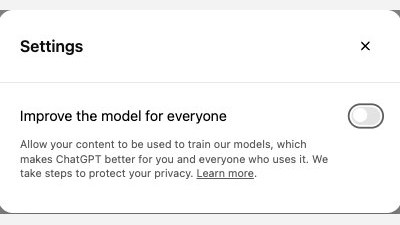
Keeping history and allowing training are separate choices. In Settings > Data controls, switch off Improve the model for everyone if you want new conversations excluded from model training. OpenAI says they can still appear in history, and the setting follows your signed-in account across devices. Submitting response feedback is an exception: the associated conversation may be used for training.
Understand the remaining retention limits
A safety copy may be retained for up to 30 days. Temporary Chat is therefore not a guarantee that no copy exists. Archiving a regular chat also differs from deleting it.
A GPT action can send information to another service, whose own privacy policy governs that data and may allow longer retention. Check our guide to reviewing and revoking AI permissions before giving an assistant access to outside accounts.
Computer History and context from outside the chat are another part of ChatGPT’s personalization system. Starting a temporary conversation does not erase every existing source of personal context from your account.
The conversation starts here
Sign in with a supporter account to comment. Sign in

Nobody has commented yet. Want to go first?