

Start with the job the agent actually needs to do
If an assistant only needs to find a free slot in your calendar, pause before approving access that also lets it change or delete events. Define the task, then read the authorization screen. Connectors let an AI agent work across apps, but their reach is limited by the permissions you grant and the options the service provides.
Google warns that a linked app may be able to read, edit, delete or share account information, depending on the scope. Choose read-only access where the job allows it. If the permission screen offers only broader access than you are comfortable with, leave the account disconnected rather than assuming the tool will never use those capabilities.
Check where the answer will go
Input access and output visibility are different. Claude Tag can use personal documents inside a Slack channel without granting teammates access to the original file. Its posted answer is still visible to the channel. Review mode gives the requester a chance to check that answer before it appears.
The same principle applies to email drafts, meeting summaries and reports destined for other people. External material can contain instructions aimed at redirecting the assistant, a technique explained in our prompt-injection guide. Checking the final message does not replace sensible access limits, but it can catch a sensitive disclosure before publication.
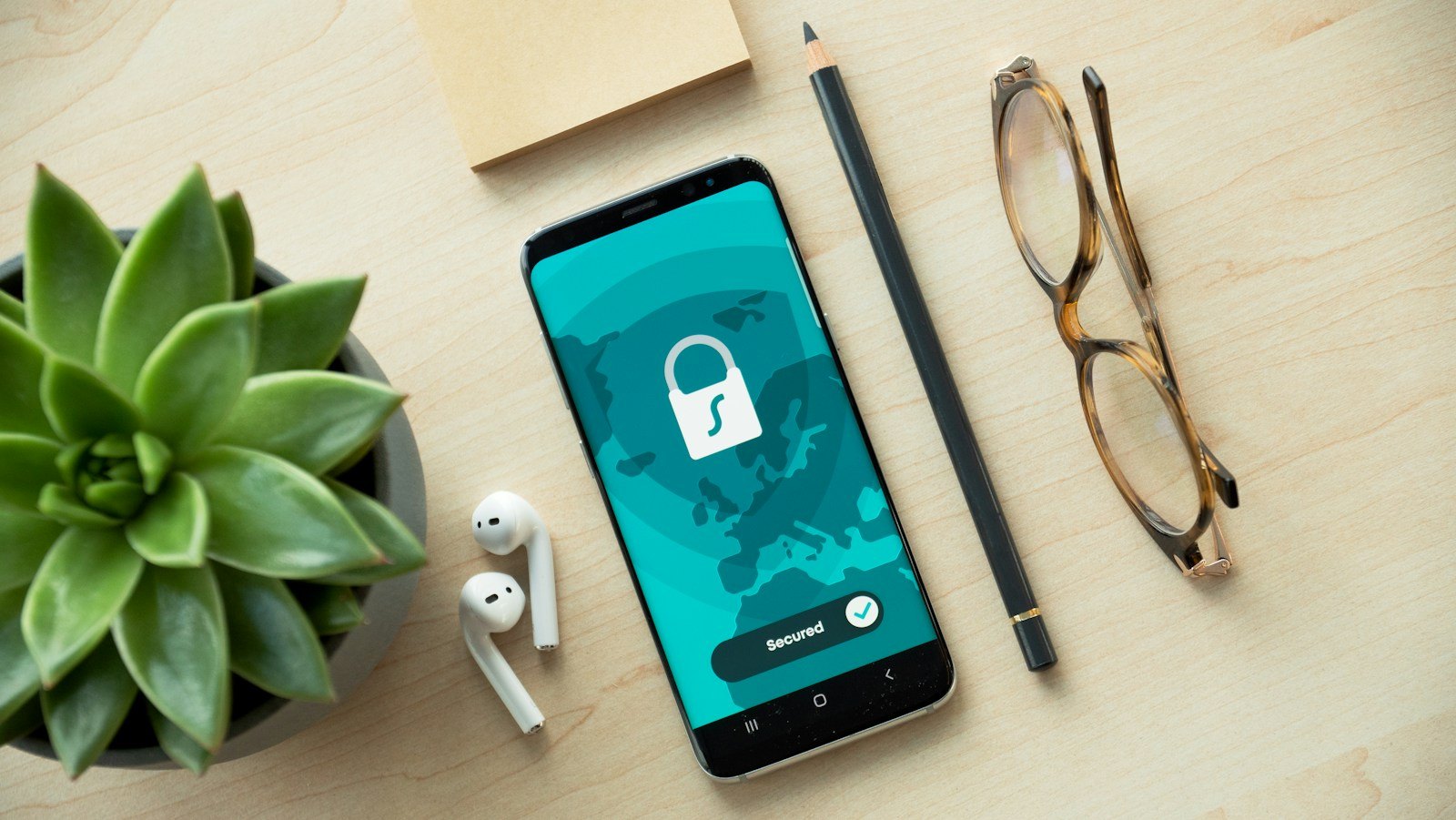
Find the permissions you already granted
In Claude, open Settings or Customize and find Connectors. Anthropic’s help page says you can inspect connected services, access levels and connection settings there, then disconnect an unwanted service. In a Team or Enterprise workspace, distinguish a personal connection from one controlled by an administrator.
For Google, visit Third-party connections. Choose “Access to your Google Account,” select the app and open “See details” to inspect its Google product access. “Sign in with Google” is a separate kind of link. Logging in to a site with Google does not, by itself, mean it can read your Drive.
Revoke access and verify the result
Disconnect a service you no longer use in the AI app, then inspect the account that supplied the data. On Google’s connections page, the documented route is Access to your Google Account → app → See details → Remove access. Google says that removing it stops the linked app from accessing the account.
Reopen the list to confirm the authorization has disappeared, and verify the agent’s connector shows as disconnected too. Revoking future access does not necessarily delete summaries, messages or copies already shared elsewhere. If sensitive information has already left the account, inspect the other service’s history and deletion controls separately.

The conversation starts here
Sign in with a supporter account to comment. Sign in

Nobody has commented yet. Want to go first?